Accounts
See every account Prosperia tracks, add new ones, and keep balances right.
On this page
Accounts lists every account Prosperia tracks, with your net worth at the top. To get there, tap the person button at the top right of Today, then tap Accounts.
What you see
Before you add anything, Accounts says Nothing tracked yet. Tap Add your money to start.
Once you have accounts, the headline reads Everything is current. when every bank is up to date, or Almost everything is current. when one needs attention.
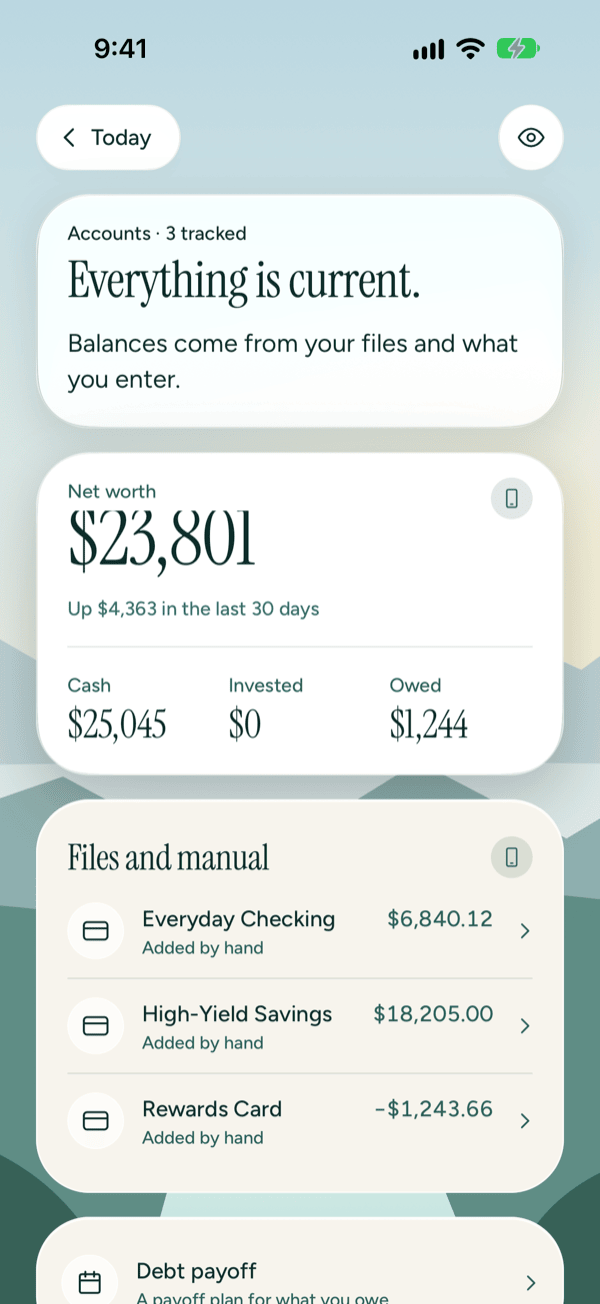
- Net worth is added up on this iPhone. Below it you see how much it moved from 30 days ago to today, for example Up $120 in the last 30 days, Down $45 in the last 30 days or No change in the last 30 days. This line appears only once your history reaches back a full 30 days; history starts at your first transaction. You also see the split into Cash, Invested and Owed. It appears once at least one account has a balance.
- Your accounts are grouped by where their numbers come from:
- Through Plaid: banks you've connected. Each row shows the bank's name and the account's last four digits, or a short reason like Sign in again when the bank needs you.
- Files and manual: accounts you added by hand or imported from a file.
- Loans: loans from your lenders, through Plaid.
- In the account list, amounts you owe, like a card balance, show as negative numbers.
- If you owe money on a card or loan, a Debt payoff row appears. It opens your payoff plan. See Debt payoff.
Tap any account to open it.
To hide amounts while someone is looking, tap the eye button at the top right to turn on Hide amounts. Tap it again to show them. See Privacy Center.
Add an account
- On Accounts, tap Add your money.
- Choose one of three ways:
- Connect a bank: needs a subscription. If you don't have one, Apple's subscription sheet opens first. Then you sign in through Plaid's own window, and the account updates on its own.
- Import a file: a CSV, OFX or QFX file from your bank's website.
- Add an account by hand: type the balance your bank shows, then log spending as it happens.
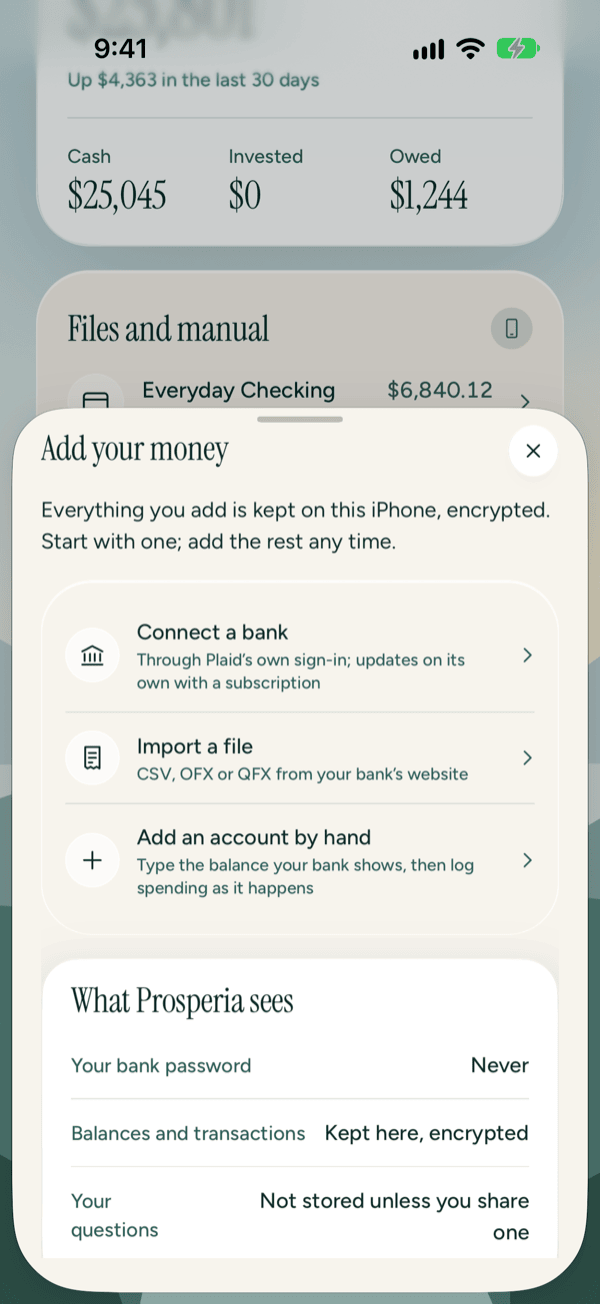
The sheet also shows What Prosperia sees:
- Your bank password: Never.
- Balances and transactions: Kept here, encrypted.
- Your questions: Not stored unless you share one.
You can also tap Import a file straight from the bottom of Accounts. For the full steps, see Importing files. For connecting a bank, see Connecting banks.
Add an account by hand
- Tap Add your money, then Add an account by hand.
- Type a Name, like "Everyday checking".
- Pick a Kind: Checking, Savings, Card or Cash.
- Under Balance your bank shows today, type the balance from your bank's app or website. For a card, enter what you owe.
- Check the As of date. It can be today or an earlier date.
- Tap Add account. The new account opens.
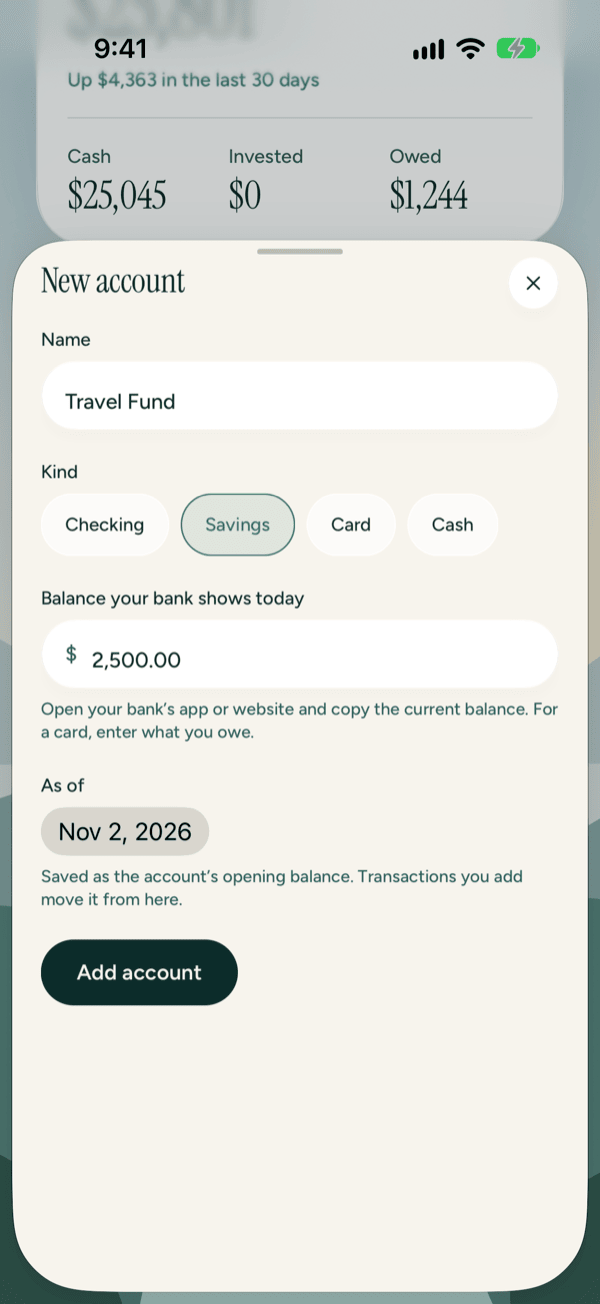
The balance you enter is saved as the account's Opening balance. Transactions you add move it from there.
If something's missing, you'll see one of these:
- Give the account a name.
- Enter a balance like 1,842.17.
- Pick today or an earlier date.
- Couldn't add the account. Try again. Tap Add account again.
Open an account
The account screen shows how the account is kept, its balance, and its transactions, newest first.
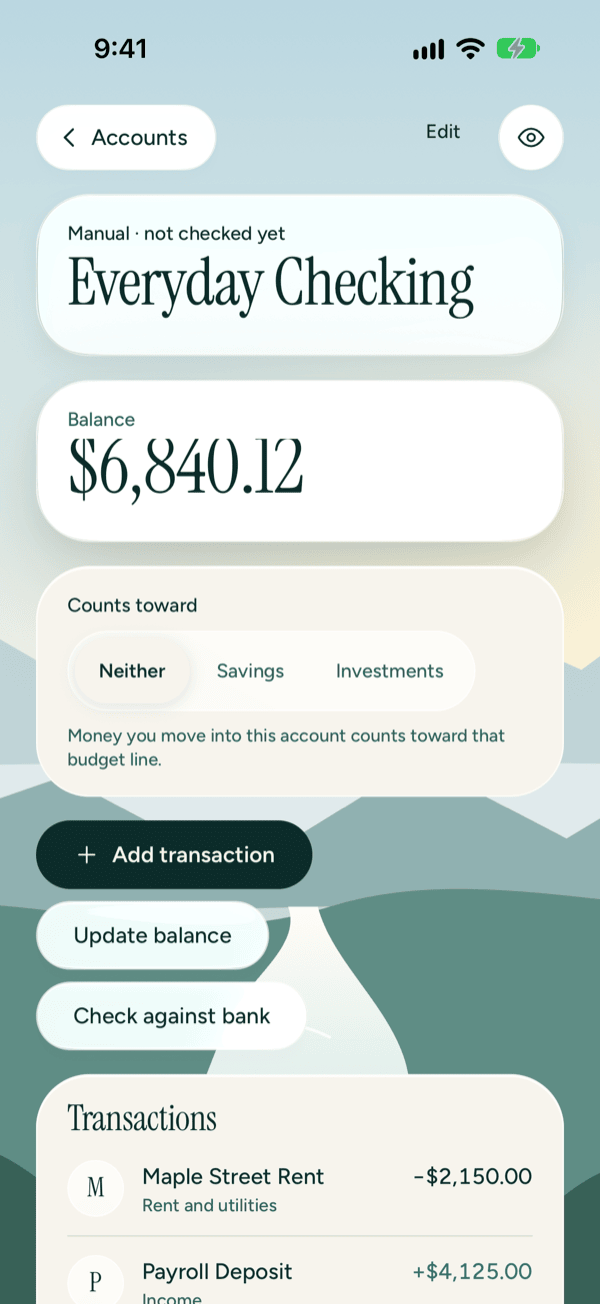
The line above the name tells you where the numbers come from:
- Manual · not checked yet, or Manual · last checked against your bank on a date.
- Imported from a file.
- Linked through Plaid, with when it last updated.
For a card or loan, the balance is labeled Owed.
In the transactions list, Opening balance and Balance adjustment rows look muted. They set the balance but aren't spending, so they stay out of your budget. Tap any other transaction to open it. See Activity and transactions.
If the account can't load, you'll see Couldn't load this account. If its transactions can't load, you'll see Couldn't load the transactions. Tap Try again next to the message.
Choose what an account counts toward
If you move money into an account to save or invest, tell Prosperia so that money counts in your budget.
- Open the account.
- Under Counts toward, tap Savings or Investments. Tap Neither to undo.
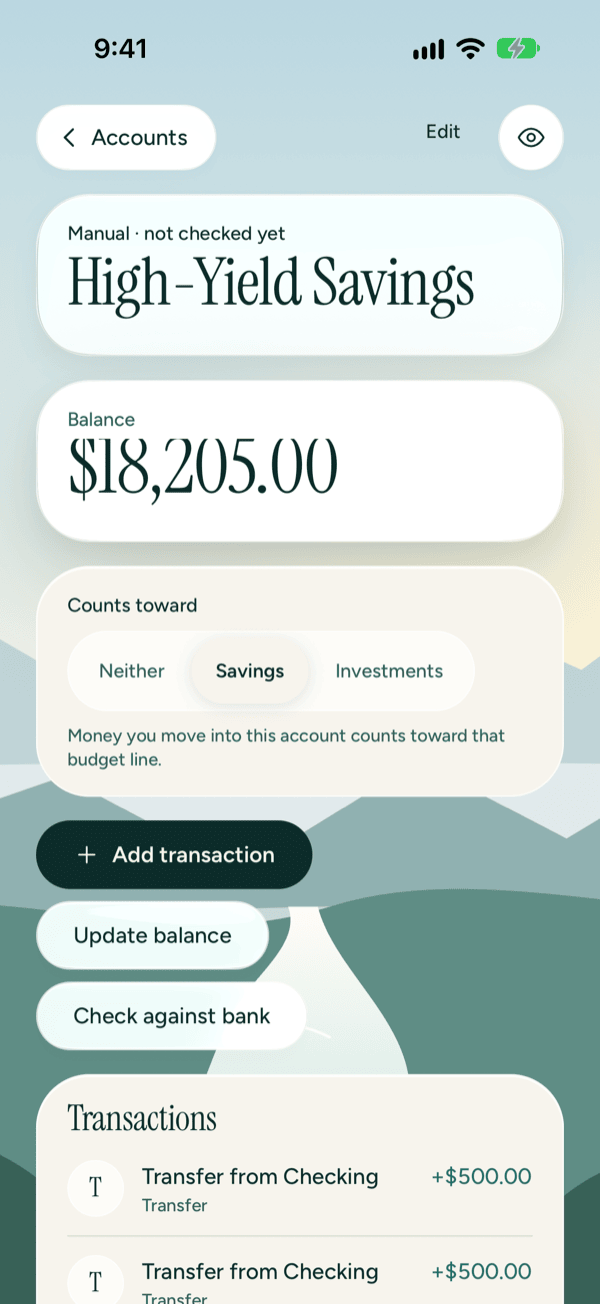
Money you move into this account then counts toward that line of your budget in Flow. See Flow and budgets.
This works for connected banks too. It isn't shown for cards and loans. If the change doesn't stick, you'll see Couldn't save the change. Try again.
Log a purchase
- Open an account you added by hand or from a file.
- Tap Add transaction and fill in the sheet.
See Activity and transactions for the details.
Update the balance
When your bank shows a different balance than Prosperia, you can make them match in one step.
- Open the account and tap Update balance.
- Under What your bank shows now, type your bank's balance. For a card, enter what you owe.
- Check Prosperia shows and the Adjustment between them.
- Tap Record. It shows the adjustment, like Record +$12.40.
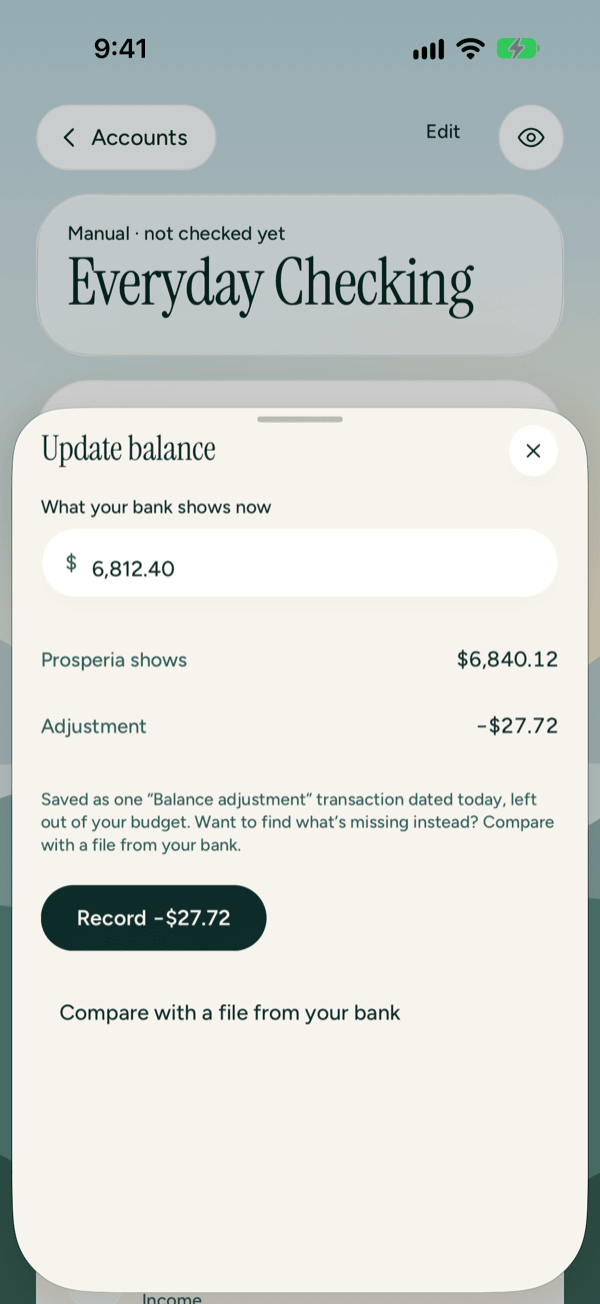
Prosperia saves one Balance adjustment transaction dated today for the difference. It's left out of your budget. If the account has no balance yet, you'll see New balance instead, and the figure becomes the opening balance.
Record stays dimmed until you type a figure Prosperia can read. If it matches what Prosperia already shows, tapping Record changes nothing. If you see Couldn't record the balance. Try again., tap Record again.
Would you rather find what's missing? Tap Compare with a file from your bank.
Check against your bank
To find transactions that are missing or extra, download a CSV, OFX or QFX file from your bank's website, open the account and tap Check against bank. Prosperia lists what matches and what doesn't, and nothing changes until you tap Finish. For the steps and what each group means, see Importing files.
Rename an account or change its kind
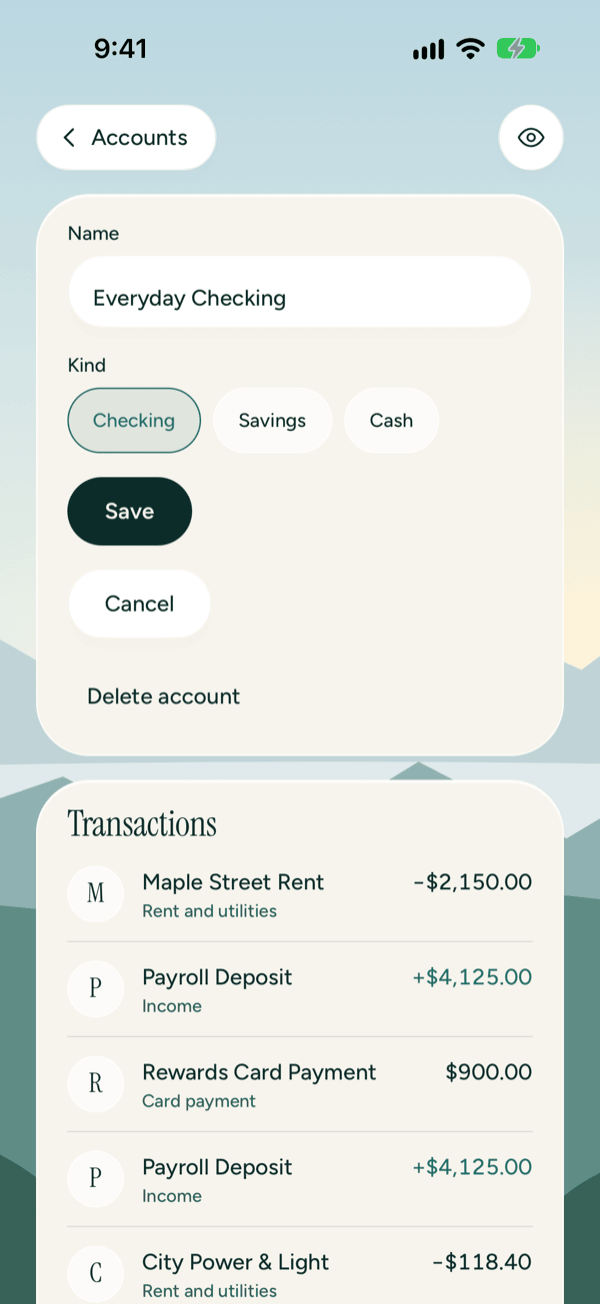
- Open an account you added by hand or from a file, and tap Edit.
- Change the Name.
- To change the kind, tap a new one. You can switch between Checking, Savings and Cash. A Card stays a card. If no kinds are shown, the account's kind can't be changed.
- Tap Save, or Cancel to leave it as it was.
Delete an account
- Open an account you added by hand or from a file, and tap Edit.
- Tap Delete account.
- Prosperia asks if you're sure. Tap Delete account again.
The account and its transactions are removed from Prosperia. This can't be undone.
Prosperia doesn't have a way to mark an account as closed. If you closed one at your bank, you can keep it for its history or delete it. Deleting removes its transactions too.
To stop a connected bank, open the Privacy Center, tap the bank, tap Disconnect [Bank], then tap Disconnect to confirm. Its accounts and transactions leave your lists, and Prosperia stops syncing it. They stay on this iPhone until you use Delete everything in the Privacy Center.
Connected banks
Connected bank accounts come straight from your bank, so you can't edit them here. There's no Edit, Add transaction, Update balance or Check against bank. You can still choose what they count toward, and you can change categories and notes on their transactions.
Plaid sends your bank data through Prosperia's server to this iPhone. The server passes it along and doesn't save it. You sign in on Plaid's own screen, so Prosperia never sees your bank password.
Get new transactions now
Tap Refresh now at the bottom of Accounts to ask each bank for anything new. After a refresh, the button waits up to 5 minutes before you can use it again. For the messages you may see, see Connecting banks.
When a bank needs you
If a bank can't update, a card appears at the top of Accounts naming the bank and the reason, for example Chase needs you. Follow what the card says: tap Reconnect [Bank] to sign in through Plaid again, or let Prosperia try again on its own. For every reason and what to do, see Connecting banks.
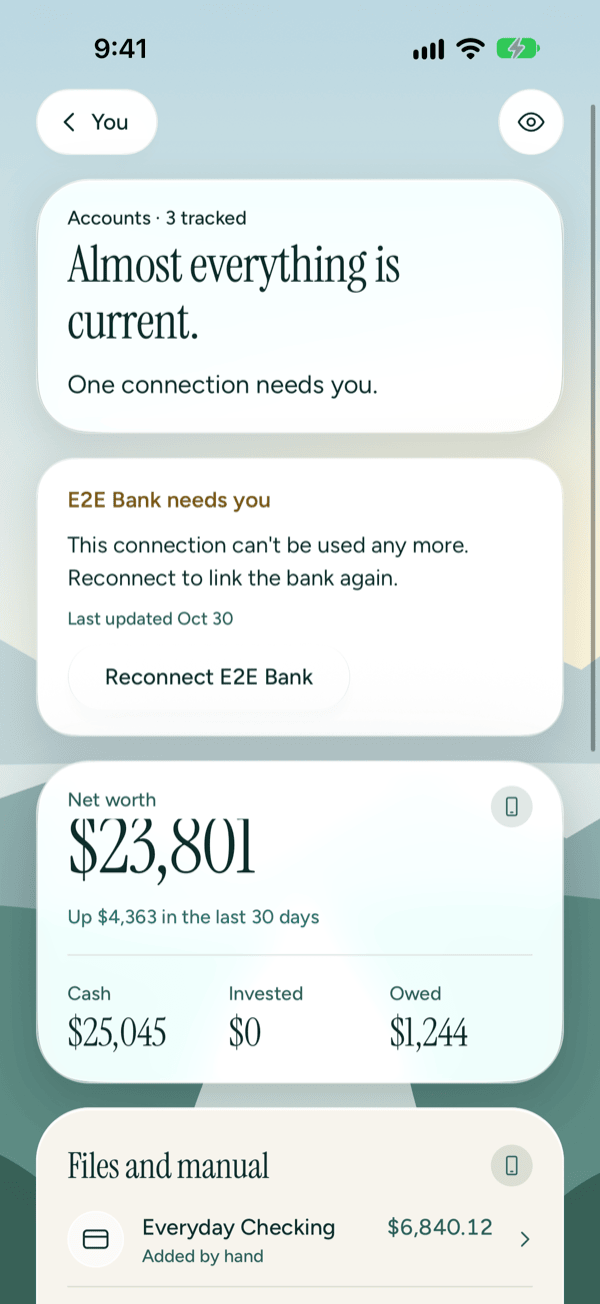
If the card says [Bank] stopped syncing, your subscription has ended. See Subscription.
Good to know
- Everything you add is kept on this iPhone, encrypted.
- Connected banks need a subscription. Accounts you add by hand, file imports and budgets stay free. See Subscription.
- Edit, Add transaction, Update balance and Check against bank are only for accounts you add by hand or from a file.
- Counts toward isn't shown for cards and loans.
- Refresh now appears only when you've connected a bank.
- Accounts doesn't use AI. It works the same on every iPhone, with or without Apple Intelligence.
- If the screen can't load, you'll see Prosperia couldn't load your accounts. Tap Try again. If an account was removed, you'll see This account is no longer on this iPhone. Tap Done.
- Still stuck? See Troubleshooting and contact.
Still stuck? See Troubleshooting and contact, or write to support@stewmore.dev.