You and settings
The You screen: your accounts, bills and reminders, the monthly check-in, debt payoff, categories and the Privacy Center in one place.
On this page
You is where everything that isn't a tab lives. From here you can reach your accounts, your bills and reminders, the monthly check-in, your debt payoff plan, your own categories and the Privacy Center.
To open it, go to Today and tap the person button at the top of the screen. VoiceOver reads it as You and settings. To go back, tap Today at the top left. At the top, under a greeting, you'll see Your financial data is stored on this iPhone, encrypted.
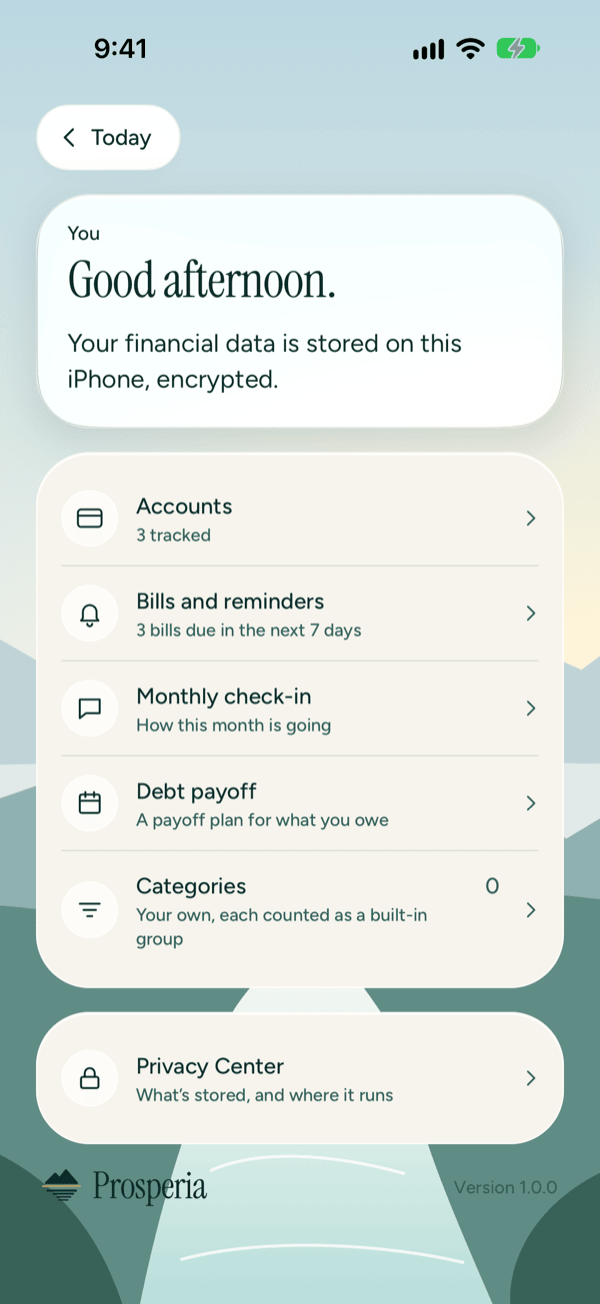
What each row does
Each row shows a short line about where things stand, so you can see what needs you before you tap.
| Row | What it tells you | Where it goes |
|---|---|---|
| Accounts | How many accounts you track, such as 3 tracked, or None yet. If a bank connection needs you to act (for example, the bank wants you to sign in again, or it stopped syncing because your subscription ended), the row adds it, such as 3 tracked · one needs you (or 2 need you). A bank that's only out of date shows a card on Accounts but isn't counted here. | Your list of accounts. See Accounts. |
| Bills and reminders | How many bills (and paydays) are expected in the next 7 days, such as 2 bills due in the next 7 days, or Nothing due in the next 7 days. | Your bills calendar and forecast. See Bills and forecast. |
| Monthly check-in | How this month is going | The monthly check-in. See Monthly check-in and budget assistant. |
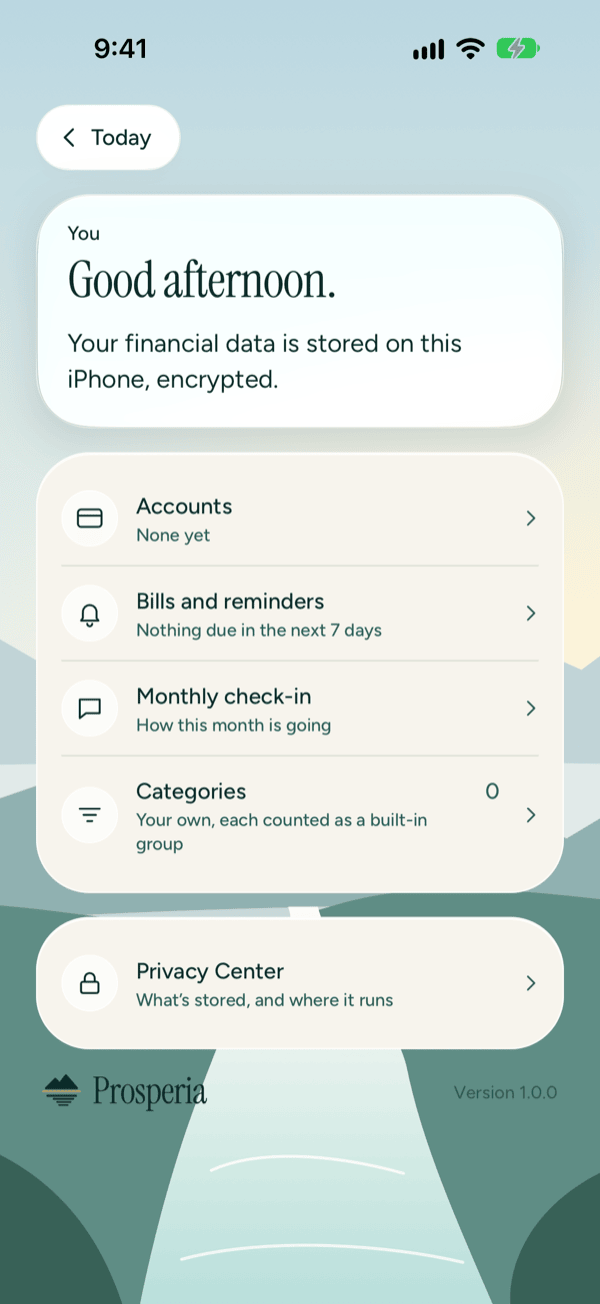
| Debt payoff | A payoff plan for what you owe | Your payoff plan. This row only appears when you owe money on a card or loan. See Debt payoff. |
| Categories | Your own, each counted as a built-in group. The number on the right is how many categories you've made yourself. Each one adds up under one of Prosperia's built-in groups, so your budgets still add up. | Your categories. See Spending and categories. |
| Privacy Center | What's stored, and where it runs | The Privacy Center. See Privacy Center. |
At the bottom you'll see the Prosperia logo and the version number, such as Version 1.0.0. It's handy to include if you write to us for help.
Fix a bank that needs you
When the Accounts row says one needs you, a bank needs you to act. Tap Accounts and look for the card that names your bank; it says why and, when you need to sign in again, shows a button such as Reconnect Chase. Each card and what to do is in Connecting banks.
Turn on bill reminders
Reminders live on the bills screen, not on You: tap Bills and reminders and turn on Remind me the day before. If your iPhone has notifications off for Prosperia, the fix is in Bills and forecast.
When you've just installed the app
On a fresh install, Accounts reads None yet, bills show Nothing due in the next 7 days, and there's no Debt payoff row. They fill in as you add accounts. Start with Getting started.
Good to know
- You doesn't show any balances, so it looks the same whether or not amounts are hidden (the eye button, Hide balances, or Hide amounts in the Privacy Center).
- Debt payoff only shows up when a credit card or loan has a balance owed. Pay it off, and the row goes away.
- The Categories count only includes categories you've made. The built-in ones aren't counted.
- Your subscription isn't managed from this screen. See Subscription.
- The You screen works without Apple Intelligence. Some screens it opens, such as the summary and the budget assistant in the Monthly check-in, need it. See Monthly check-in and budget assistant.
- Stuck? See Troubleshooting and contact.
Still stuck? See Troubleshooting and contact, or write to support@stewmore.dev.