Bills and forecast
See the bills and paydays coming in the next 30 days, how low your cash could get, and get a reminder the day before each bill.
On this page
Bills shows your cash today, where it's heading over the next 30 days, and every bill and payday Prosperia expects in that time. To open it, tap the person button at the top right of Today, then tap Bills and reminders.
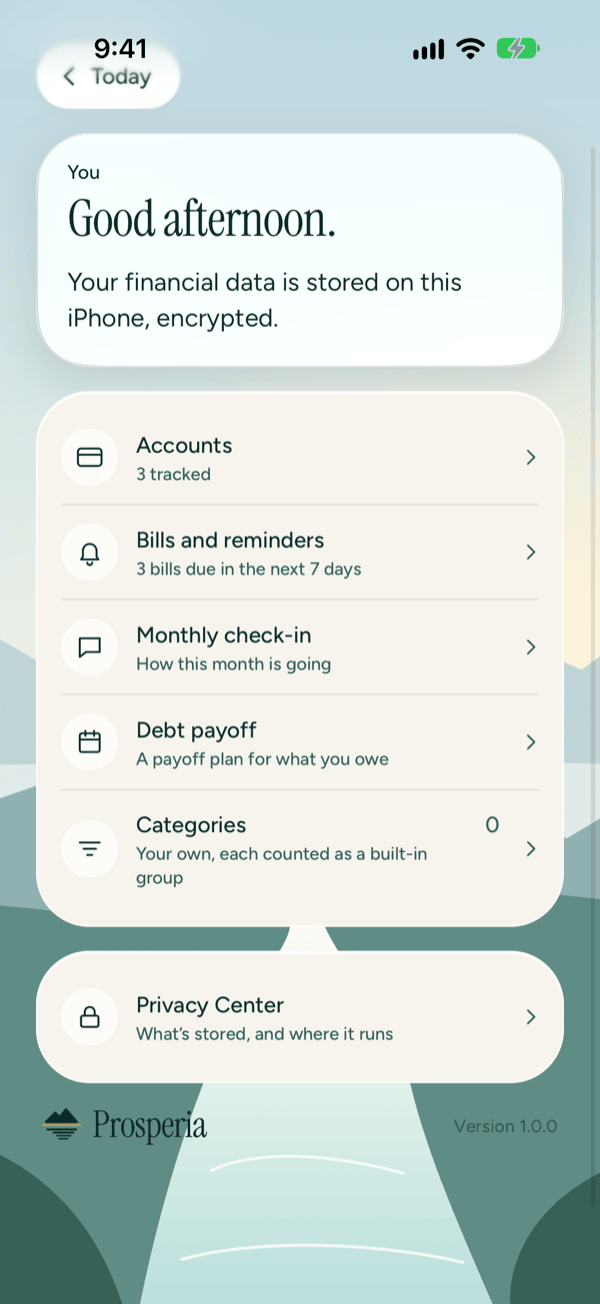
You can also get there from two other places:
- On the Flow tab, for the current month, tap Bill calendar on the Coming up card (it shows once a bill is expected).
- On your monthly check-in, tap See bills on the Next bill card (the card shows when a bill is due in the next 30 days).
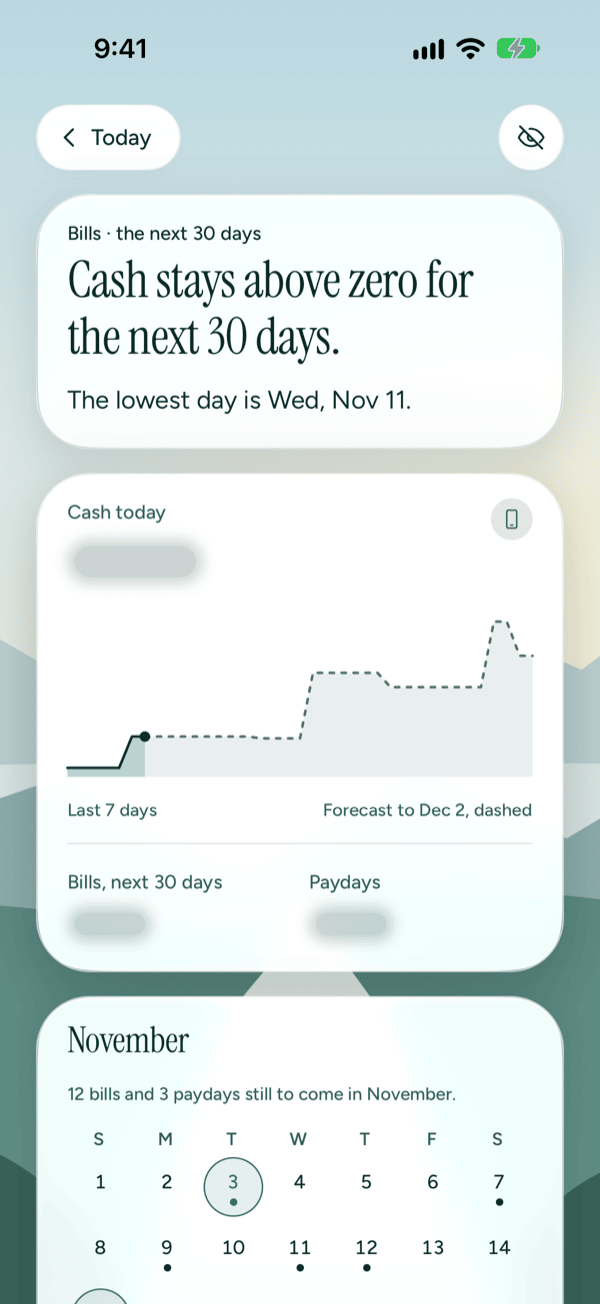
Everything on this screen is worked out on your iPhone with ordinary math, not AI. That's why the Cash today card has the On this iPhone icon (VoiceOver reads it as Forecast on this iPhone), and why it works the same on every iPhone, with or without Apple Intelligence.
How Prosperia finds your bills
You don't add bills by hand. Prosperia looks through your transactions for charges from the same place, for about the same amount, on a regular schedule. Once it sees a pattern, it expects the next one.
- Weekly, every two weeks, monthly and every three months: after three charges.
- Yearly: after two charges, a year apart.
- Amounts can vary a little, like a utility bill. Charges within about a quarter of the usual amount still count.
- Money that comes in on a schedule, like your paycheck, is found the same way and shows as a payday.
- If a bill is a few days late (more than about 5 days for a monthly bill, or a day for a weekly one), Prosperia treats it as cancelled and stops expecting it until it charges again.
So a new subscription won't show up right away. Give it a few months.
Will my cash run low?
The top of the screen answers that in one sentence, based on the lowest day in the next 30:
- Cash stays above $X for the next 30 days. You're fine. The figure is rounded down (to the nearest $100 once it's $1,000 or more). If the lowest day is under $1, it says above zero. The line below names your lowest day.
- Cash could dip below zero on a date, such as Cash could dip below zero on Fri, Nov 20. The line below says how low it could get. You have time to move money between your own accounts or hold off on spending before that day.
- If the lowest day falls right before a payday, the line below adds the day before payday.
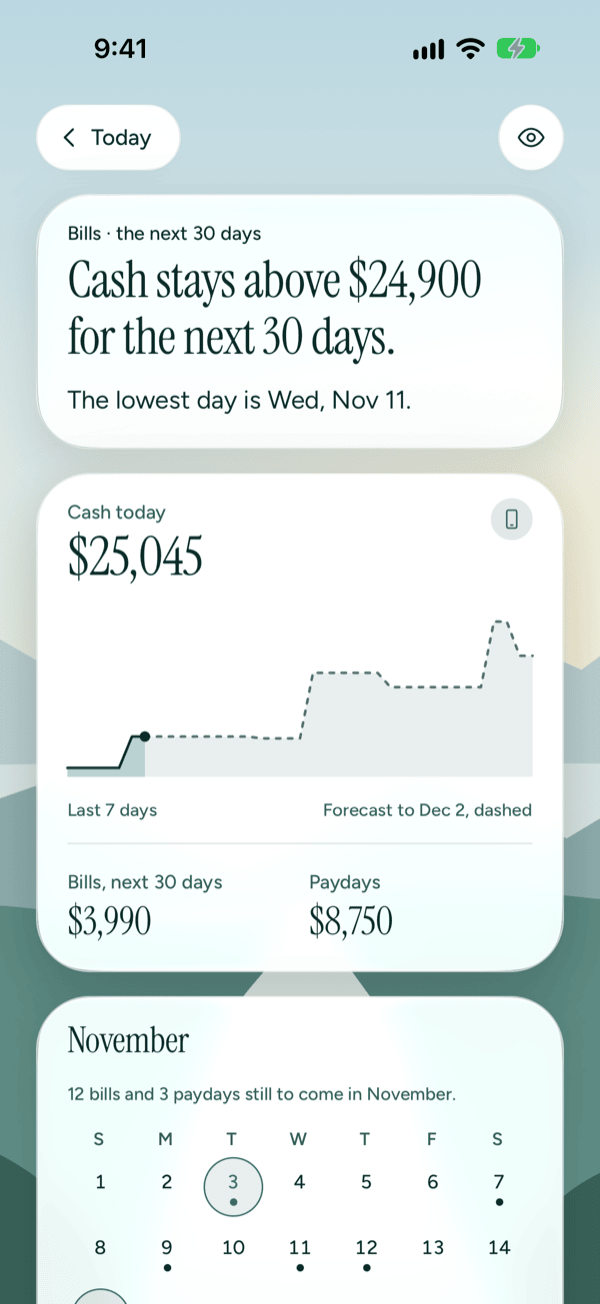
Under the headline you'll see:
- Cash today: the total of your checking, savings and cash accounts in US dollars that have a balance.
- The chart. The solid line is your real cash over the Last 7 days. The dashed line is the forecast, to the last day shown under it.
- Bills, next 30 days: what your bills add up to.
- Paydays: what's expected to come in.
To build the forecast, Prosperia starts from your cash today, takes out each bill paid from your checking, savings or cash accounts on the day it's due, adds each payday, and spreads your usual day-to-day money in and out (the average of your last 90 days, not counting bills and paydays) across each day. Bills and other spending charged to a credit card count when the card payment leaves your checking account, so a subscription billed to a card is in the list but isn't taken out of the forecast on its own due day.
The forecast is an estimate from your own history. A surprise expense or a late paycheck will change it.
With VoiceOver, select the chart, then swipe up or down to hear each day's balance.
The month calendar
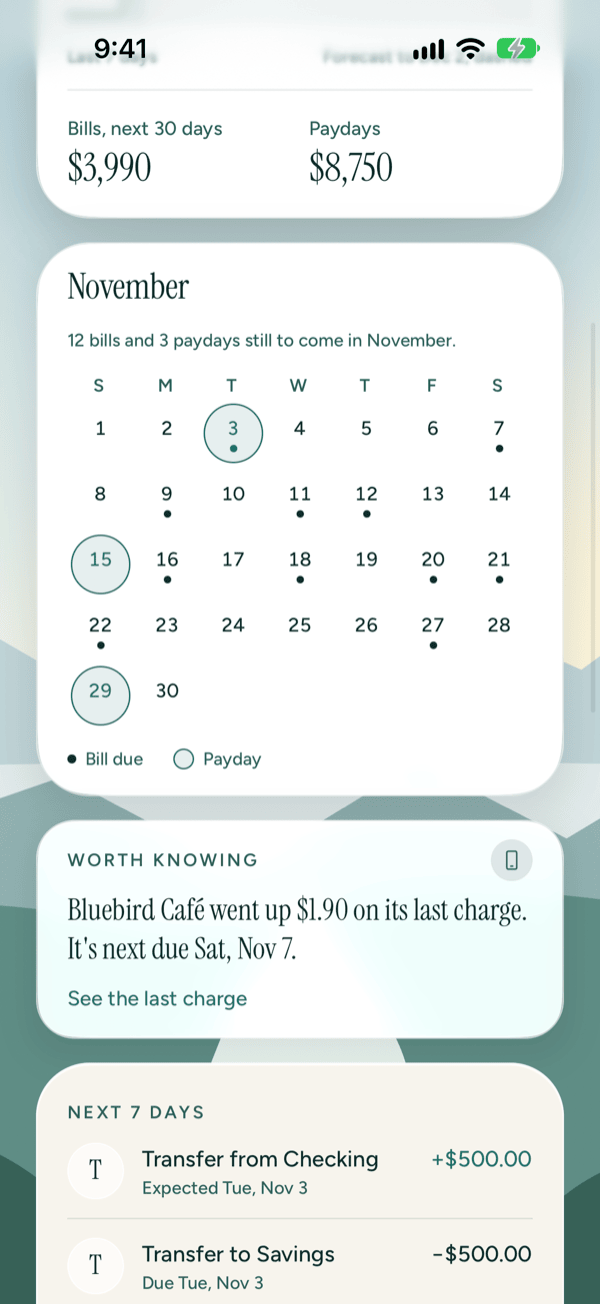
The calendar shows the month most of the next 30 days fall in, so near the end of a month it shows next month. A line above it says how many bills and paydays are still to come.
- A dot under a day means a bill is due (Bill due).
- A ringed day is a payday (Payday).
When a bill's price changes
If a bill's last charge was at least $1 more or less than the one before, a card below the calendar tells you, for example "Streaming went up $2.00 on its last charge. It's next due Fri, Nov 13." Tap See the last charge to open that transaction. If more than one bill changed, you see the one due soonest.
See what's coming up
- Scroll down to the list.
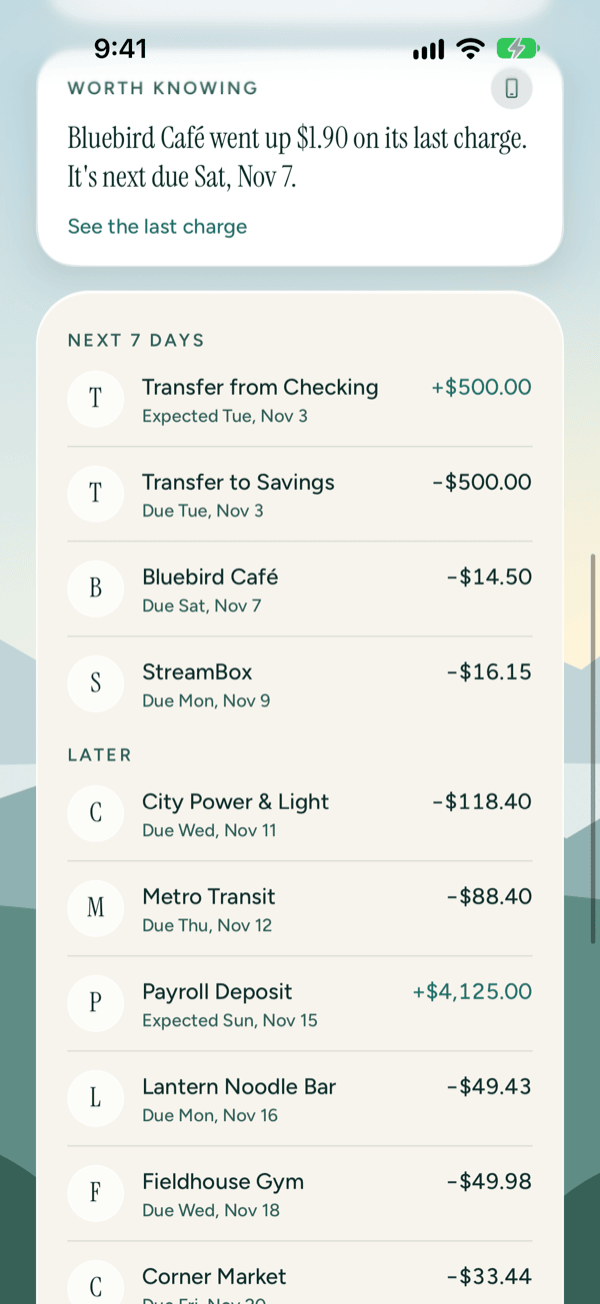
- Next 7 days shows what's due this week. Later shows the rest of the 30 days.
- Bills say Due with the date. Paydays say Expected with the date.
- Tap a row to open its most recent charge.
Get a reminder the day before
Reminders are off until you turn them on.
- Scroll to the bottom of Bills.
- Turn on Remind me the day before.
- When iOS asks, tap Allow.
Your iPhone then shows "A bill is due tomorrow" with "Open Prosperia to see it." at 9 a.m. the day before each bill. You may also get this reminder the day before an expected payday. The notification doesn't name the bill or the amount, so nothing private shows on your Lock Screen. Tap it to open Prosperia, then go to Bills to see which one.
How reminders work
- You get one reminder for each bill, at 9 a.m. your time the day before it's due. Two bills due the same day give you two reminders.
- Your iPhone schedules them itself. Nothing is sent to a server to make them happen.
- They cover the bills in the next 60 days, up to the 60 soonest. A bill due today has no reminder, because the time for it has passed.
- They update each time Prosperia syncs your banks while it's open, and after you import a file, so new bills get reminders and bills that stop are dropped.
- The setting belongs to this iPhone.
To stop reminders, turn off Remind me the day before. Prosperia removes every reminder it scheduled. Delete everything in Privacy Center also removes them and turns the setting off.
If reminders don't turn on or don't arrive
If you see Notifications are off for Prosperia. You can turn them on in the Settings app., the switch turns itself back off. Either you tapped Don't Allow just now, or you said no to notifications earlier, and iOS only asks once. To fix it:
- Open the Settings app.
- Tap Apps, then Prosperia, then Notifications.
- Turn on Allow Notifications.
- Come back to Bills and turn on Remind me the day before again.
If the switch is on but reminders stopped arriving, you may have turned notifications off in the Settings app after you set them up. Prosperia can't schedule new reminders without permission, and it doesn't ask again on its own. Follow the steps above to turn Allow Notifications back on. New reminders are scheduled the next time Prosperia syncs or you import a file. While you're in the Settings app, check that Lock Screen, Notification Center or Banners is selected, and that a Focus isn't silencing Prosperia.
If you see Couldn't change reminders. Try again., the switch goes back to where it was. Tap it again.
Hide amounts
Tap the eye at the top of the screen (VoiceOver calls it Hide balances) to hide amounts. This hides them on every screen, the same as Hide amounts in Privacy Center. Cash today, the totals and every bill amount are covered. The headline becomes Cash stays above zero for the next 30 days. or, if cash could run out, the line below just says it's the lowest day of the next 30. A price change still says whether the bill went up or down, without the amount. Tap the eye again to show amounts.
What you might see
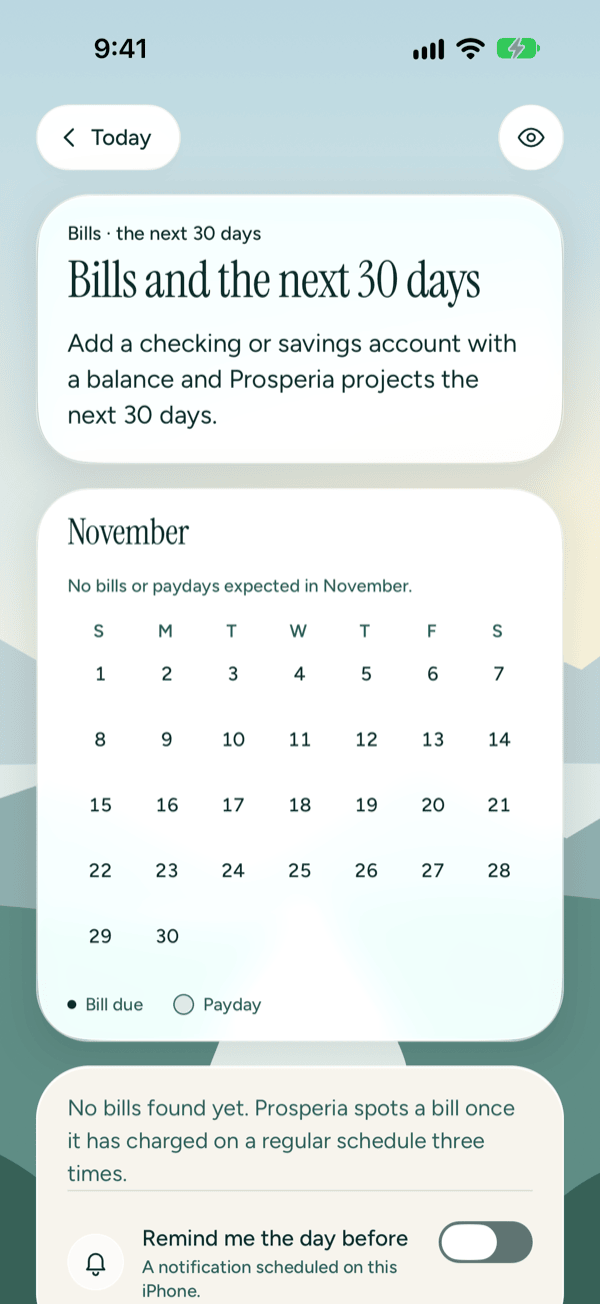
- Bills and the next 30 days, with "Add a checking or savings account with a balance and Prosperia projects the next 30 days." You don't have a checking or savings account with a balance yet, so there's no forecast. Connect a bank, import a file or add an account by hand.
- No bills found yet. Prosperia spots a bill once it has charged on a regular schedule three times. There isn't enough history yet. Bills show up as more charges come in.
- No bills or paydays expected in a month, such as No bills or paydays expected in December. No bills or paydays fall in the month the calendar shows. Anything due sooner is still in the list below.
- Couldn't load your bills. Tap Try again. If it keeps happening, close Prosperia and open it again.
Good to know
- Bills and the forecast work without Apple Intelligence and without AI of any kind.
- The forecast and Cash today use your checking, savings and cash accounts in US dollars that have a balance. Accounts in other currencies, and cards and loans, aren't included.
- Prosperia only reads your bills. It never pays them or moves money.
- The forecast is a projection, not a promise, and it isn't financial advice.
- To see your spending budget alongside your bills, see Flow and budgets. To see your next bill in your monthly summary, see Monthly check-in.
Still stuck? See Troubleshooting and contact, or write to support@stewmore.dev.