Activity and transactions
Find any transaction, change its category, and split, tag or add notes to it.
On this page
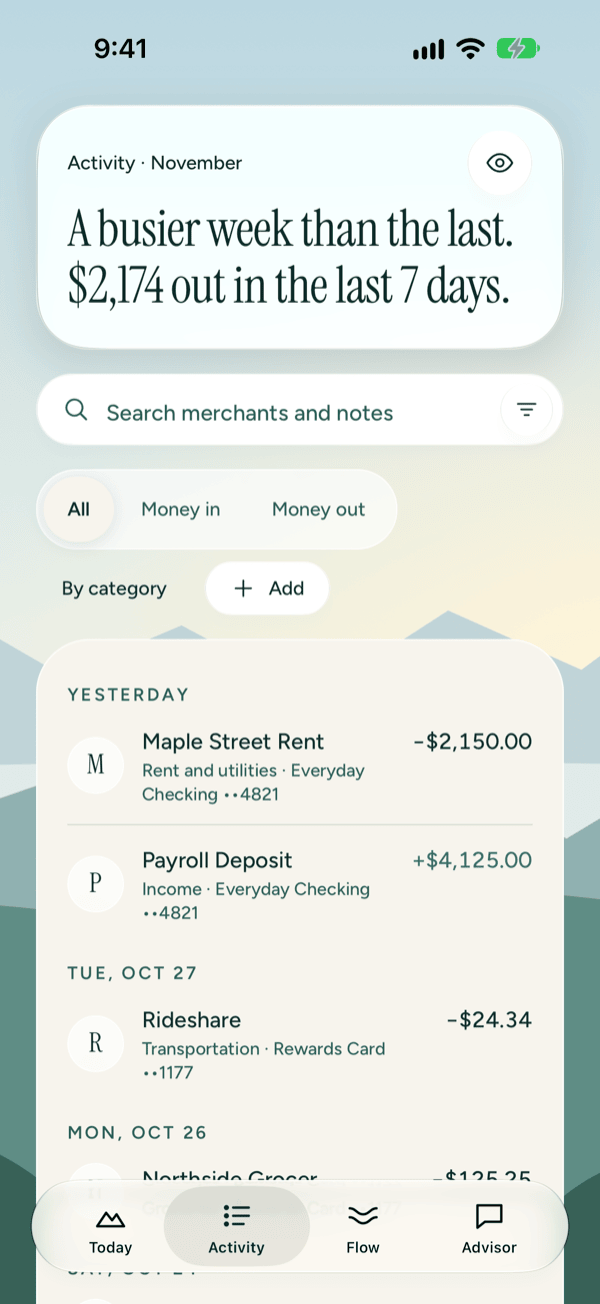
Activity lists every transaction, newest first and grouped by day. Tap Activity in the tab bar to open it.
Read the list
At the top, a short sentence compares the last 7 days with the 7 days before, such as "A busier week than the last. $2,174 out in the last 7 days."
Each row shows the merchant, its category, the account and the amount. Money out has a minus sign and money in has a plus sign. A card payment shows Card payment with no sign. A purchase that hasn't cleared yet says Pending.
The list shows 100 transactions at a time. Scroll to the bottom and tap Show more to see older ones.
If you've connected a bank, pull down on the list to check for new transactions.
Find a transaction
- Tap Search merchants and notes at the top of Activity.
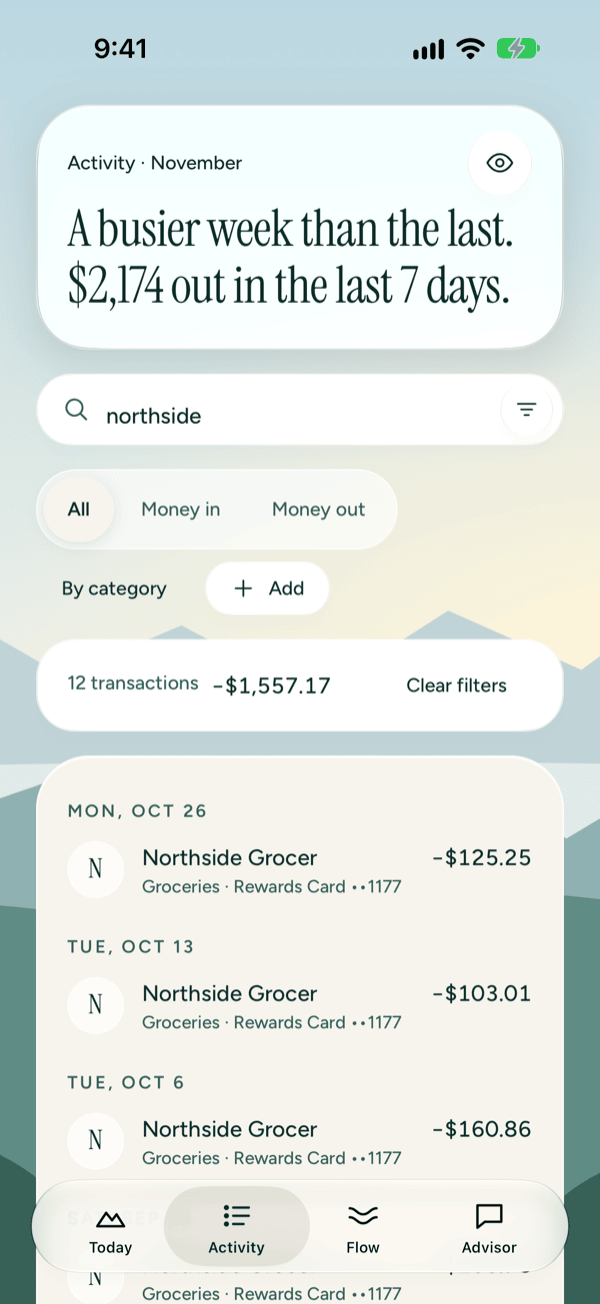
- Type part of the merchant name, or a word from a note you wrote.
- The list narrows as you type. Tap a row to open it.
Search looks at merchant names, the statement text and your notes (not tags). It runs on your iPhone.
Filter by date, category or account
- Tap the filter icon inside the search field.
- Choose one:
- This month shows only this month's transactions. Choose Any date to turn it off again.
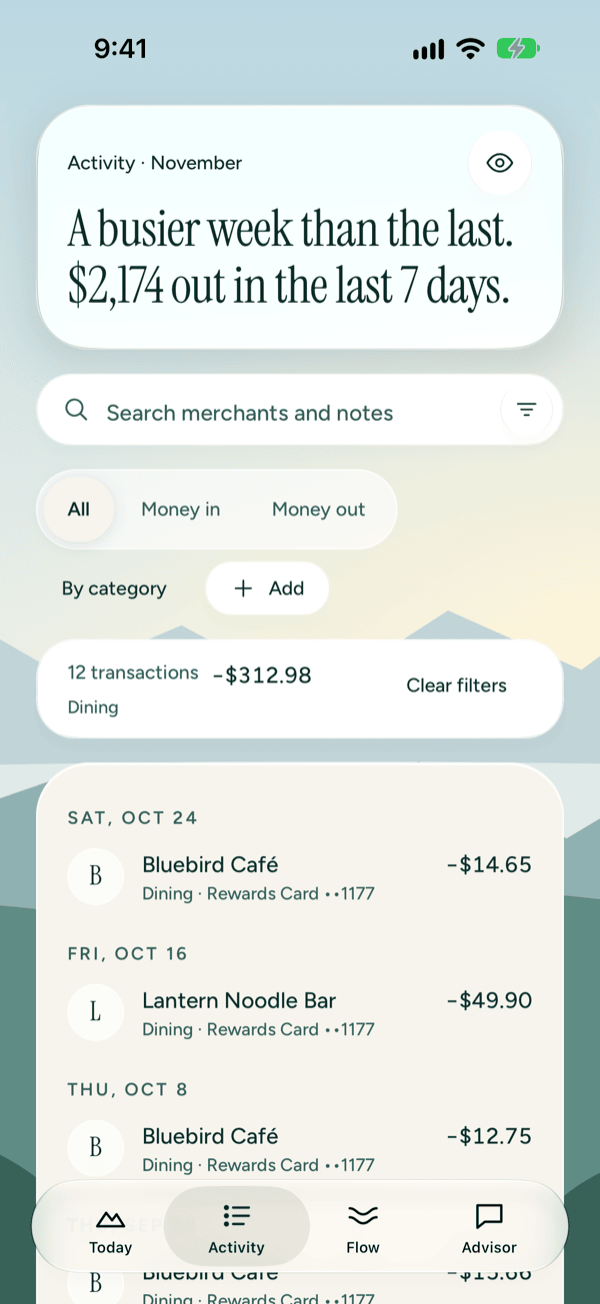
- Category opens a list of your categories. Pick one, or pick Any to clear it.
- Account works the same way. It appears when you have more than one account.
- A card below the search field shows how many transactions match (with a + when there are more to load), their net total, and the filters you chose.
- Tap Clear filters to see everything again.
See only money in or money out
Tap Money in above the list for paychecks, refunds and other money coming in. Tap Money out for spending. Tap All to see both. This switch narrows the transactions already shown. Tap Show more to look further back.
To see your spending added up by category, tap By category. You can read more in Spending and categories.
Hide amounts
Tap the eye button next to Activity at the top to hide amounts, for example on a bus or in a meeting. Amounts are hidden on this screen and on other screens too, and the weekly sentence leaves out the number. It stays on, even after you close Prosperia, until you tap the eye button again.
Open a transaction
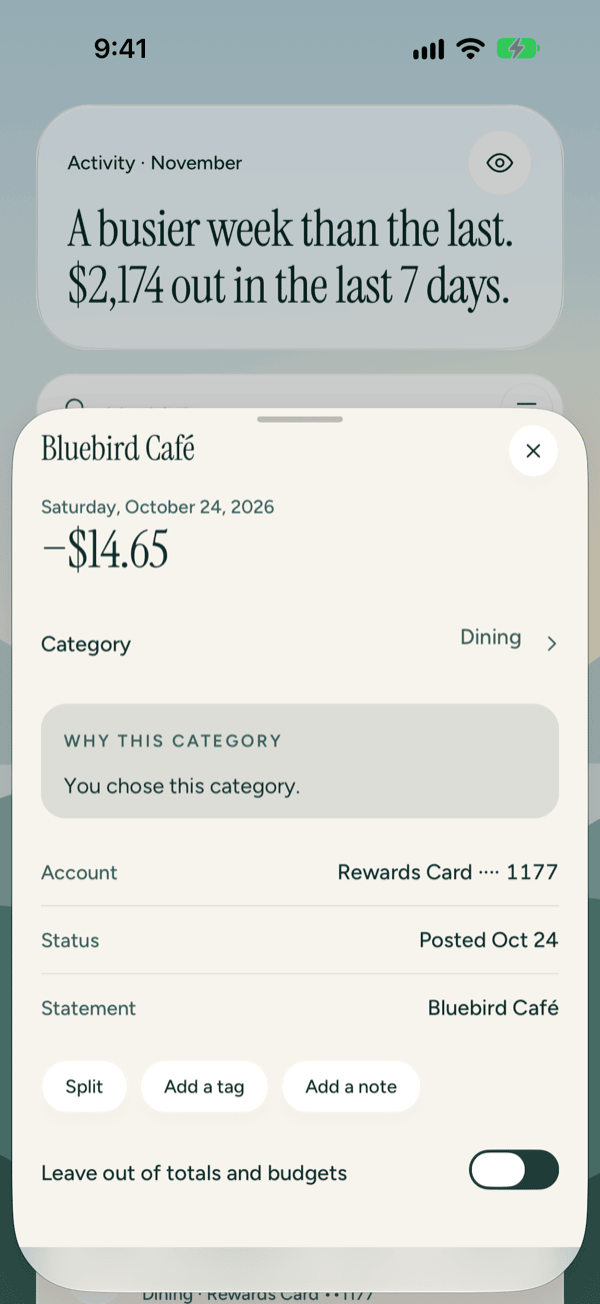
Tap any row to open its details. You'll see the amount and date, its category, and:
- Why this category, which says what chose it.
- Account, the account it belongs to.
- Status, either Pending or the day it posted.
- Statement, the text your bank shows for it, when there is any.
Tap × in the top corner to close it.
Your changes are saved separately from what your bank sends. A bank update won't overwrite them.
Change a category
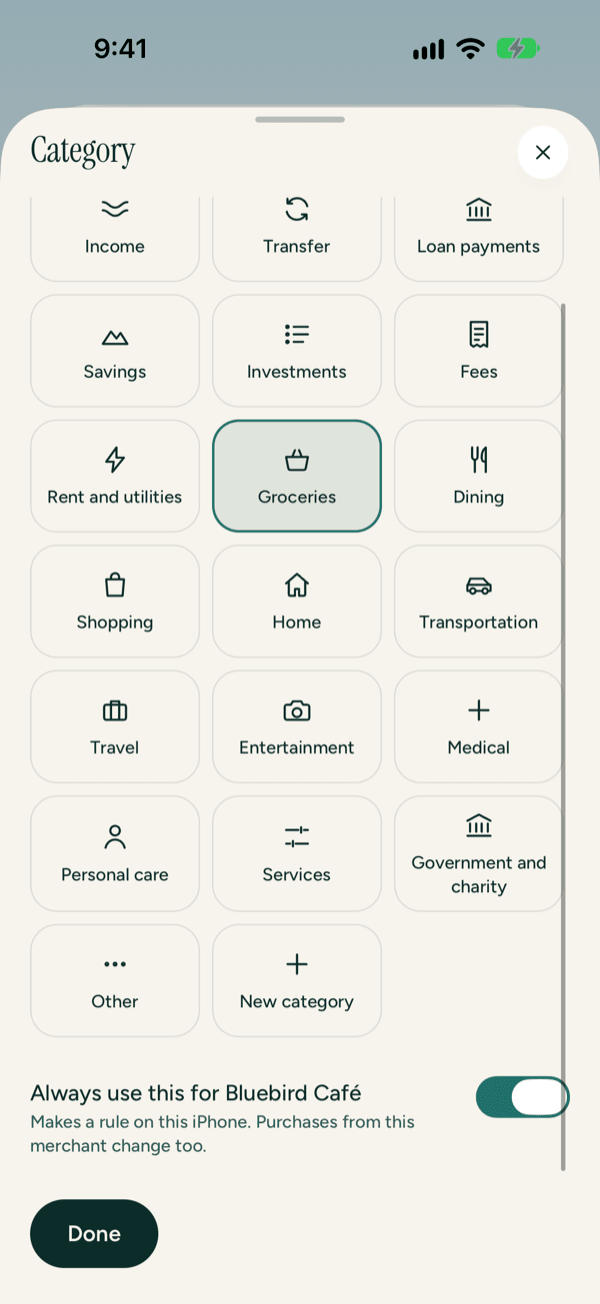
- Open the transaction and tap Category.
- Tap the category you want. If you can't see it, type in Search categories at the top of the sheet.
- Leave Always use this for (the merchant's name) on if every purchase from this merchant belongs in this category. Prosperia makes a rule on this iPhone, and other purchases from this merchant change too. Turn it off to change only this purchase.
- Tap Done. To leave without changing anything, tap × in the top corner.
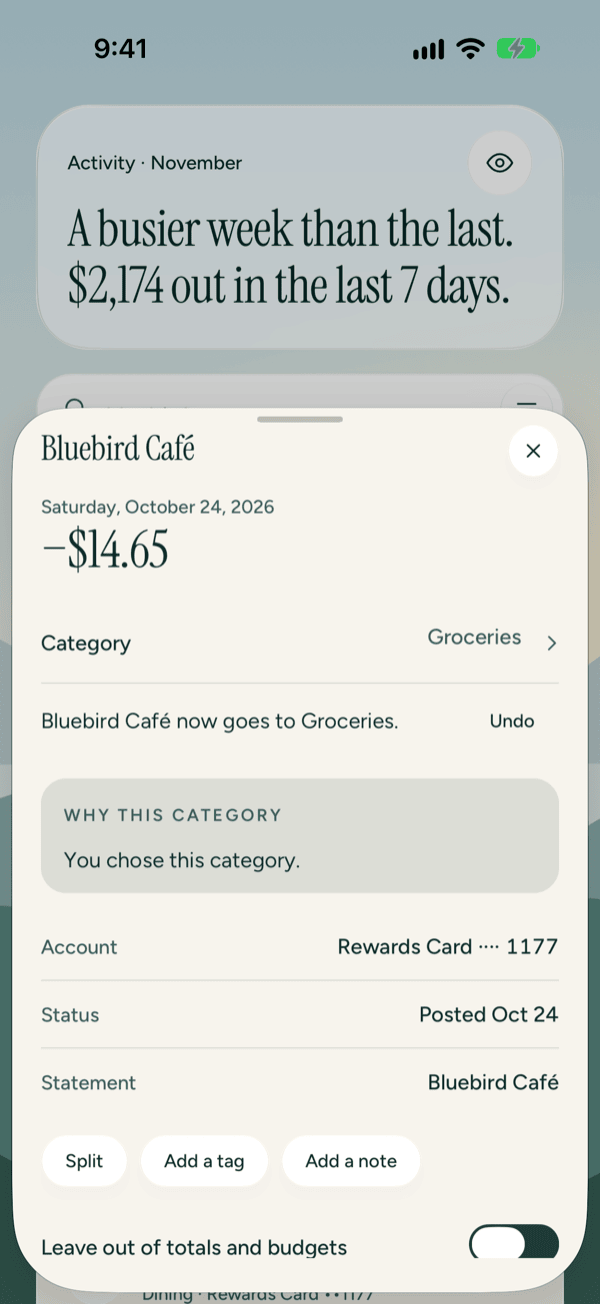
Back on the transaction, a message confirms the change. It says "Bluebird Café now goes to Groceries." if you made a rule, or "Changed to Groceries." if you didn't. Made a mistake? Tap Undo next to the message. It also undoes the rule: a new rule is removed, and a rule you already had goes back to its earlier category. Undo goes away once you close the transaction. If you change the category again before then, Undo reverses only the latest change.
A rule doesn't overwrite a purchase you set by hand. If you already picked a category for another purchase from that merchant, it keeps your choice.
If the category you need doesn't exist, tap New category in the grid. It opens your categories so you can add one. See Spending and categories.
If no category matches your search, you'll see "No category matches. Try another word."
If you see "Couldn't change the category. Try again.", nothing changed. Tap Category and try again. If Undo fails, the transaction shows "Couldn't undo the change. Try again."
Why this category
The Why this category box tells you what chose the category:
| What it says | What it means |
|---|---|
| You chose this category. | You picked it yourself. |
| Your rule: merchant is '…' → (category). You set it on (date). | A rule you made by leaving Always use this for on. The date shows for rules made from a category change. |
| One of your rules chose this category. | A rule you made picked it. |
| Your bank sent this category. | It came from your bank, with a Category from your bank label. |
| Apple's on-device model chose this category on this iPhone. | Apple Intelligence picked it on your iPhone, with a Categorized on this iPhone label. |
| No category yet. Choose one above. | Nothing has picked one. Tap Category to choose. |
The purchase you changed shows "You chose this category." Other purchases from that merchant show your rule.
When Apple's on-device model chose the category, tap What it used. A Why this category sheet opens with an On this iPhone badge, when the model ran, and what it looked at. Tap × in the top corner to close it. The model reads the merchant text from your statement and can get it wrong. If it does, change the category and leave the switch on, so your rule wins next time. Rows the model chose also show the Categorized on this iPhone label in the Activity list.
Split a purchase
Split one purchase across categories, like a store run that was part groceries and part household.
- Open the transaction and tap Split.
- Part 1 starts with the transaction's current category. Tap Part 1 or Part 2 to change it.
- Enter an amount for each part. A line below tells you how much is left to split, or how much you're over.
- Need more parts? Tap Add a part; it starts with what's left to split. Once you have three or more, each has Remove part. Tap Cancel to leave without saving.
- When it says "The parts add up.", tap Save split.
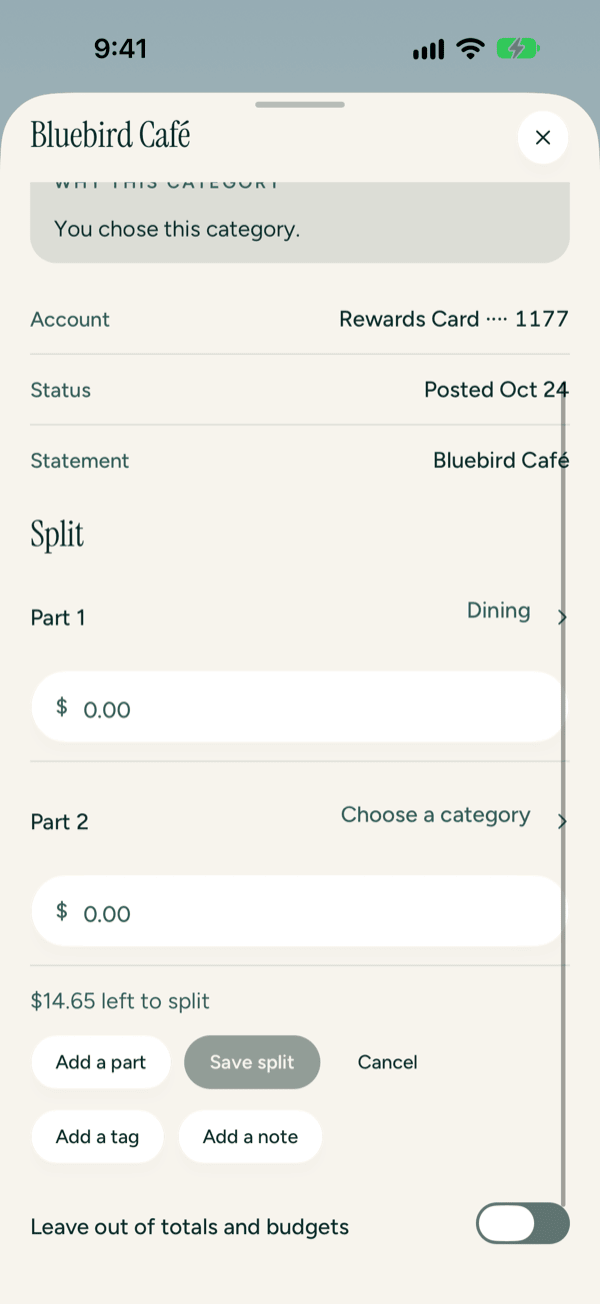
After you save, the split is listed on the transaction. Tap Edit split to change it, or Remove split to undo it.
If an amount isn't a number, you'll see "Enter an amount like 12.50.", and the line under the parts says "Parts must add up to" the whole amount. Once every amount is a number, that line says how much is left or how much you're over. Save split stays greyed out until the parts add up. If saving finds they still don't match, you'll see "The parts must add up to" the whole amount; if saving fails for another reason, you'll see "Couldn't save the split. Try again."
Add tags and notes
- Tap Add a tag and type one or more tags, separated by commas, such as "work, trip". Tags help with trips or projects that cross categories.
- Tap Add a note and type anything you want to remember.
Tap Done on the keyboard to save. You can search your notes from the top of Activity.
Leave a transaction out of totals
Turn on Leave out of totals and budgets for something that shouldn't count, like money you moved between your own accounts or a purchase a friend paid you back for. It disappears from Activity and search, and doesn't count toward your totals or budgets. To find it again, open Accounts and tap the account it belongs to. Tap the transaction there and turn the switch off to bring it back.
Add a transaction by hand
If you have an account you added by hand or from a file, you'll see Add at the top of Activity. Use it for cash or anything else you want to log yourself.
- Tap Add.
- Choose Spent or Received.
- Type the amount and tap Done on the keypad.
- In Where, type the merchant or the person who paid you. If you have a rule for that name, Prosperia picks the category for you and says "Picked from your rule for" the name.
- Change the Date if it wasn't today.
- Check the Account. If you have more than one account you added by hand or from a file, tap it to pick another.
- Tap a category, or tap More… to see them all.
- Tap Save.
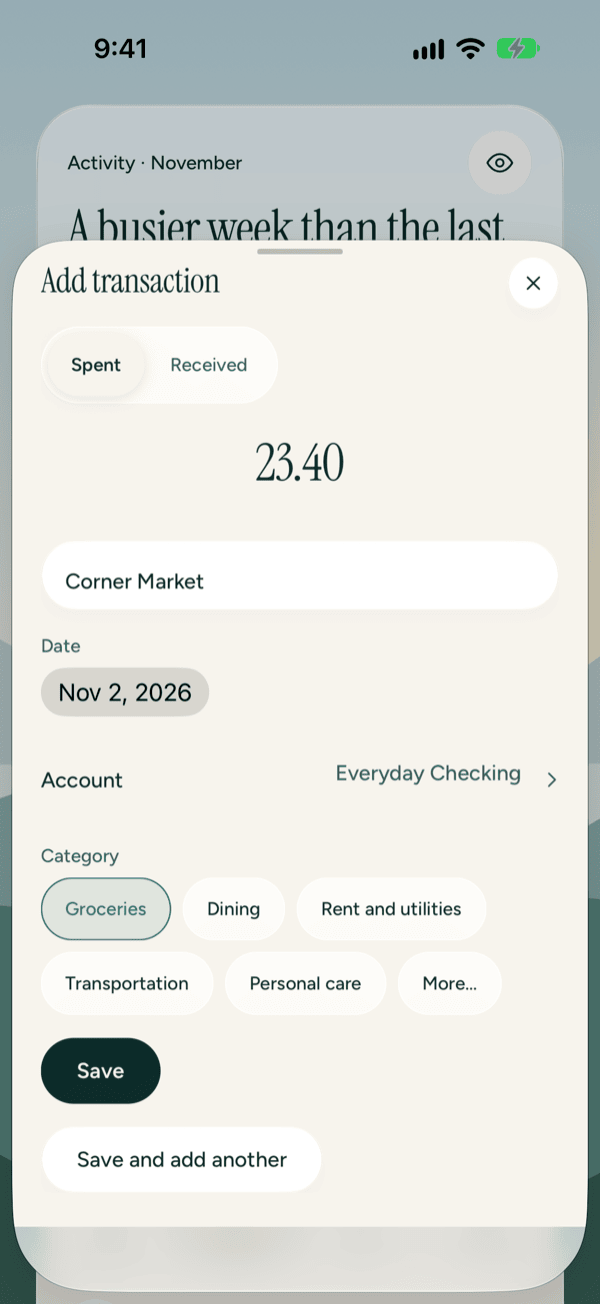
Have a stack of receipts? Tap Save and add another. The sheet clears for the next one and keeps the account and date.
What you add by hand is saved only on your iPhone. It isn't sent to Prosperia's server or to Plaid.
If something's missing, you'll see one of these:
- "Enter an amount above zero." Type an amount, then tap Save again.
- "Pick today or an earlier date." The date must be today or earlier (back to 1990).
- "Couldn’t save the transaction. Try again." Nothing was saved, so tap Save again.
When something goes wrong
- "Couldn't load transactions." Tap Try again.
- "Couldn't sync. Check your connection and pull down to try again." Check that you're online, then pull down on the list.
- "No transactions match. Try another search or clear the filters." Change your search, or tap Clear filters.
- "Nothing here yet. New transactions appear after the next sync." Your bank is connected but hasn't sent anything yet. Check back soon.
- "No transactions yet" with choices to add an account by hand, import a file or connect a bank. You haven't added any money yet. Connecting a bank needs a Prosperia subscription; adding an account by hand or importing a file doesn't. See Getting started.
- "This transaction is no longer on this iPhone." It has been removed from Prosperia. Close the sheet and go back to the list.
- "Couldn't load this transaction." Tap Try again.
- "Couldn't save the note. Try again." (or the tags, the split, the category or the change you made). Try once more. If it keeps happening, see Troubleshooting and contact.
Good to know
- Add only appears when you have an account you added by hand or from a file. Bank accounts you connect get their transactions from your bank. See Accounts and Importing files.
- The Account filter only appears when you have more than one account.
- When a bank is connected, the bottom of Activity says when Plaid last synced. Plaid sends your bank data through Prosperia's server to this iPhone. The server passes it along and doesn't save it. Tap What they see to learn more in the Privacy Center.
- Categorized on this iPhone and What it used only appear when Apple's on-device model picked the category. That needs an iPhone with Apple Intelligence turned on. Without it, everything else on this page works the same.
- Always use this for only appears when the transaction has a merchant name from the statement.
- Your rules live on this iPhone. The Privacy Center shows how many you have under Rules.
Still stuck? See Troubleshooting and contact, or write to support@stewmore.dev.