Privacy Center
See what Prosperia keeps and where, and control app lock, Hide amounts, reports, export and Delete everything.
On this page
The Privacy Center shows what Prosperia keeps and where it's kept, which banks are connected, and where every AI request ran. It's also where you lock the app, hide amounts, choose what reports Prosperia gets, and export or delete your data.
To open it, tap the person button at the top of Today, then tap Privacy Center.
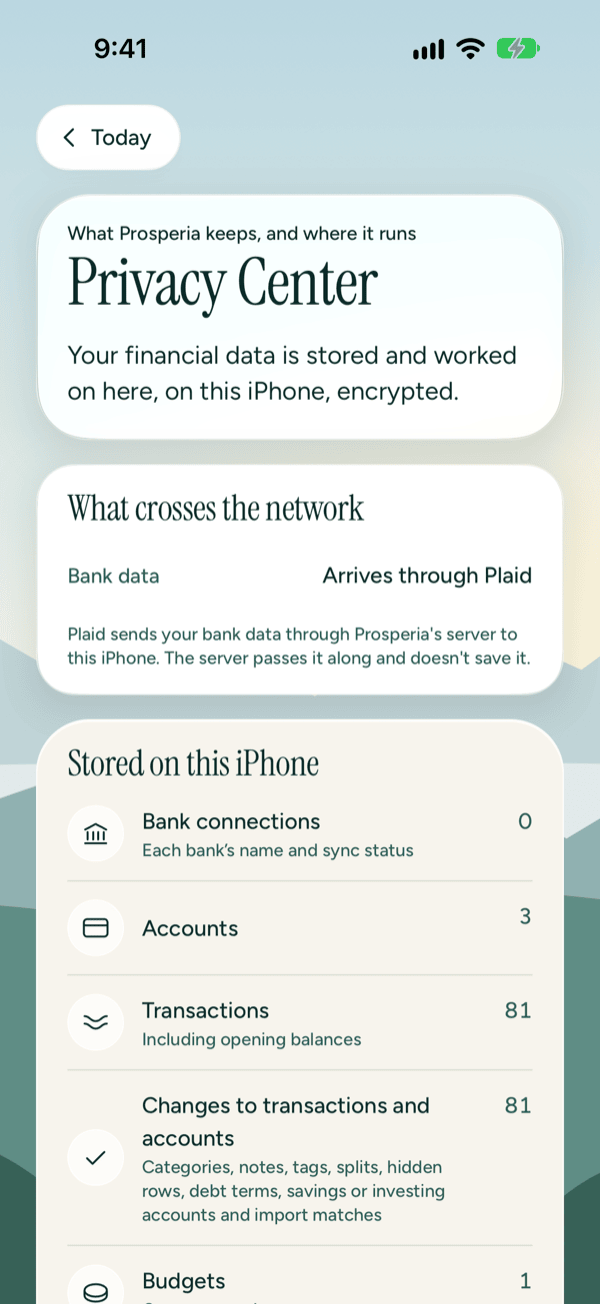
The sections below follow the screen from top to bottom.
What is stored, and where
What crosses the network
This card lists what leaves your iPhone:
- Bank data arrives through Plaid. Plaid sends your bank data through Prosperia's server to this iPhone. The server passes it along and doesn't save it.
- Harder AI questions go to Apple Private Cloud Compute (Apple's secure servers). This row only appears on iPhones that can use it.
Stored on this iPhone
A list of everything in Prosperia's database, with a count for each kind: bank connections, accounts, transactions, your changes to transactions and accounts, budgets, budget amounts, planned contributions, categories you made, rules, merchant names, saved AI results and the AI request log.
All of it is in one encrypted database on this iPhone, and it's left out of iCloud backup. The note under the list also counts removed items and change records, which Prosperia keeps until you delete everything.
If you subscribe, a Subscription row shows that the App Store keeps your subscription on this iPhone, and that Prosperia checks it before connecting or syncing a bank.
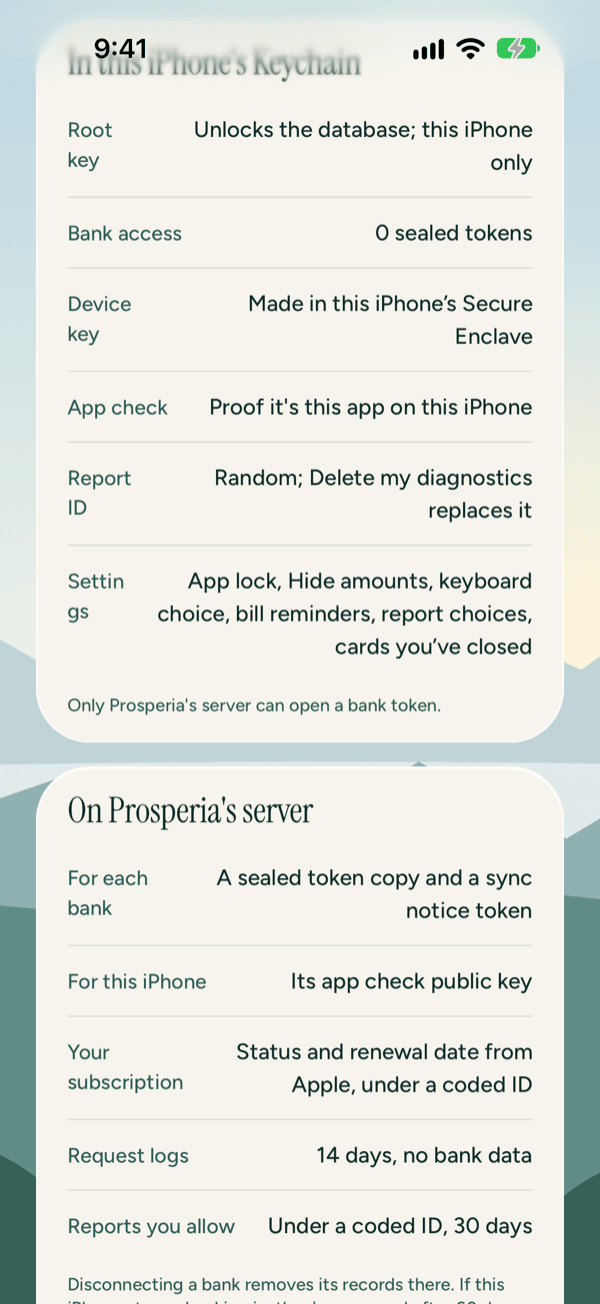
In this iPhone's Keychain
The Keychain is iOS's secure store for keys and small settings. Prosperia keeps the key that unlocks its database there, a sealed token for each bank you connect, a key made in your iPhone's Secure Enclave, a random report ID, and your settings, such as app lock, Hide amounts and your keyboard choice. Only Prosperia's server can open a bank token.
On Prosperia's server
The server keeps only what it needs to keep your banks syncing:
| What | Kept |
|---|---|
| For each bank | A sealed copy of the bank's token, and a token for sync notices |
| For this iPhone | A key that proves requests come from this app on this iPhone |
| Your subscription | Its status and renewal date from Apple, under a coded ID (only if you subscribe) |
| Request logs | 14 days, with no bank data |
| Reports you allow | Under a coded ID, for 30 days |
After 30 days, reports are kept only as totals across everyone.
No transactions, balances or account names are stored there. Disconnecting a bank removes its records from the server. If your iPhone stops checking in, they're removed after 60 days.
Connected banks
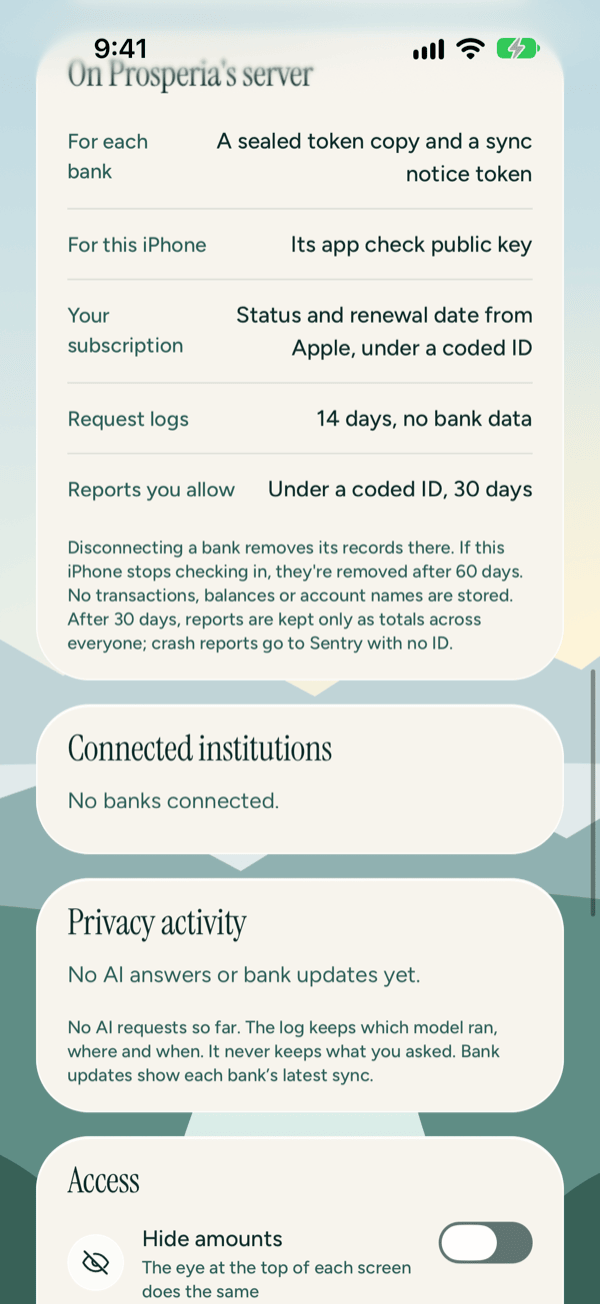
Connected institutions lists each bank you've connected, with how many accounts it has and when it last synced. Accounts from Apple Wallet show as one Apple Wallet row; Prosperia reads them on this iPhone.
To disconnect a bank:
- Tap the bank.
- Tap Disconnect followed by the bank's name.
- Tap Disconnect again to confirm.
Its accounts and transactions leave your lists, and Prosperia stops syncing it. They stay in the database until you use Delete everything. If disconnecting fails, you'll see "Couldn't disconnect. Check your connection and try again."
If a bank needs attention, its row says why, for example Subscription ended. When signing in again can fix it, tapping the bank also offers Reconnect followed by the bank's name. See Connecting banks for more.
With nothing connected, you'll see No banks connected.
Privacy activity
Privacy activity is a log of every AI request, newest first, with what it was for, where it ran (On this iPhone or Apple Private Cloud Compute) and when. It also shows each bank's latest sync, marked Plaid.
The note under the log counts your AI requests and where they ran. The log keeps which model ran, where and when. It never keeps what you asked or what the answer said.
The 20 newest entries show first. Tap Show all at the top of the section to see the rest.
Before you've asked anything or connected a bank, it says No AI answers or bank updates yet.
Hide amounts
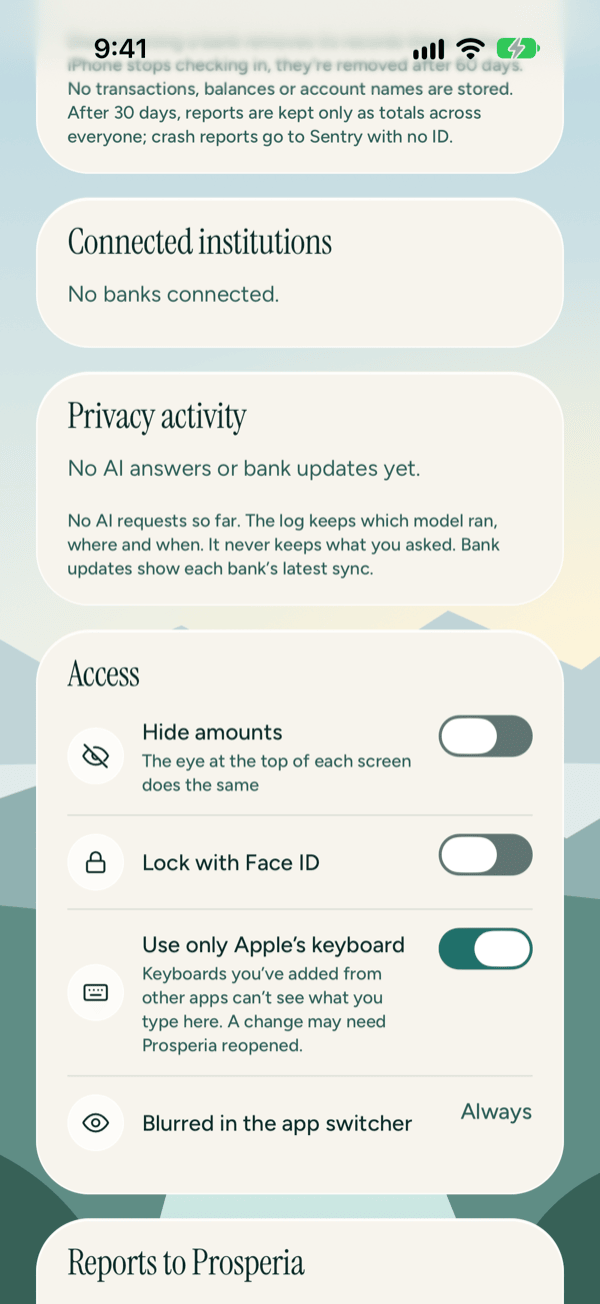
Turn on Hide amounts under Access to hide figures across the app, for when someone's looking over your shoulder. The eye at the top of each screen does the same thing, so you can switch it on and off from anywhere.
Lock with Face ID
With Lock with Face ID on, Prosperia locks each time you leave it and each time it opens.
- Under Access, turn on Lock with Face ID.
- Confirm with Face ID or your passcode. If iOS asks whether Prosperia may use Face ID, tap OK.
Turning the lock off asks for Face ID too, so someone holding your unlocked iPhone can't switch it off.
The Welcome back screen
When the lock is on, Prosperia opens on Welcome back. Your balances stay hidden until you unlock.
- Tap Unlock with Face ID or Use passcode. Either one brings up Face ID.
- Look at your iPhone. If Face ID doesn't work, or you cancel it, iOS offers your passcode instead.
Prosperia opens on Today.
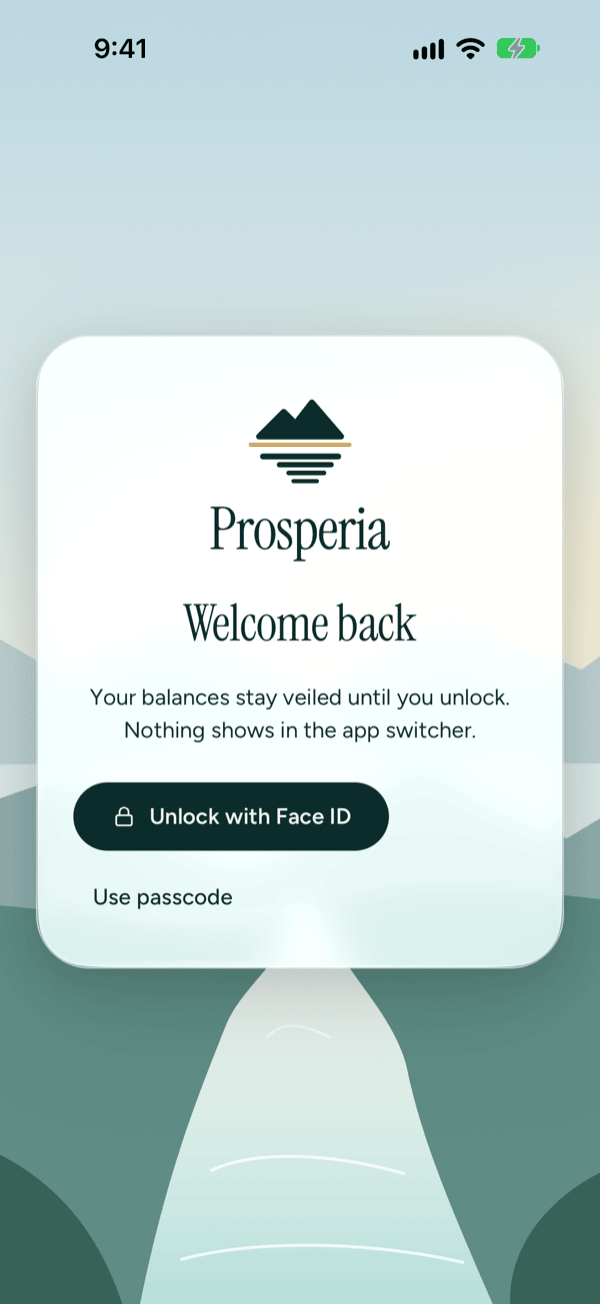
If someone adds or removes a face on your iPhone, Prosperia asks for your passcode the next time, instead of Face ID.
Whether or not the lock is on, Prosperia is always blurred in the app switcher, and your data is always kept in an encrypted database.
Use only Apple's keyboard
Use only Apple's keyboard is on from the start. Keyboards you've added from other apps can't see what you type in Prosperia.
If you need another keyboard, for example for a language or an accessibility tool, turn the switch off. A change may need Prosperia reopened before it applies. If the change doesn't save, you'll see "Couldn't change the keyboard setting. Try again."
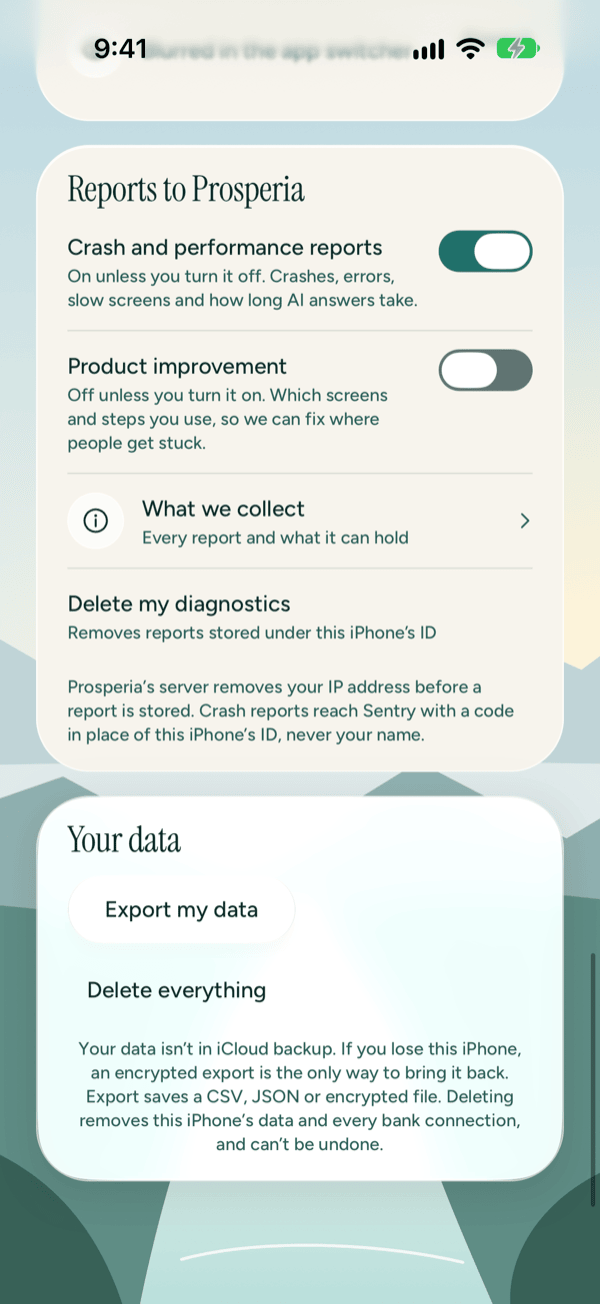
Reports to Prosperia
Reports help Prosperia fix crashes and find where people get stuck. Amounts, merchants, names and anything you type are never in them.
- Crash and performance reports are on unless you turn them off. They hold crashes, errors, slow screens and how long AI answers take.
- Product improvement is off unless you turn it on. It holds which screens and steps you use.
Prosperia's server removes your IP address before a report is stored. Crash reports reach Sentry with a code in place of this iPhone's ID, never your name.
What we collect
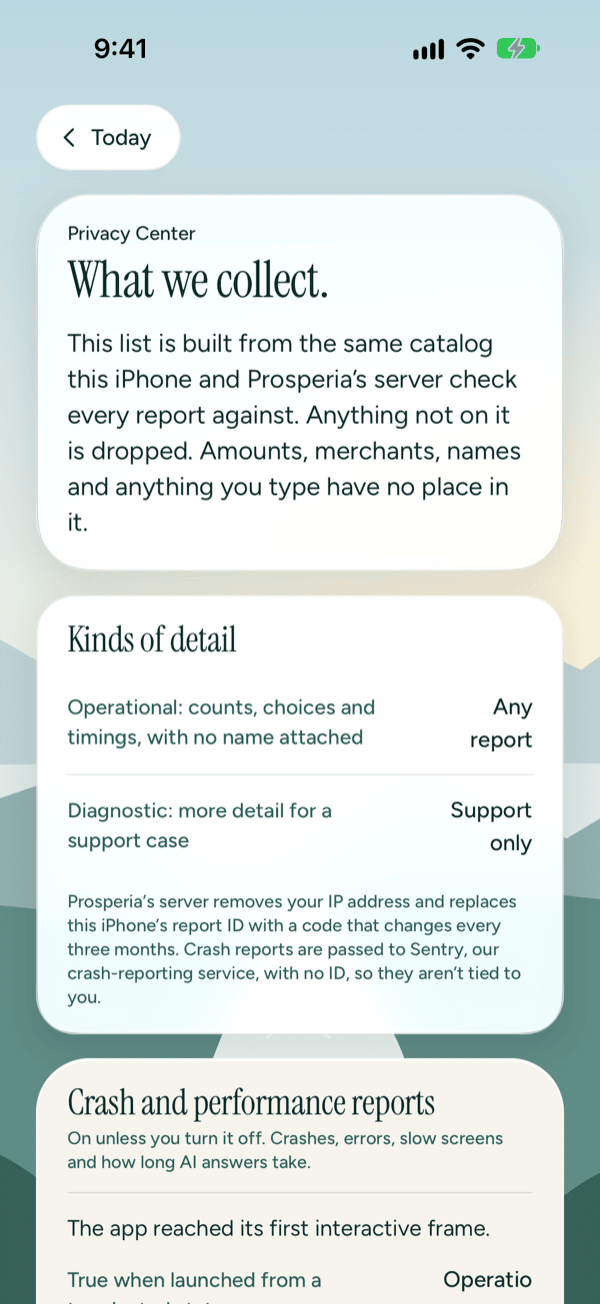
Tap What we collect to see every report Prosperia can send and every detail each one can hold. The list is built from the same catalog your iPhone and Prosperia's server check every report against, and anything not on it is dropped.
The reports are grouped the same way as the switches: Crash and performance reports, Product improvement, and Support diagnostics. Each detail is marked:
- Operational: counts, choices and timings, with no name attached. These can be in any report.
- Diagnostic: more detail for a support case. These are only for support.
Support diagnostics would only be sent during a support session you start. Prosperia doesn't offer these yet.
Prosperia's server replaces your report ID with a code that changes every three months. Crash reports are passed to Sentry, our crash-reporting service, with a code in place of this iPhone's ID, never your name or IP address. See the Privacy Policy for more.
Delete my diagnostics
- Tap Delete my diagnostics.
- Tap Delete.
Prosperia's server deletes the reports stored under this iPhone's report ID, and your iPhone starts again with a new one. You'll see Diagnostics deleted. Crash reports aren't tied to you, so they can't be picked out and deleted.
If you see Couldn't reach Prosperia's server, nothing was deleted. Check your connection and try again.
Export your data
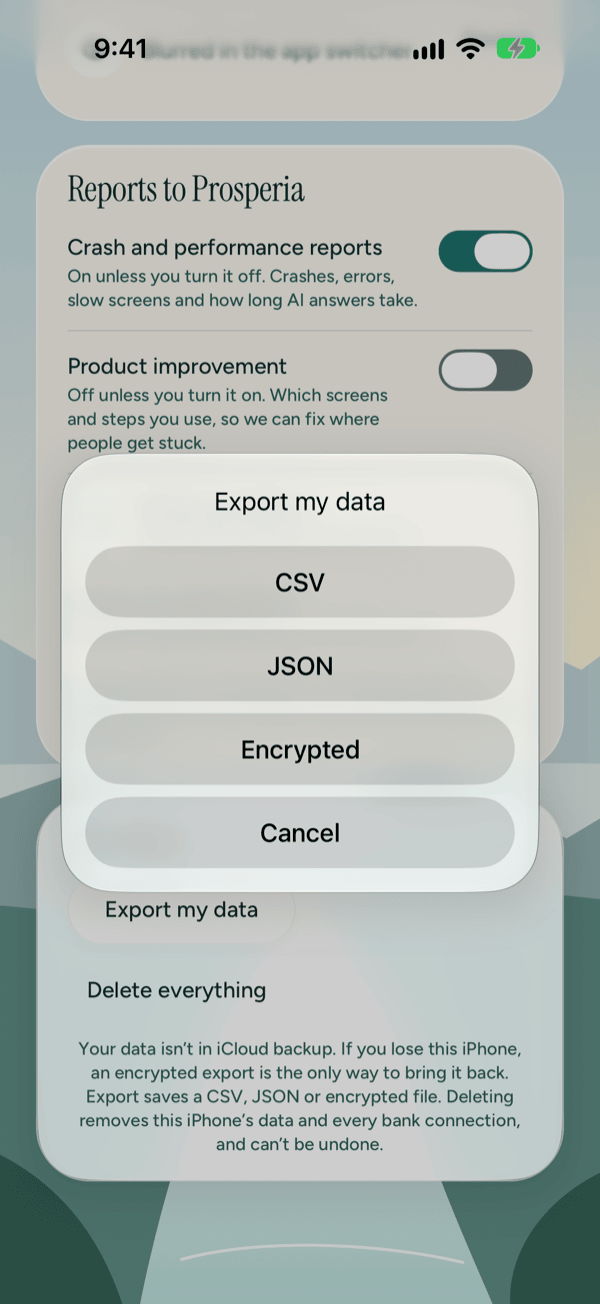
- Under Your data, tap Export my data.
- Choose CSV, JSON or Encrypted.
- For Encrypted, set a passphrase of at least 8 characters and tap Export. You'll need it to open the export, and Prosperia can't recover it.
- Save or share the file from the share sheet, for example with Save to Files.
CSV and JSON files can be opened by other apps, so anyone who gets the file can read it. An encrypted export can only be opened with your passphrase, and it's the one you can restore into Prosperia.
Your Prosperia data isn't in iCloud backup, so an encrypted export is your only backup. If you lose or replace this iPhone without one, your budgets, notes, rules and hand-entered accounts can't be brought back; linked banks can be connected again. Export now and then, and keep the file and its passphrase somewhere safe.
If app lock is on, Prosperia asks for Face ID or your passcode before the share sheet opens.
If the export fails, you'll see "Couldn't export. Try again." A short passphrase shows "Use at least 8 characters."
Restore from an export
You can restore an encrypted export into an empty Prosperia, for example on a new iPhone or after reinstalling. The Welcome screen offers it too.
- Under Your data, tap Restore from an export. This button only appears while Prosperia is empty.
- Choose your encrypted export in Files.
- Type the passphrase you set when you made it, and tap Restore.
- When you see how many items were restored, tap OK.
Banks come back without their connection. Reconnect them under Connected institutions to keep them syncing.
If something goes wrong:
- "That passphrase doesn't open this file, or the file was changed after export." Check the passphrase and tap Try again.
- "This file isn't a Prosperia encrypted export." Choose the file Prosperia saved with Encrypted. CSV and JSON exports can't be restored.
- "Restore works on an empty Prosperia." To replace what's here, delete everything first, then restore.
- "This export's format isn't one this version of Prosperia can read." Update Prosperia from the App Store, then try again.
- "Nothing was changed. Try again." The restore stopped without changing anything.
If some items couldn't be restored because what they belonged to wasn't in the export, the done message says how many.
Delete everything
Delete everything removes all your data from this iPhone, disconnects every bank, and removes what Prosperia's server keeps for your banks. It can't be undone, so export first if you want a copy.
- Under Your data, tap Delete everything.
- Tap Delete.
- On Are you sure?, tap Delete everything.
If app lock is on, Prosperia asks for Face ID or your passcode. Prosperia then starts over as a new install, at the Welcome screen.
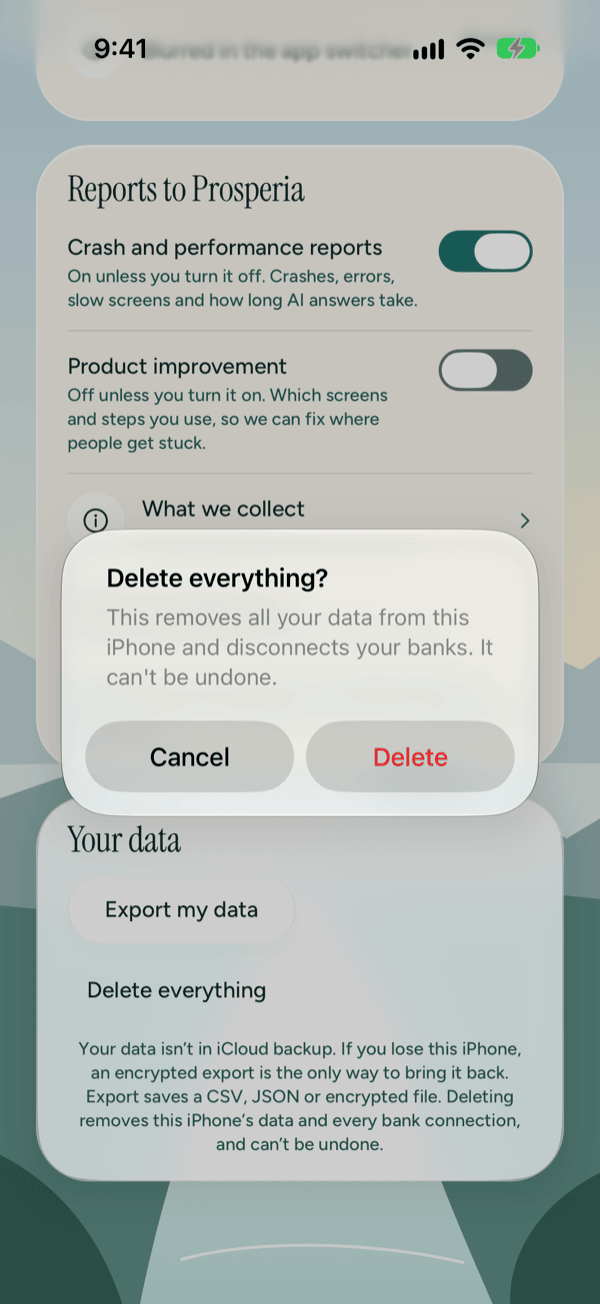
If Prosperia can't reach its server, you'll see "Couldn't reach Prosperia to disconnect your banks". Tap Delete anyway to erase this iPhone now. Your bank connections are then removed automatically within 60 days. Any other problem shows "Couldn't delete everything. Try again."
Good to know
- The Harder AI questions row only appears on iPhones that can use Apple Private Cloud Compute.
- If Apple Intelligence is off, the Privacy Center says so. AI features are hidden, and budgets still work. See Advisor.
- The Subscription rows only appear if you subscribe. Export stays free. See Subscription.
- Restore from an export only appears while Prosperia is empty.
- Prosperia doesn't have Home Screen or Lock Screen widgets yet.
- Apple Wallet only appears once you've added Apple Wallet accounts.
- While an export, restore or delete is running, the Your data buttons wait for it to finish.
- Something not working? See Troubleshooting and contact.
Still stuck? See Troubleshooting and contact, or write to support@stewmore.dev.