Today
Your home screen: where your money stands this month, at a glance.
On this page
Today is the first screen you see when you open Prosperia. It shows your net worth, how this month is going against your budget, what has come in and gone out, and your latest transactions. To get back to it from anywhere, tap Today in the tab bar.
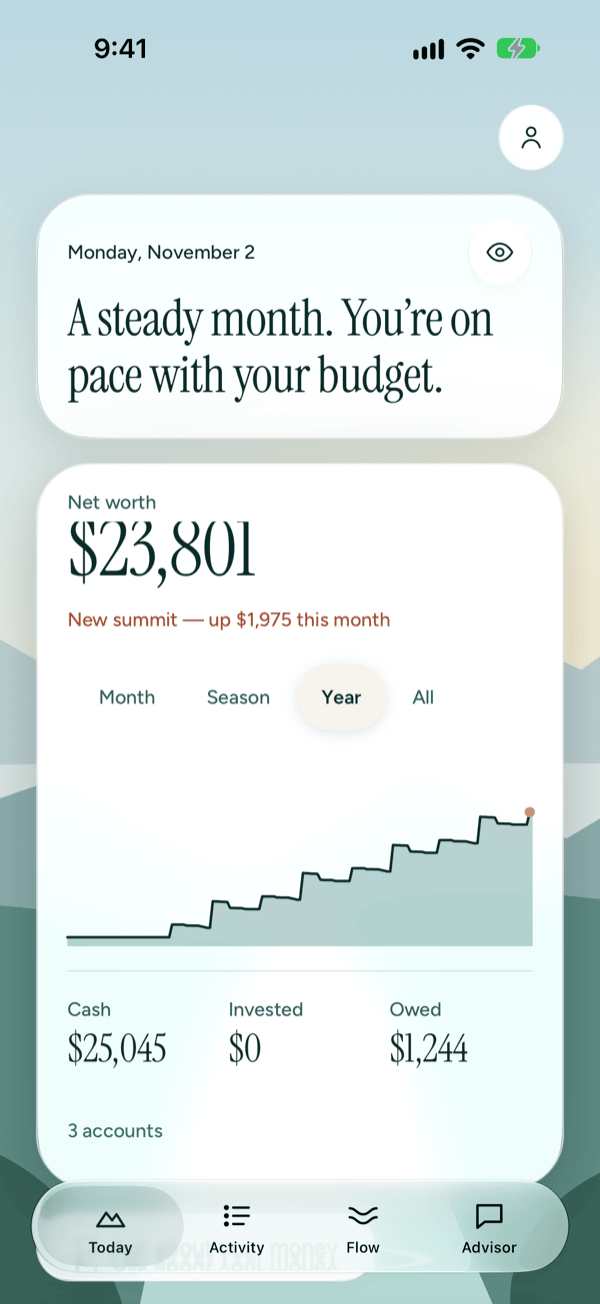
Before you add any accounts
Until you add an account, Today shows Add your money in place of your numbers. Pick one way to start:
- Connect a bank. You sign in through Plaid's own sign-in, and the account updates on its own with a subscription. If you don't have one yet, Prosperia shows the App Store's subscription options first. See Connecting banks.
- Import a file. Use a CSV, OFX or QFX file from your bank's website. See Importing files.
- Add an account by hand. Type the balance your bank shows, then log spending as it happens. See Accounts.
Everything you add is kept on this iPhone, encrypted. Start with one account and add the rest any time.
The top card
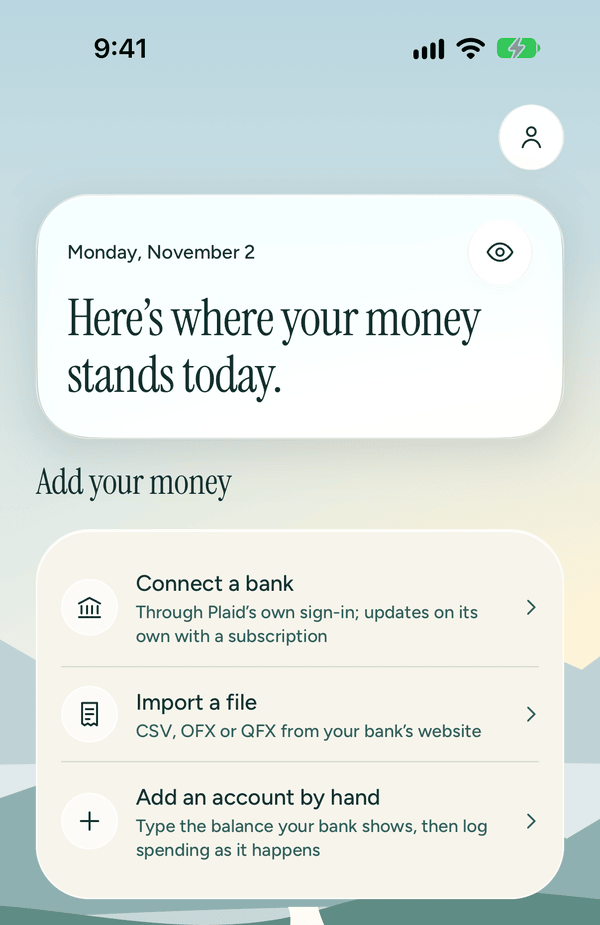
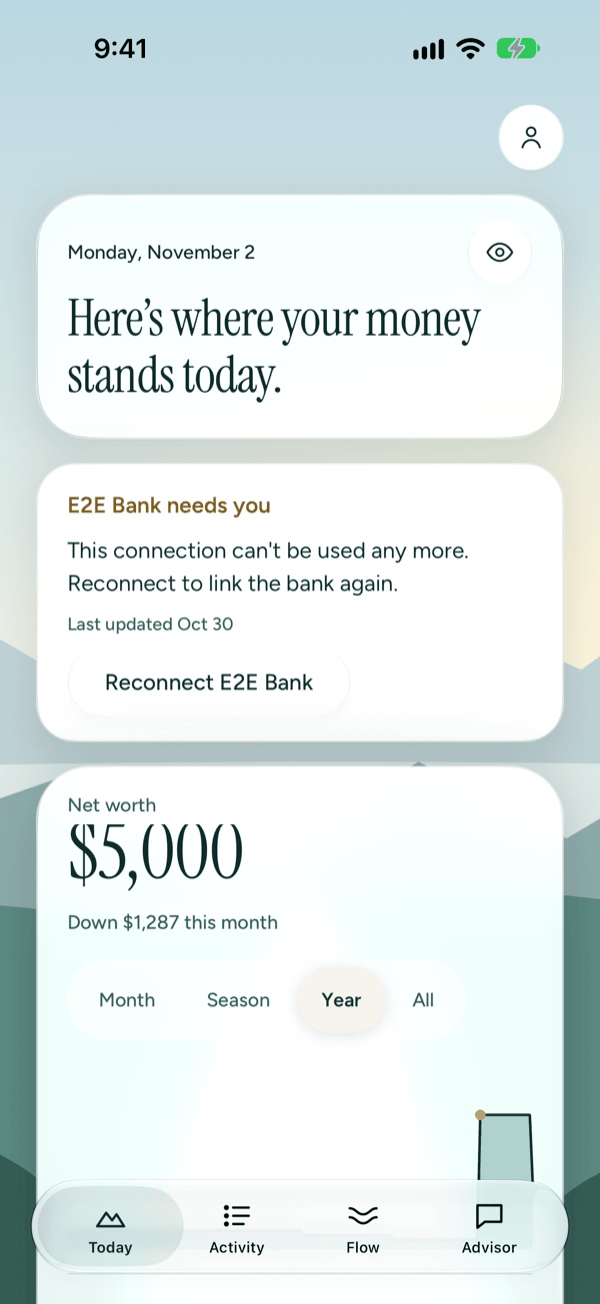
The top card shows today's date and one short sentence about your month. The sentence never has numbers in it, so it reads the same when amounts are hidden. It's one of these:
| You see | What it means |
|---|---|
| A steady month. You're on pace with your budget. | You're at or under the pace your budget allows for this point in the month. |
| Spending is running ahead of budget this month. | You're well ahead of the pace your budget allows for this point in the month, but not over it yet. |
| Spending has gone over budget this month. | You've spent more this month than your whole budget. |
| A steady month. More has come in than gone out. | You don't have a budget yet, and your income is covering your spending. |
| More has gone out than come in this month. | You don't have a budget yet, and you've spent more than came in. |
| Here's where your money stands today. | There's no budget and no income this month yet. |
To set up a budget, see Flow and budgets.
Hide amounts
The eye button (Hide balances) at the top right of the first card hides the amounts in Prosperia. Use it when you open the app in public. With VoiceOver, the button is called Hide balances.
- Tap the eye button. Balances, totals and transaction amounts across Prosperia are blurred. (Amounts you are typing into a form, such as a budget, still show.)
- Tap it again to show amounts.
Prosperia remembers your choice, so amounts stay hidden after you close and reopen the app. With VoiceOver on, hidden amounts are read as "Amount hidden".
While amounts are hidden, Today still tells you how things are going in words. For example, the net worth line reads "Up this month" without the figure, and the check-in label reads Over budget or Within budget.
Net worth
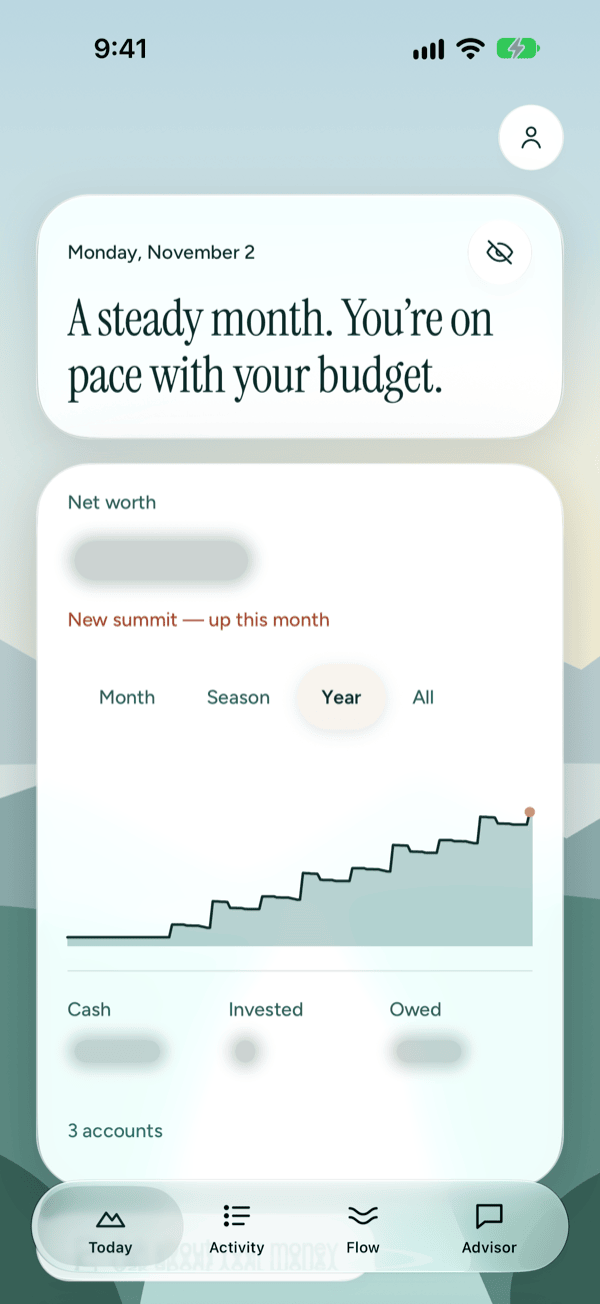
Net worth is what you have minus what you owe, added up across your accounts. Under the total, a line shows how much it has changed since the last day of last month, not over the last 30 days. If Prosperia's history starts this month, the change is counted from your first day of history instead. If you've only just added your accounts, this line appears once Prosperia has more than one day of history.
- Up $X this month or Down $X this month.
- No change this month.
- New summit — up $X this month. Your net worth is up this month and at its highest across the range you picked and the earlier periods drawn behind it.
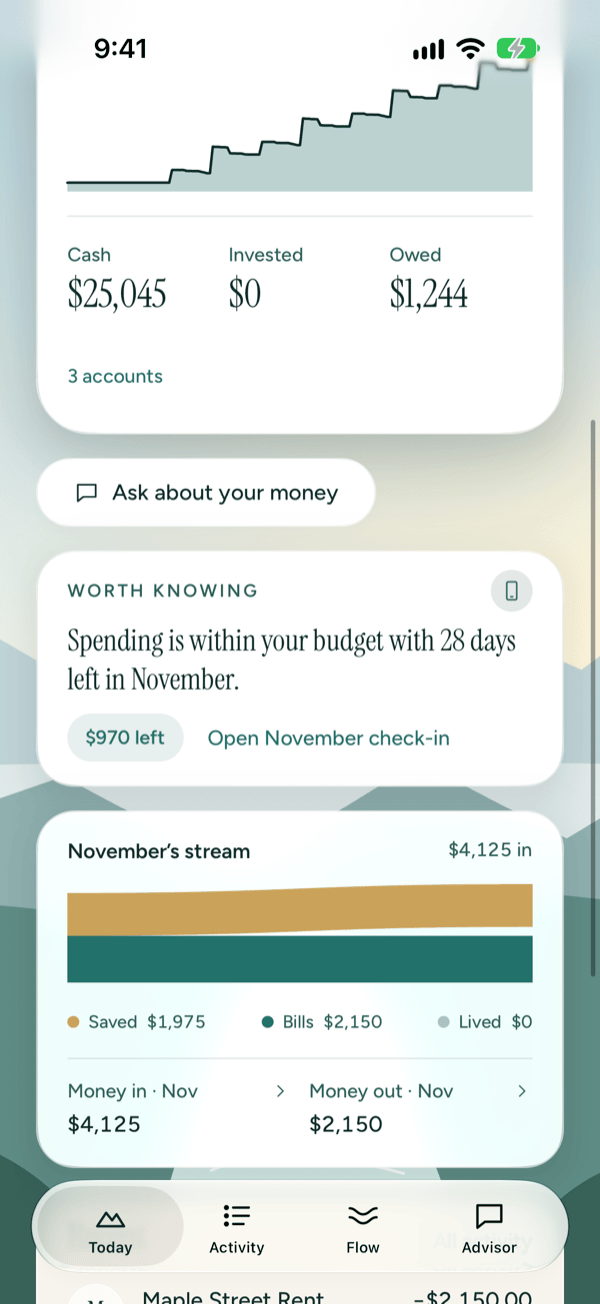
Below the chart, three figures show where most of it sits:
- Cash: checking and savings accounts.
- Invested: investment and brokerage accounts.
- Owed: credit cards and loans.
An account counts toward net worth once it has a balance in US dollars. Some account types count toward net worth but don't appear in any of the three, so the figures may not add up to the total.
Accounts in other currencies, or without a balance yet, are left out. Tap the account count at the bottom of the card (for example 4 accounts) to open Accounts and see each one. The count includes only the accounts that make up your net worth.
Change the chart's range
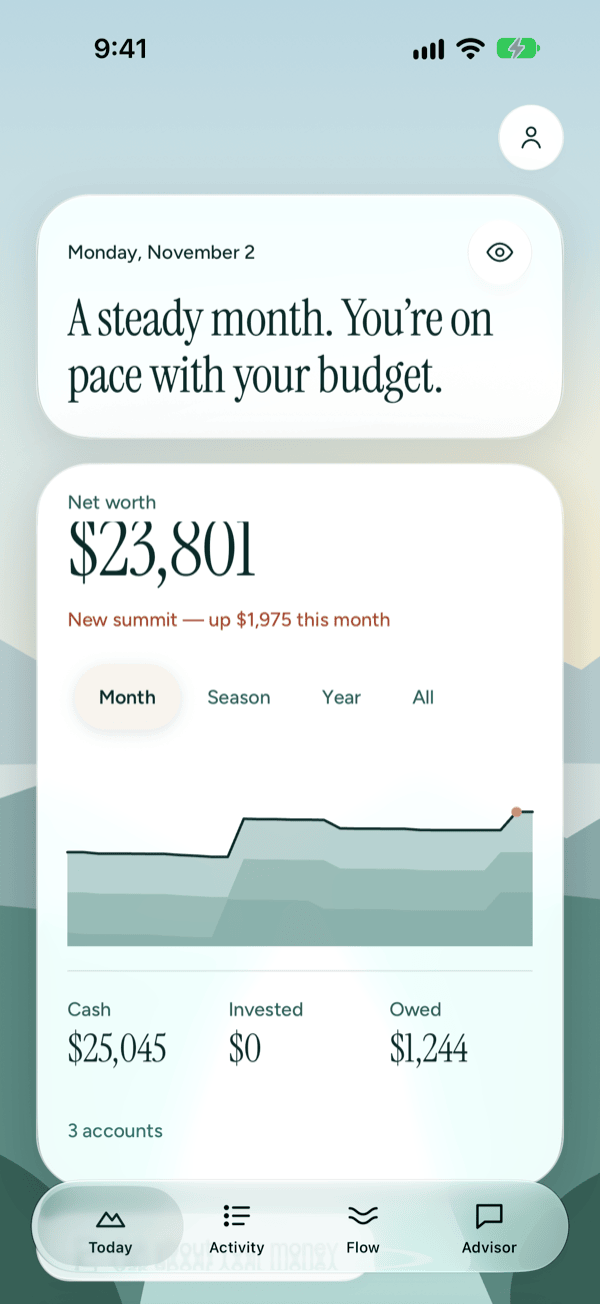
Tap Month, Season, Year or All above the chart. Month shows the last 30 days, Season the last 3 months, Year the last 12 months, and All everything Prosperia has. Year is selected when you open Today.
For Month, Season and Year, the current period is drawn in front, with up to two earlier periods of the same length behind it. That lets you compare this year with last year, for example. Earlier periods appear only once Prosperia has enough history to fill them.
Read your net worth on a past day
- Touch and hold the chart for a moment.
- Drag left or right. A thin line follows your finger, and the date and your net worth on that day appear above the chart.
- Lift your finger and the date and amount above the chart go away.
A quick swipe up or down still scrolls the screen. With VoiceOver, swipe up or down on the chart to step through the days.
If you've only just added your accounts, you'll see "Your net worth trend shows here once transactions arrive." The chart fills in as your history builds.
Ask about your money
If your iPhone has Apple Intelligence, an Ask about your money button appears under the net worth card. It opens Advisor, where you can ask questions about your own money. Answers are written from your own numbers. They can be wrong, and they aren't financial advice.
Your monthly check-in
The Worth knowing card shows how this month's budget is going, in one line:
- "Dining is running over budget with 9 days left in November." The category furthest over its budget is named, with a label showing how much it's over, for example $40 over budget.
- "Spending is within your budget with 9 days left in November." The label shows how much you have left, for example $310 left.
- "November has no budget yet." You haven't set a budget for this month.
On the last day of the month, the line says "on the last day of" the month instead of counting days. The small iPhone icon at the top right of the card shows the numbers were added up on your iPhone. Tap it to read Worked out on this iPhone.
Tap the card, or Open November check-in, to see the full check-in. See Monthly check-in and budget assistant.
This month's stream
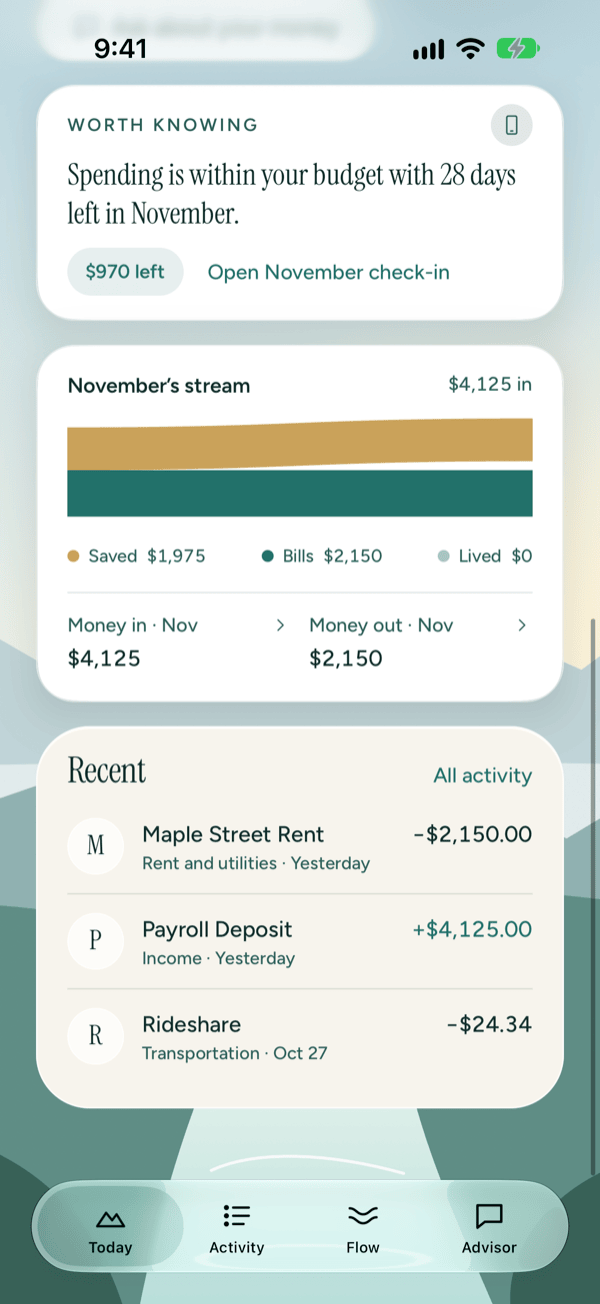
The November's stream card (named for the current month) shows how much came in this month, for example "$5,200 in", and a bar that splits it three ways:
- Bills: rent, utilities and debt payments.
- Lived: everything else you spent.
- Saved: what's left of your income after bills and living. It never goes below zero.
Under the bar, two links take you further:
- Money in · Nov opens Activity showing this month's income.
- Money out · Nov opens your spending by day and by category. See Spending and categories.
Recent transactions
Recent shows your three latest transactions, each with the merchant, its category (or "Card payment"), the day and the amount. Money in shows with a plus sign.
- Tap a transaction to see its details, change its category or add a note.
- Tap All activity to see every transaction in the Activity tab.
See Activity and transactions for what you can do with a transaction.
When a bank needs you
If a connected bank stops updating, a card appears near the top of Today with the reason in plain words:
- [bank] needs you: tap Reconnect [bank] and sign in to your bank again through Plaid.
- [bank] is out of date: Prosperia usually tries again on its own. Check that you're online, then pull down on Today.
- [bank] stopped syncing: your subscription has ended. Tap Subscribe to keep the bank updating.
The card goes away once the bank is updating again. For every reason the card can give and what to do, see Connecting banks.
Refresh your banks
Pull down on Today to fetch the latest from your connected banks. Prosperia also checks for new transactions each time you open it. For other ways to refresh, see Connecting banks.
Open You and settings
Tap the person button at the top of the screen to open You, where you'll find your accounts, bills and reminders, the monthly check-in, categories and the Privacy Center. See You and settings.
If something goes wrong
If you see "Couldn't load your numbers.", tap Try again. If it keeps happening, close and reopen Prosperia, then see Troubleshooting and contact.
Good to know
- Ask about your money appears only on an iPhone with Apple Intelligence turned on. Everything else on Today works without it.
- Net worth and the stream count US dollars only.
- Connected banks need a subscription to keep updating. Accounts you add by hand or from a file don't. See Subscription.
- The headline follows your budget. Until you set one, it describes what came in and went out instead, and the check-in card says the month has no budget yet.
Still stuck? See Troubleshooting and contact, or write to support@stewmore.dev.