Debt payoff
Build a payoff plan for your credit cards and loans, compare two payoff orders and see when you could be debt-free.
On this page
Debt payoff turns your credit card and loan balances into a payoff plan. It shows when you could be debt-free, how much interest you'd pay, and which debt to pay off first. To open it, tap the person button on Today to go to You, then tap Debt payoff. You'll also find Debt payoff on the Accounts screen.
Prosperia never makes payments. Pay from your bank as usual, and your payoff plan updates as your balances change.
Which accounts appear
Every credit card and loan in Prosperia that has a balance owed shows up here. That includes cards and loans you connect through Plaid, and cards you add yourself. An account with nothing owed is left out.
If nothing is owed on any card or loan, the Debt payoff row doesn't appear on You or Accounts. If your only cards and loans with a balance are in a currency other than US dollars, the row still appears, but the screen reads Nothing owed. with "Cards and loans with a balance show up here, with a payoff plan." Debt payoff only works with US dollars for now.

Make a payoff plan
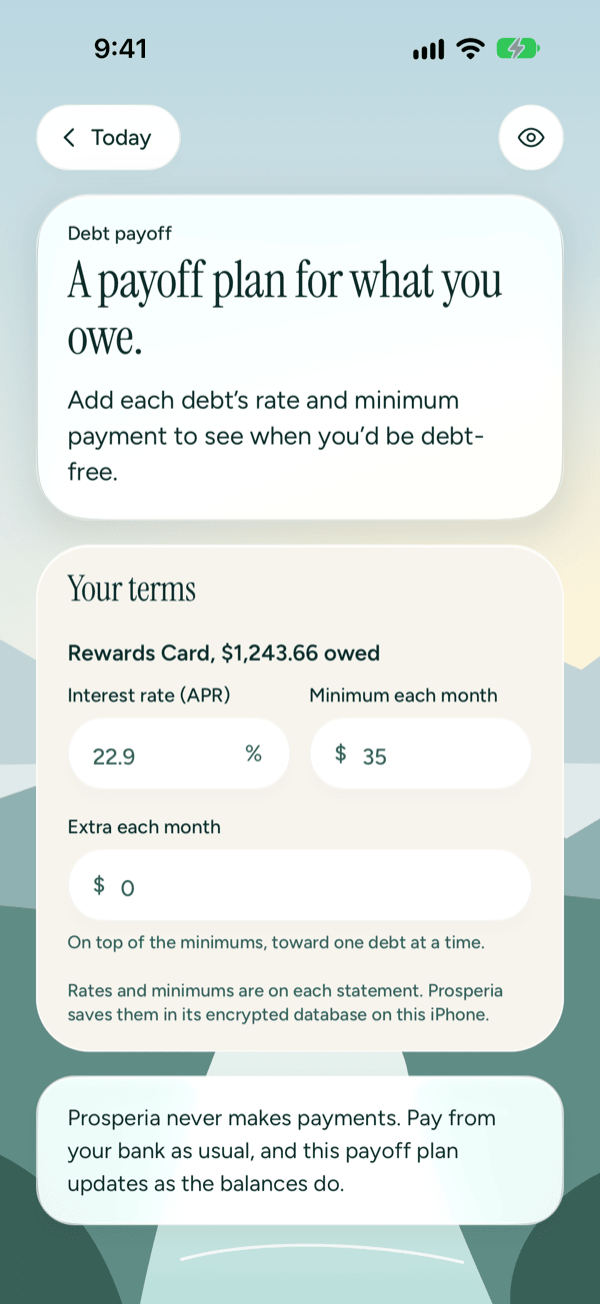
Prosperia already knows each balance. It needs two more things for each debt, and you'll find both on your statement: the interest rate and the minimum payment.
Until every debt has both, the screen reads A payoff plan for what you owe. with "Add each debt's rate and minimum payment to see when you'd be debt-free."
- Open You, then tap Debt payoff.
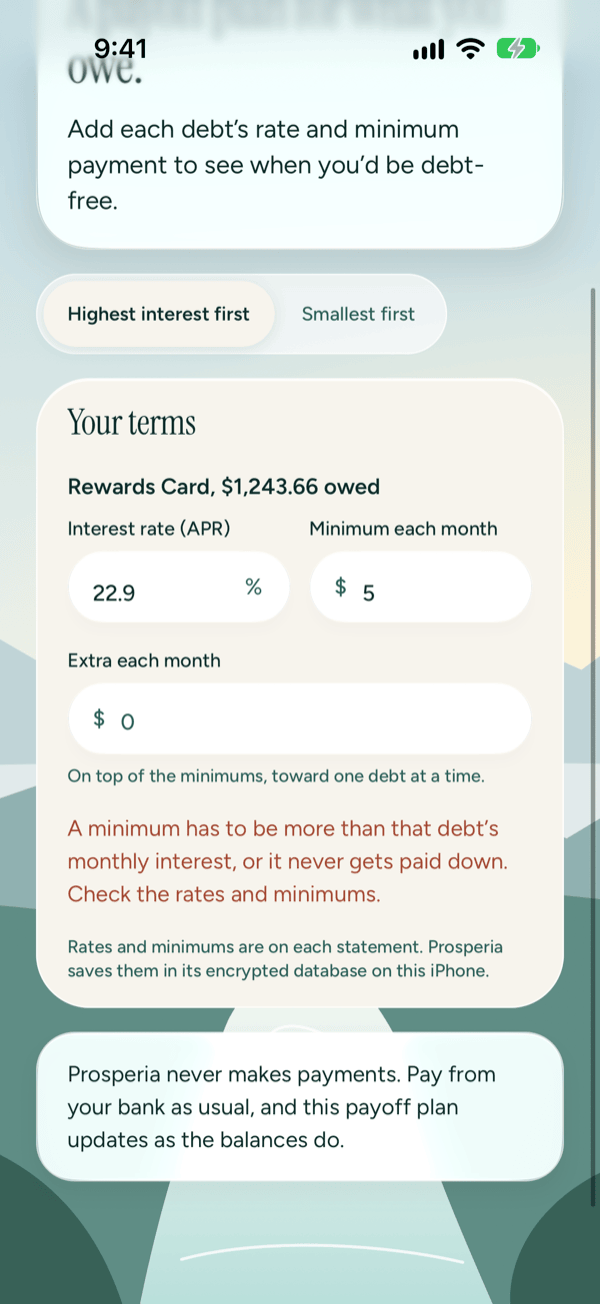
- Scroll to Your terms. Each debt is listed with its name and how much you owe.
- In Interest rate (APR), type the rate as a percentage, for example 22.9.
- In Minimum each month, type the minimum payment, for example 35.
- Tap outside the field to save it. Do the same for every debt on the list.
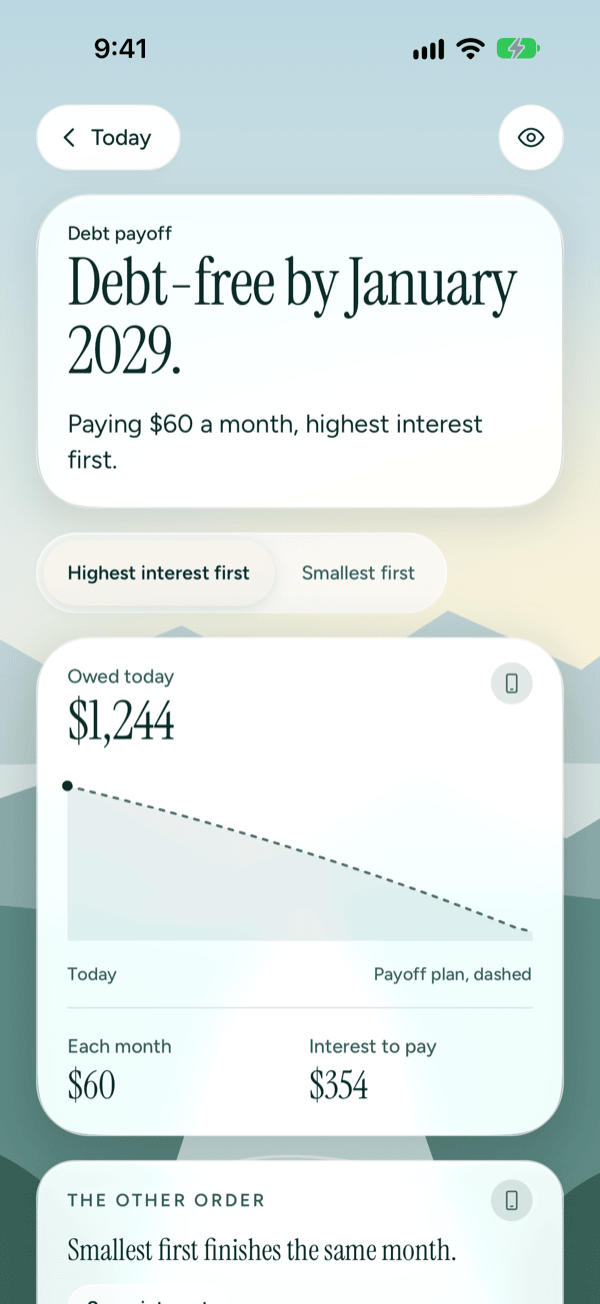
Once every debt has both, the top of the screen changes to Debt-free by a month and year, for example "Debt-free by March 2028." Under it you'll see:
- Owed today: the total you owe across your cards and loans.
- A chart of your debt going down to zero. The dashed line is your payoff plan.
- Each month: your minimums plus any extra you add.
- Interest to pay: the total interest you'd pay on this payoff plan.
Prosperia saves your rates and minimums in its encrypted database on this iPhone, so you only type them once. To change one, type over it and tap outside the field. To remove one, clear the field; your payoff plan is hidden until that debt has a rate and minimum again.
Choose a payoff order
Once your payoff plan is ready, pick an order at the top of the screen:
- Highest interest first (often called the avalanche method) pays down the debt with the highest rate first. It usually costs the least interest overall.
- Smallest first (often called the snowball method) pays off the smallest balance first. You clear whole debts sooner, which some people find keeps them going.
Every month, each debt gets its minimum. Any extra goes to one debt at a time, in the order you chose. When a debt is paid off, its minimum moves on to the next one.
To compare the two:
- Tap Highest interest first or Smallest first.
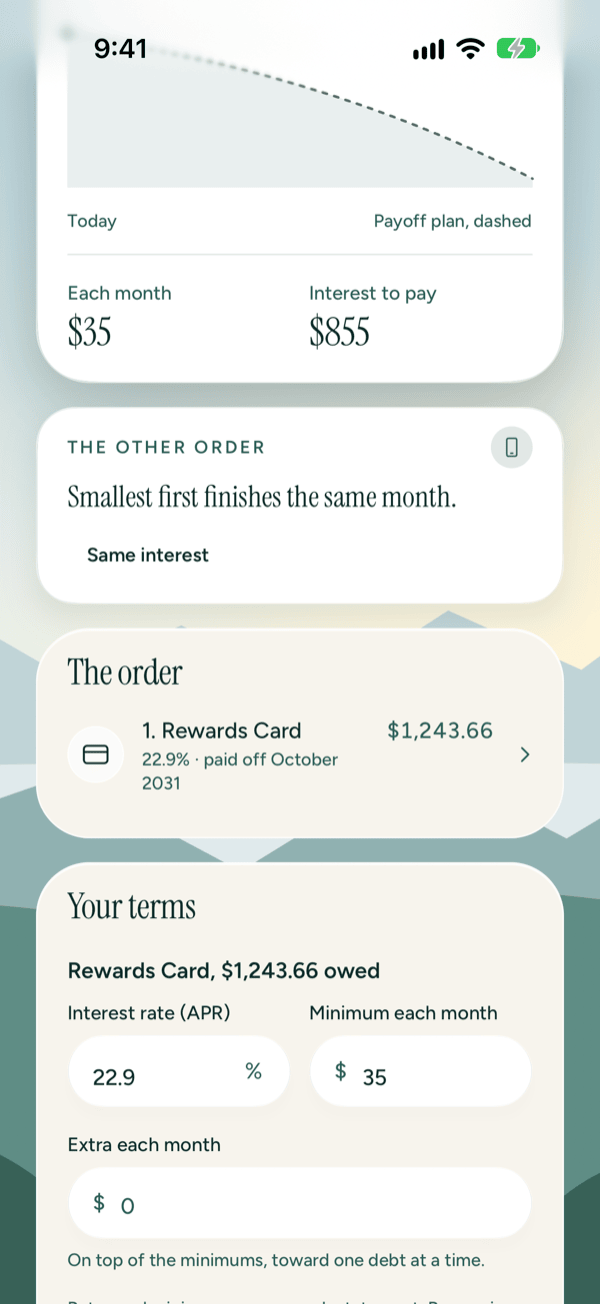
- Read the card headed The other order. It says whether the other order finishes the same month, sooner or later, and whether it means more interest, less interest or the same interest.
The order lists your debts in the order your extra goes to them. Each row shows the debt's rate and the month it's paid off, for example "22.9% · paid off June 2027." Tap a row to open that account.
See what paying extra does
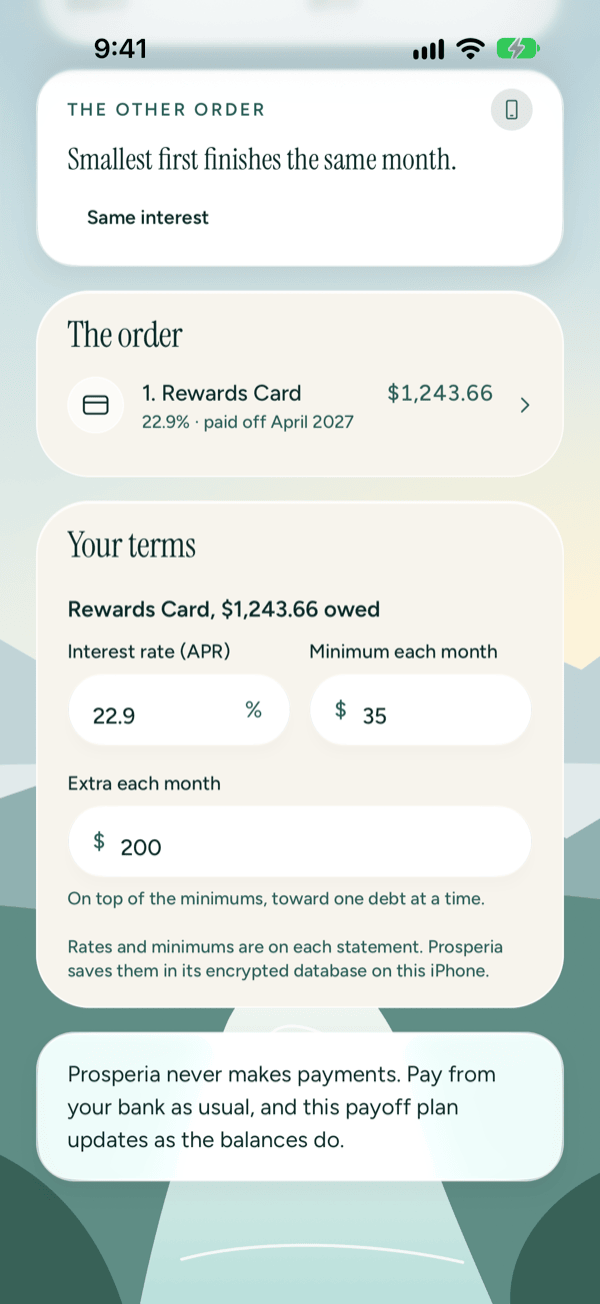
- Scroll to Extra each month under Your terms.
- Type how much more than the minimums you could pay each month, for example 200.
- Watch your debt-free date and Interest to pay update.
The extra goes on top of your minimums, toward one debt at a time.
If your debt-free date disappears, check for a red message under a field. The payoff plan comes back once every debt has a rate and a minimum and Extra each month is a plain amount or empty.
Hide amounts
Tap the eye at the top of the screen to hide amounts everywhere in Prosperia, not just on this screen. It stays on until you turn it off. Your balances and totals are covered, under Your terms each debt shows only its name, the line under your debt-free date just names your payoff order, and the interest difference on The other order is hidden. Your debt-free date and payoff months still show. Tap the eye again to show amounts.
If something goes wrong
| What you see | What to do |
|---|---|
| Enter a rate like 22.9. | Type the rate as a number from 0 to 100 with up to two decimal places, like 22.9 or 24.99. |
| Enter an amount like 35. | Type the minimum as a dollar amount with up to two decimal places, like 35 or 35.50. |
| Enter an amount like 100. (under Extra each month) | Type a dollar amount with up to two decimal places, or clear the field to pay no extra. Until you fix it, your payoff plan is hidden. |
| A minimum has to be more than that debt's monthly interest, or it never gets paid down. Check the rates and minimums. | At least one minimum is too small to cover the interest that debt adds each month. Check the rate and minimum against your statement, then fix the one that's off. It also shows if the payments are too small to pay everything off in a reasonable time. Try raising a minimum or adding an extra amount. |
| Couldn't save that. Try again. | Your rate or minimum wasn't saved. Type it again and tap outside the field. |
| Couldn't work out the payoff plan. | Tap Try again. |
| Prosperia couldn't load your accounts. | Tap Try again. If it keeps happening, see Troubleshooting and contact. |
Good to know
- Debt payoff works without Apple Intelligence. Your payoff plan is plain math, worked out on this iPhone.
- Only cards and loans in US dollars are included.
- Your rates and minimums are saved. Your payoff order and Extra each month last until you quit the app (swipe it away in the app switcher) or your iPhone restarts it, then reset to Highest interest first and no extra.
- The payoff plan uses each balance as it is today. As you make payments and your balances change, your debt-free date updates.
- The payoff plan is an estimate to help you decide, not financial advice. Your lender's statement has the exact figures.
To add a card or loan, see Accounts and Connecting banks. For your bills and the month ahead, see Bills and forecast.
Still stuck? See Troubleshooting and contact, or write to support@stewmore.dev.