Spending and categories
See where a month went, look inside one category, and make categories of your own.
On this page
The spending screen shows where your money went in a month, and each category has its own page with the purchases behind its total. You can also make your own categories, like Kids or Garden, and Prosperia learns which category a merchant belongs in when you correct one.
See a month's spending
You can open the spending screen from a few places:
- On Today, tap Money out, next to the month (for example "Money out · Nov").
- On Activity, tap By category.
- In Advisor, tap the suggestion that asks where the month went, like Where did November go? (Advisor appears only where Apple Intelligence is available.)
It's the same month view you see on the Flow tab, opened as its own screen. Tap the back button at the top left to return to where you were.
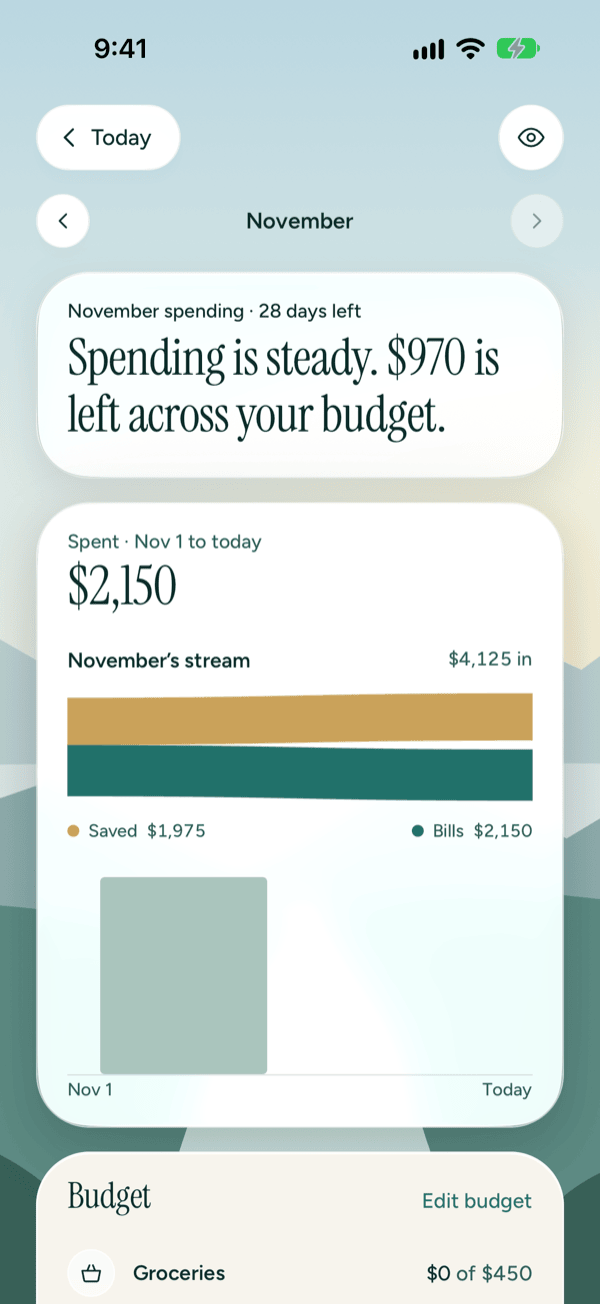
Near the top you'll see:
- The month. The top row shows the month name, with arrows on either side to step to other months. You can't go past the current month. Below it, a line like "November spending · 12 days left". The days left show only for the current month.
- One sentence on how the month is going, like "Spending is steady. $412 is left across your budget." or "No budget for November yet." On the current month, a card with last month's grade can sit just below it until you tap Dismiss.
- Spent. The total spent so far this month ("Spent · Nov 1 to today"), or for a past month, the whole month.
- The stream. How the month splits into Saved (money in you didn't spend), Bills (repeating payments) and Lived (everything else you spent).
- The daily chart. Spending day by day. When there's enough of the month to compare, Prosperia points out your busiest four days in a row.
- An over-budget note. If any category is over its budget, a note names the one furthest over, like "Dining is running over its budget with 12 days left in November." Tap See transactions to open that category.
- Budget. Each category in your budget, with how much you've spent against it. On the current month, the tick on each line shows where spending would be at an even pace today.
- Not in your budget. Categories you spent in that don't have a budget yet.
Further down are, for the current month only, bills Coming up (with a Bill calendar link), then the month's grade and, where Apple Intelligence is available, an Ask about button for the month, like Ask about November.
To learn about setting budgets, grades and the rest of this screen, see Flow and budgets.
Look inside one category
Tap any category row on the spending screen or the Flow tab, in Budget or Not in your budget. Its page shows the month for that category alone.
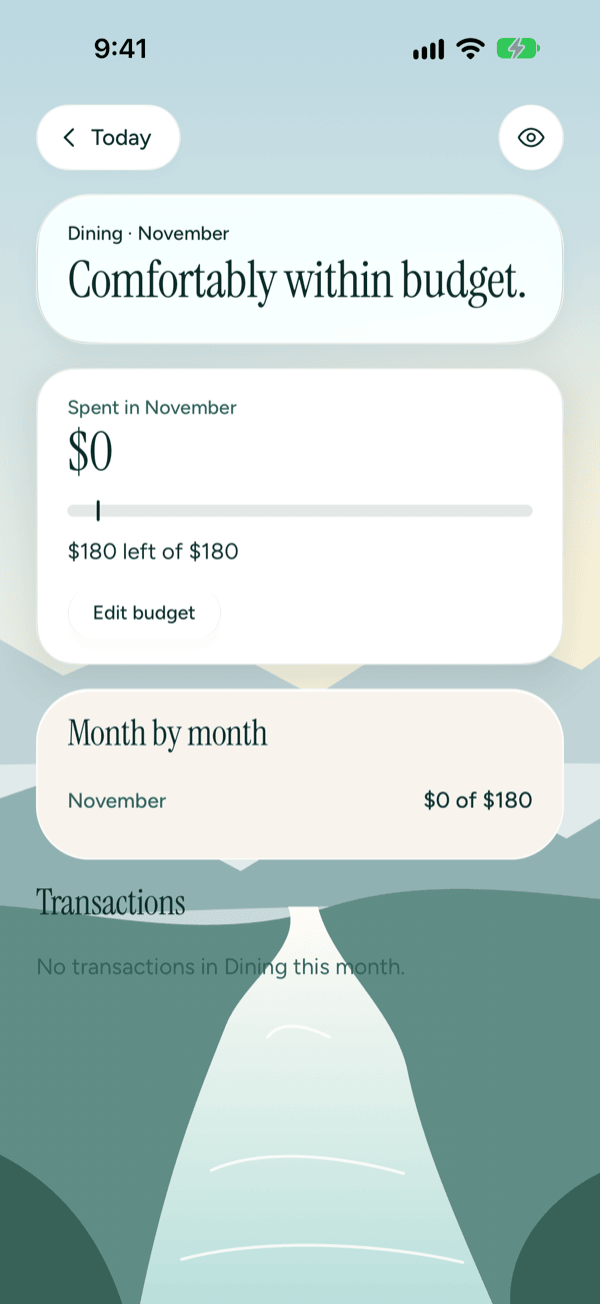
You'll see:
- A headline on how it's going: "Comfortably within budget.", "Running a little ahead of budget." or, for example, "Dining went over budget this month."
- Spent in (month), the total for this category.
- A progress bar of spending against the budget, with a marker for how far through the month you are.
- What's left, like "$62 left of $180", or "$24 over a $180 budget" when it's over.
- Month by month: of the last six months (including this one), each month this category had a budget, like "October: $171 of $180". Months that went over say "over budget". If none of them had a budget, this section doesn't show.
- Transactions, every purchase in this category this month. Tap one to open its details.
Set or change the budget from here
- Tap Set a budget (or Edit budget if it already has one).
- Enter the amount and tap Save budget.
If the category has no budget, the headline reads "No budget for (category) yet." and the button says Set a budget.
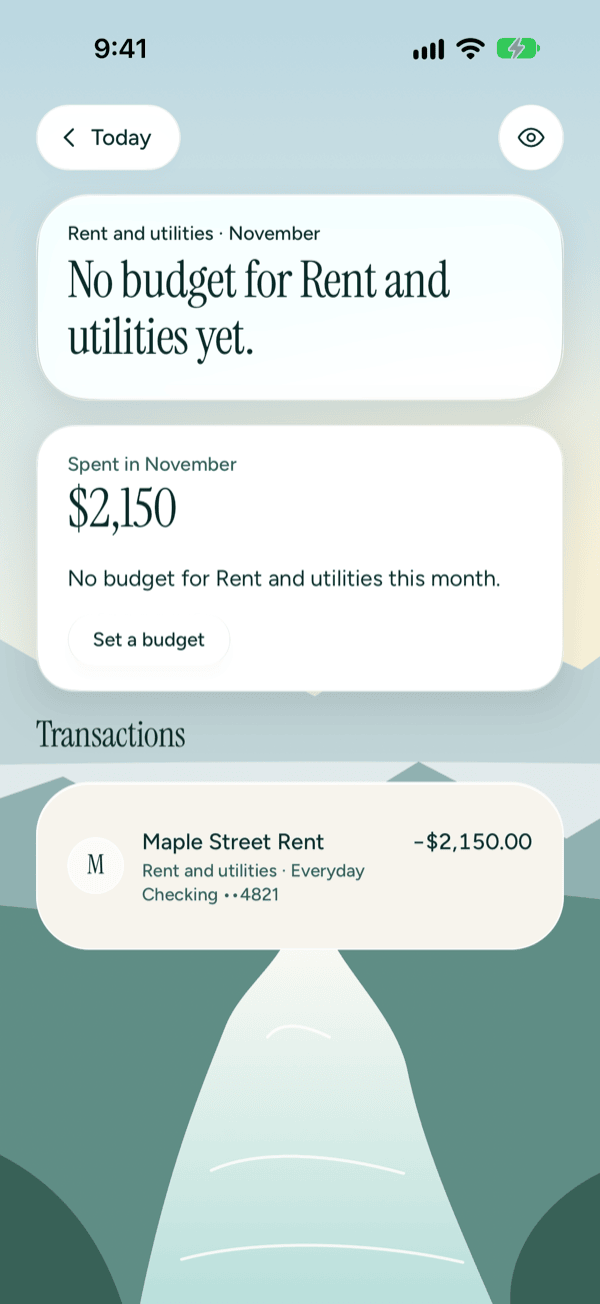
How Prosperia picks a category
Every transaction gets one category. Prosperia uses the first of these that applies:
- Your choice. If you picked a category for this transaction, that wins.
- Your rule. If you taught Prosperia where a merchant goes, purchases from that merchant follow it.
- Your bank's category, when your bank sends one.
- Apple's model on this iPhone. When nothing above gives a category, Apple's on-device model picks one from Prosperia's fixed list. This runs on your iPhone, not on a server.
- Otherwise the transaction counts as Other until you choose one.
Apple's on-device model also gives a readable name to merchants your bank didn't name.
To see why a transaction has its category, open it and look at Why this category. See Why this category for what each message means.
Change a category, and teach Prosperia
Open a transaction (from Activity or a category's Transactions list), tap Category, pick the right one and tap Done. Leave Always use this for on to make every purchase from that merchant follow, or turn it off to change only this one. Changed your mind? Tap Undo next to the message. For the full steps, see Change a category.
About rules
Rules are made only this way, from your corrections. There's no screen to list, edit or delete them. To change where a merchant goes, correct one of its purchases again with Always use this for on, and the rule updates. To make one purchase an exception, change it with the switch off. Your choice on a single transaction always beats a rule.
The Privacy Center shows how many rules are stored on this iPhone, along with your other data. See Privacy Center.
Make your own categories
Prosperia comes with built-in categories like Groceries, Dining and Home. You can add your own, and each one counts as one of the built-in groups, so your budget and grade still add up.
To open the Categories screen:
- On Flow, tap Categories under your budget.
- Or go to You, then Categories.
- Or, while picking a category for a transaction, tap New category.
Add a category
- Type a name in Name, like Kids or Garden.
- Tap Counts as and pick the built-in group it belongs to. It starts as Other.
- Tap Add category.
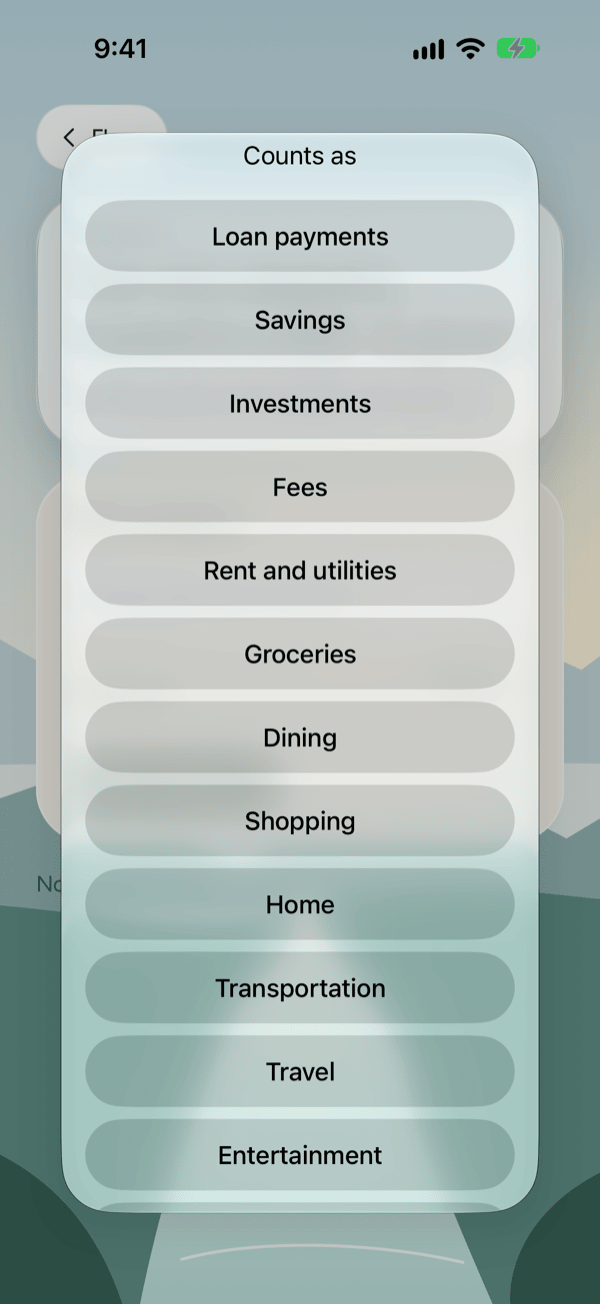
Your new category appears under Yours, with the group it counts as. To use it, pick it from the category list on any transaction.
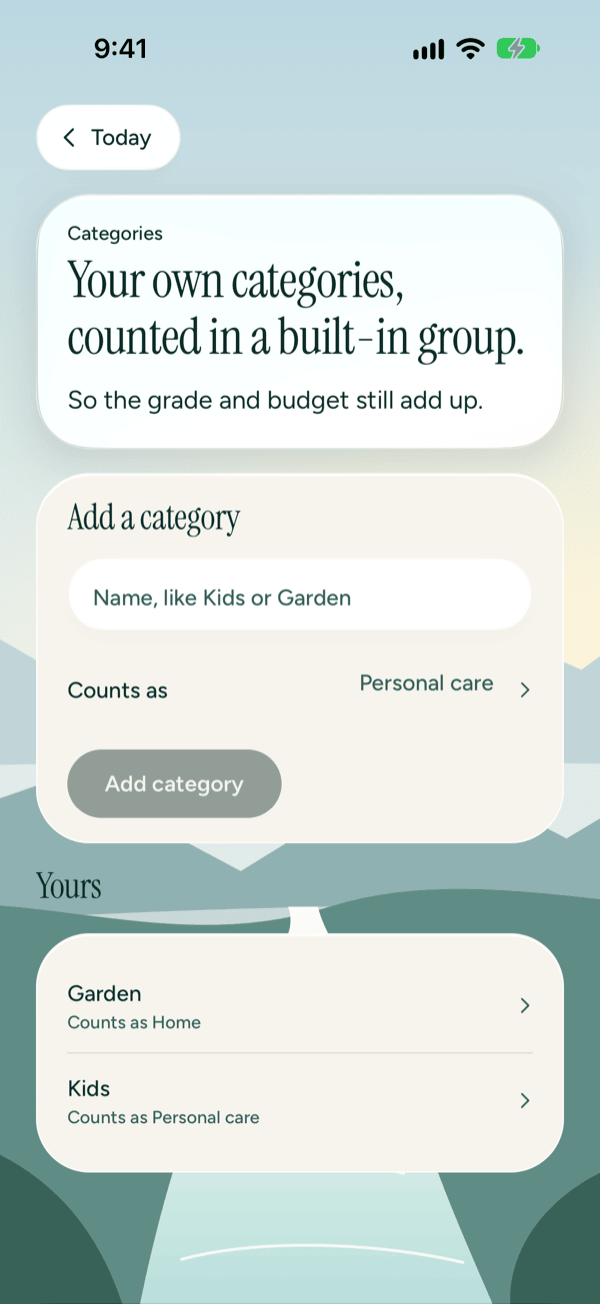
Spending in your own category rolls up into its group's budget line on Flow and the spending screen. For example, Garden spending counts toward your Home budget. The Home category page itself shows only purchases filed under Home, not your own categories inside it, so its total can be lower than the Home line on Flow.
If the name can't be used, you'll see one of these under Name:
| Message | What to do |
|---|---|
| That name is already a built-in category. | Choose a different name. The built-in one is already there to use. |
| You already have a category with that name. | Use the one you have, or pick another name. |
| Use 1 to 40 characters. | Shorten the name. |
| Couldn't add the category. Try again. | Tap Add category again. |
Before you add any, the screen says "No custom categories yet."
Rename or delete a category
- On Categories, tap the category under Yours.
- To rename it, change Name and tap Save name.
- To delete it, tap Delete category, then confirm.
Saving takes you back to Categories. Renaming shows the same name messages as adding; if saving fails you'll see "Couldn't save. Try again." If deleting fails, you'll see "Couldn't delete the category. Try again." Tap Delete category again.
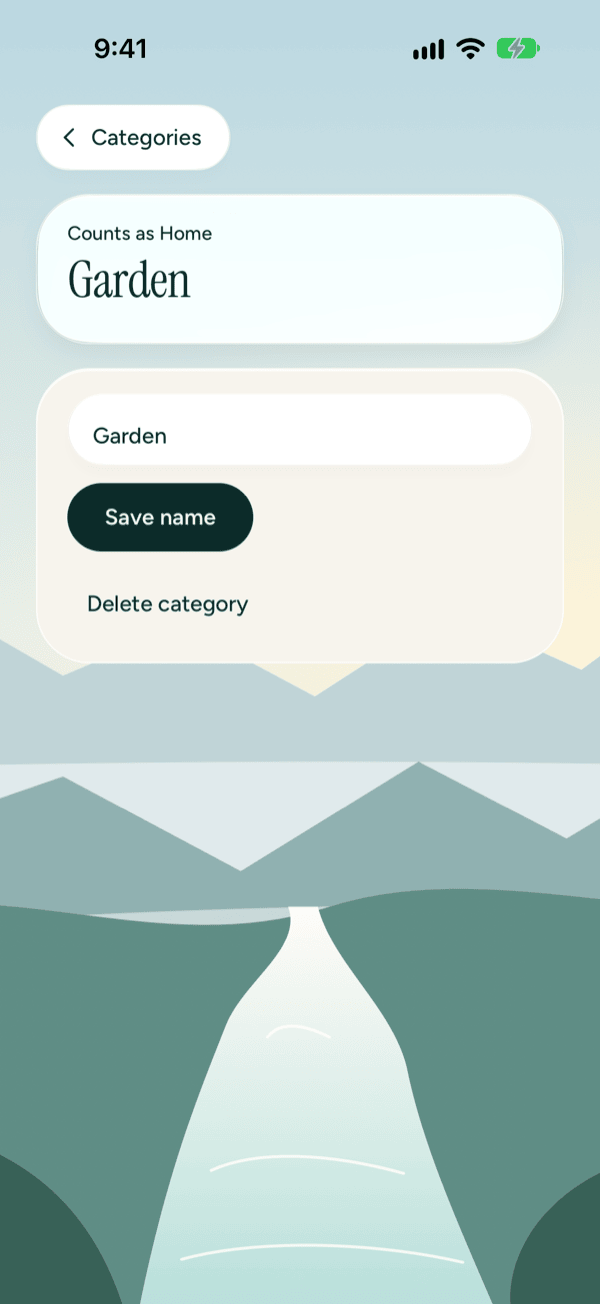
When you delete a category, its purchases and budget move to the group it counted as. Prosperia tells you before you confirm, for example "Garden's purchases and budget move to Home." Rules that pointed to it move too.
You can rename or delete only categories you made. Built-in categories stay as they are.
Hide amounts
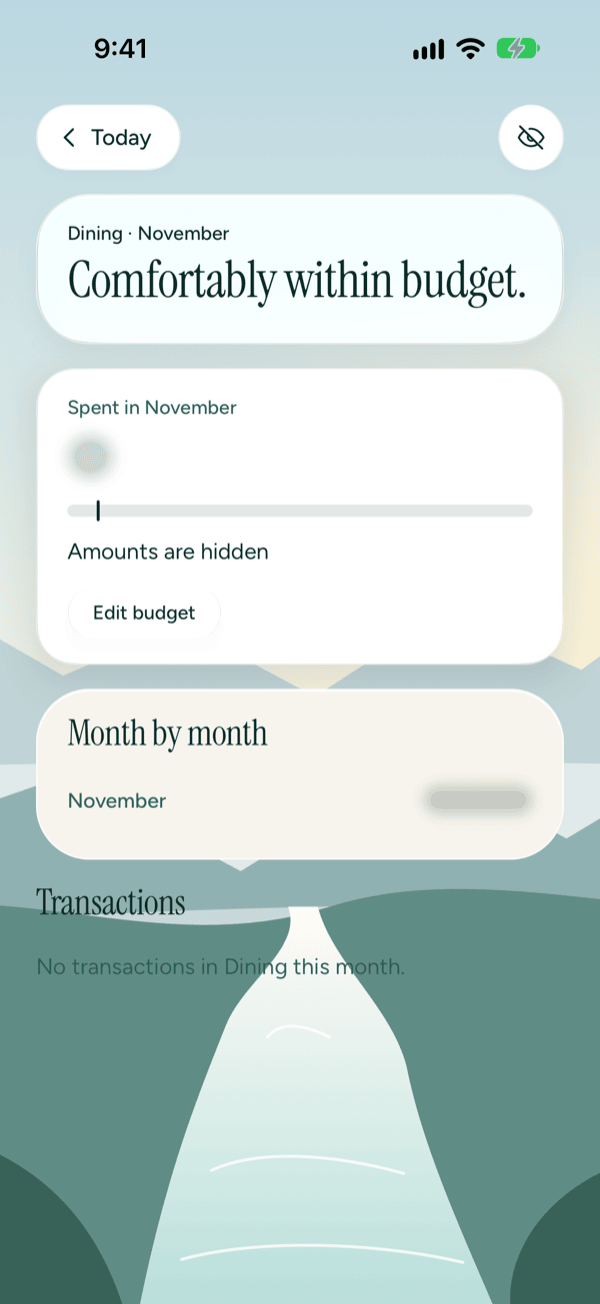
Tap the eye button at the top of the spending screen or a category page to hide amounts. This hides amounts everywhere in Prosperia, and it stays on until you turn it off, even after you close the app.
Headlines still show. On the spending screen the headline leaves out its amount (for example "Spending is steady."), and category headlines never include amounts. On a category page with a budget, the line under the progress bar reads "Amounts are hidden", and the Month by month amounts are covered too. Tap the eye again to show amounts.
If something doesn't load
- "Couldn't load your spending." or "Couldn't load this category." Tap Try again.
- "Couldn't load your categories." Tap Try again.
- "This category no longer exists." It was deleted. Go back to Categories.
- "No category matches. Try another word." Change your search in the category list.
- "Couldn't change the category. Try again." Tap Category again, pick the category and tap Done.
When there's nothing yet
- "No spending in November yet." on the spending screen, "No transactions in Dining this month." on a category page, or "Nothing to show yet." in the spending screen's Budget section. Nothing has been recorded there yet.
- "No budget for Dining this month." under a category's total. Tap Set a budget to add one.
Still stuck? See Troubleshooting and contact.
Good to know
- The spending screen, category pages, your own categories and rules all work without Apple Intelligence and without a subscription.
- Apple's on-device model picks categories and cleans up merchant names only on iPhones with Apple Intelligence turned on. Without it, transactions use your bank's category, your rules and your own choices.
- The model's category can be wrong. Correct it once and your rule takes over.
- AI buttons on the spending screen, like Build my budget with AI, appear only where Apple Intelligence is available. See Monthly check-in and budget assistant.
- Totals are shown in US dollars.
Still stuck? See Troubleshooting and contact, or write to support@stewmore.dev.