Importing files
Bring in a CSV, OFX or QFX file from your bank, and check an account against your bank.
On this page
Your bank's website can give you a file of your transactions. Prosperia reads it on your iPhone, shows you a preview, and saves nothing until you tap Import or Finish. You can use a file to start a new account, or to check an account you keep by hand against your bank.
To start, go to You → Accounts and tap Import a file. You can also tap Add your money (on Accounts, or during setup) and choose Import a file.
Get a file from your bank
- Sign in on your bank's website and open the account.
- Look for Download, Export or Statements.
- Pick CSV, OFX or QFX, and the dates you want.
- Save the file to Files on your iPhone (for example, in iCloud Drive or On My iPhone).
If you forget these steps, tap How do I get a CSV from my bank? on the import screen.
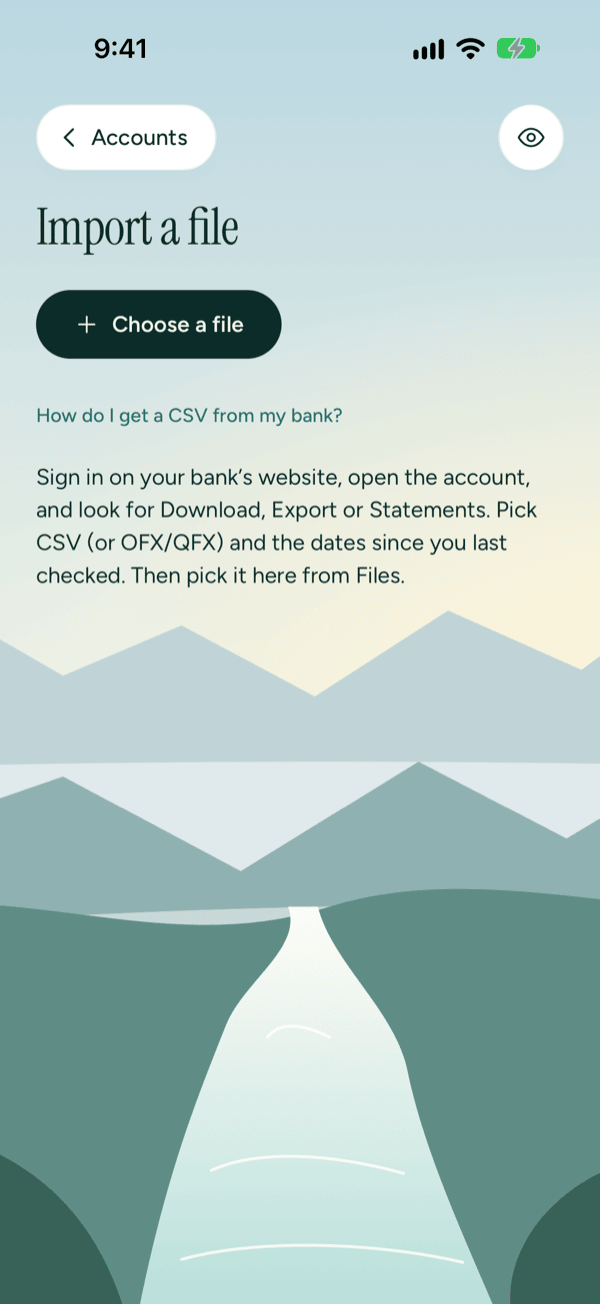
Import a file as a new account
- Tap Choose a file and pick the file in Files.
- Check the summary under the file name. It tells you how many rows Prosperia found, their dates, and where they'll go, like "4 rows · Oct 24 – Oct 29 · into a new account". Tap Change to pick a different file.
- For a CSV, check Columns we found (see below). For an OFX or QFX file with more than one statement, choose one.
- Look over the Preview (the first 10 rows). Money in shows in color, without a minus sign.
- Type a Name for the account, pick its Kind (Checking, Savings, Card or Cash), and enter the Balance your bank shows today. For a card, enter what you owe. An OFX or QFX file often fills in the balance for you.
- Tap Import 4 rows (the button shows the number of rows in your file).
Prosperia opens the new account when it's done.
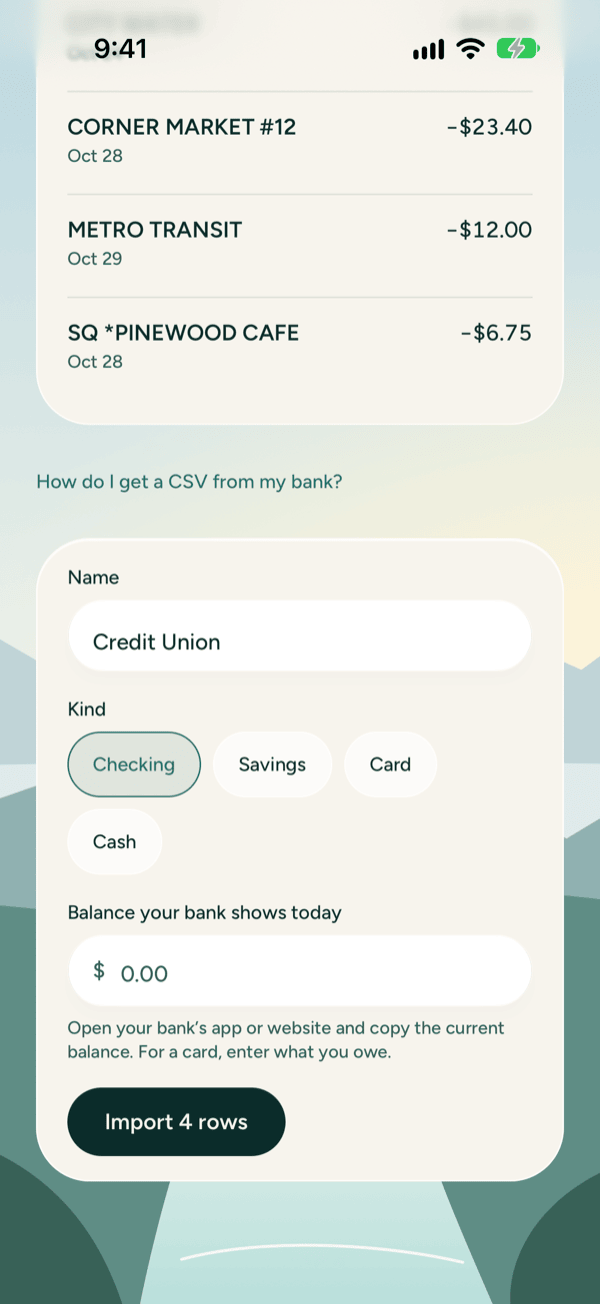
Check the columns in a CSV
Every bank lays out its CSV a little differently. Prosperia guesses which column is which and shows its guesses under Columns we found. Tap Date, Description or Amount to choose a different column from your file. The preview and row count update straight away, so you can see the result before you import.
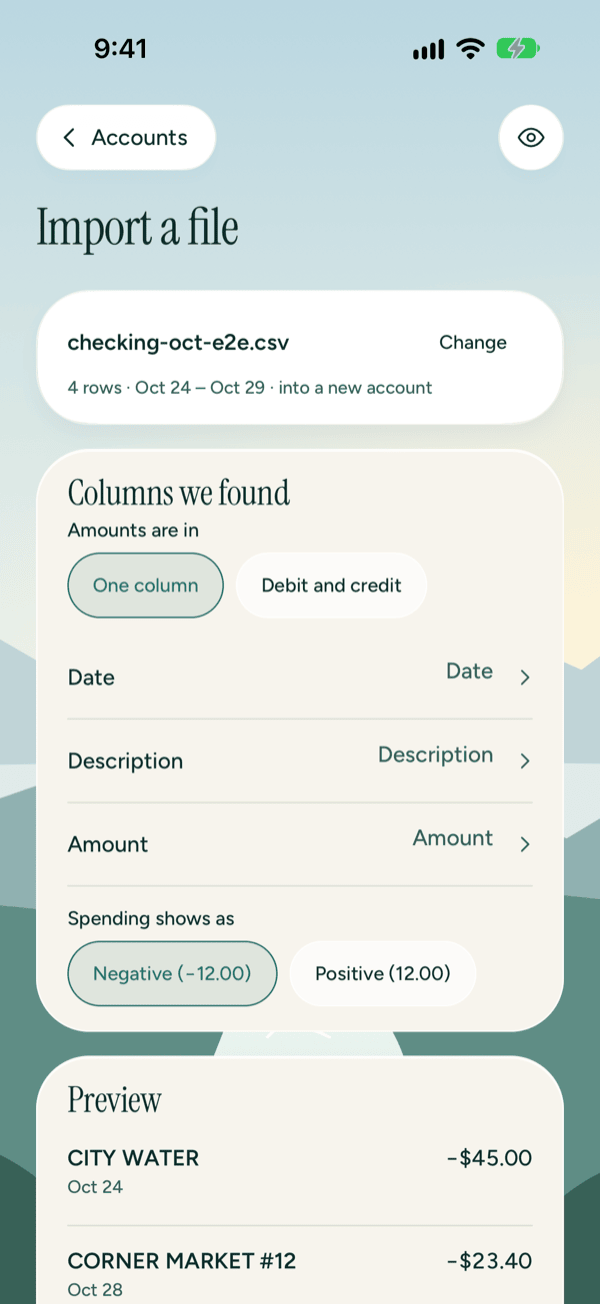
One column or debit and credit
Under Amounts are in, pick how your bank shows amounts:
- One column: every amount is in one column, with spending and money in told apart by a minus sign.
- Debit and credit: spending and money in are in two columns. Tap Debit (money out) and Credit (money in) to pick each one. If you pick the same column for both, Prosperia swaps them so they stay apart.
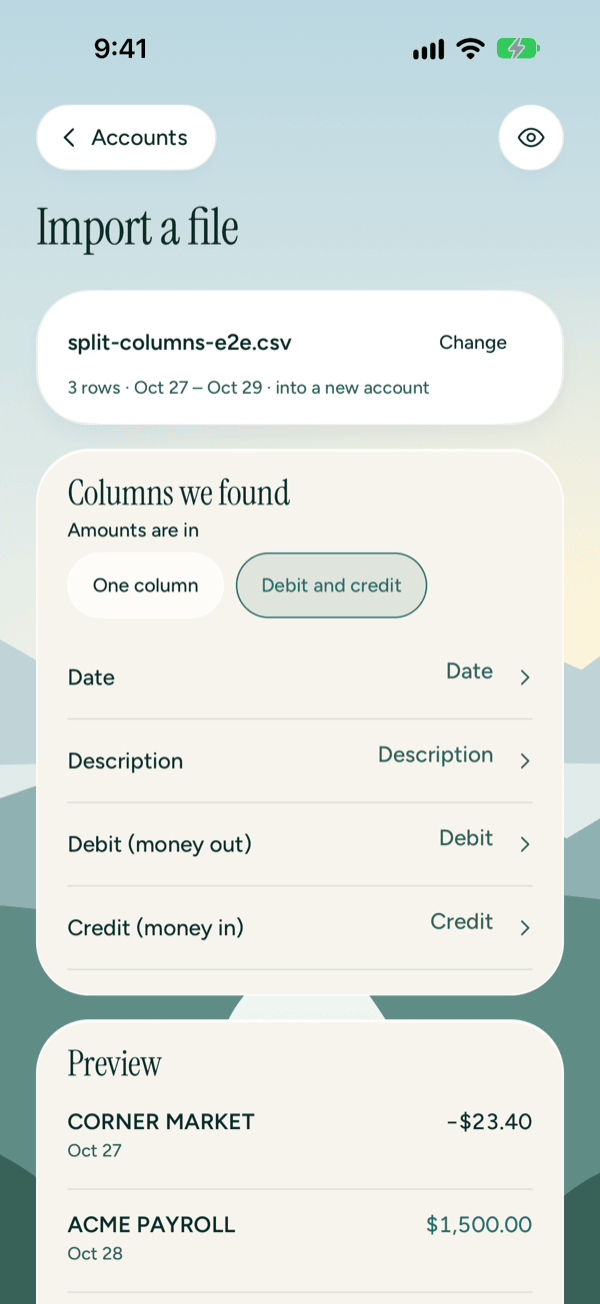
Which way spending goes
With One column, choose how spending looks in your file under Spending shows as:
- Negative (−12.00): spending has a minus sign.
- Positive (12.00): spending has no minus sign, and money in does.
If the preview shows your coffee as money in, switch this.
Files with more than one statement
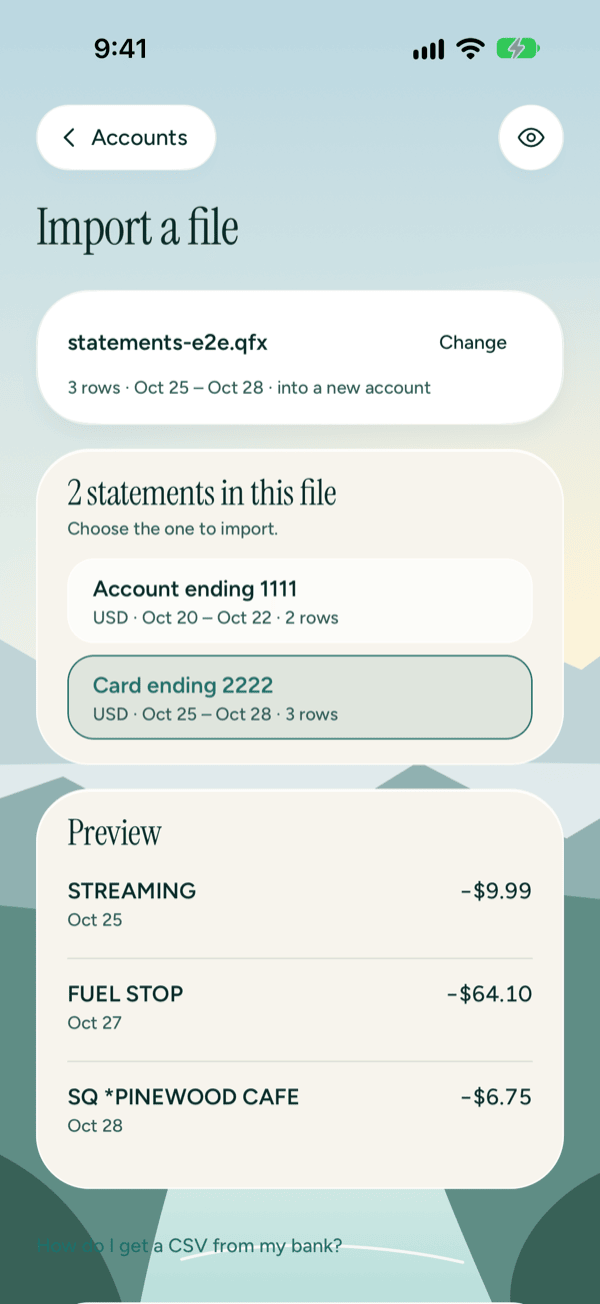
An OFX or QFX file can hold several accounts, such as a checking account and a card. Prosperia shows 2 statements in this file (or however many there are) and asks you to choose the one to import. Each one lists the last digits of the account, its currency, dates and number of rows. To bring in another statement, import the file again and choose that one.
Rows Prosperia skips
If Prosperia can't read a row's date or amount, it leaves the row out and tells you which rows, like "1 row skipped: no date (row 39)." A few skipped rows are normal, such as a total line at the bottom. If many rows in a CSV are skipped, check that Date and Amount point to the right columns (see Check the columns in a CSV). For an OFX or QFX file, the reason may be worded differently, such as "FITID is missing".
Check an account against your bank
For accounts you add by hand or import from a file, you can compare what's in Prosperia with your bank's file. This catches anything you missed or entered twice.
- Go to You → Accounts, open the account, and tap Check against bank. The Check against your bank screen opens.
- Tap Choose a file and pick the file from your bank. For an OFX or QFX file, Prosperia picks the statement whose last digits and currency match this account, or the first one if none match. If the file has more than one, check the choice under 2 statements in this file and tap another if it's wrong.
- Check the columns and preview as above, then tap Compare 4 rows (the number matches your file). The screen is now called Compare.
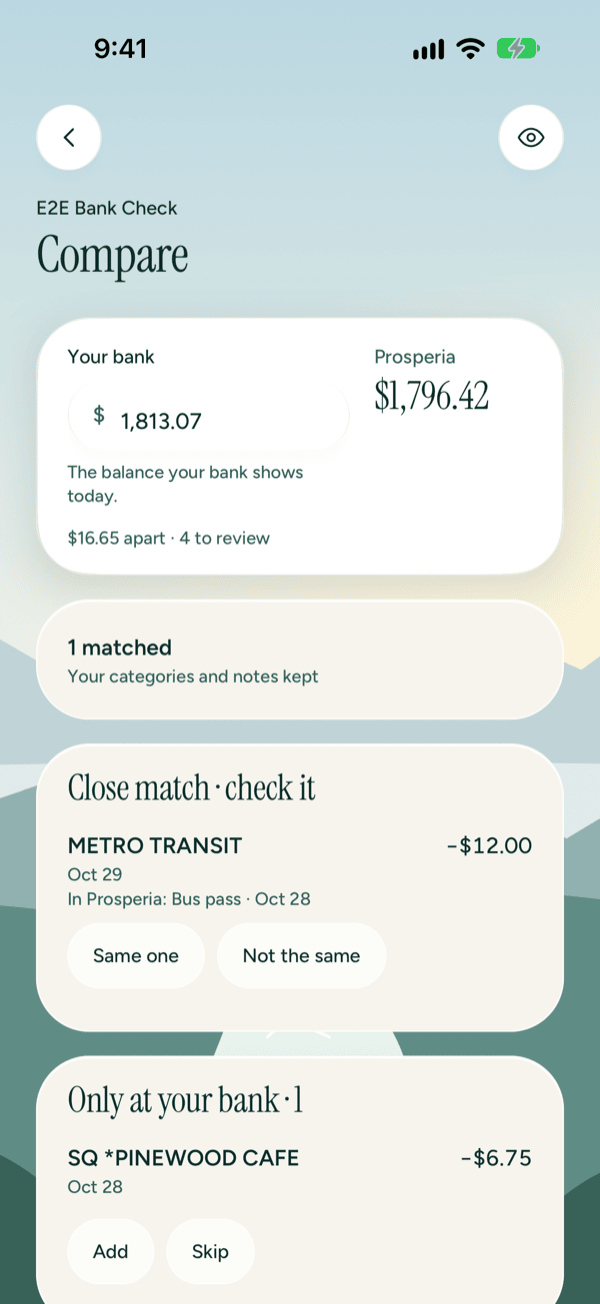
- Under Your bank, enter the balance your bank shows today (an OFX or QFX file may fill it in for you; check it against your bank). For a card, enter what you owe. Finish stays off until there's a balance here. Prosperia shows its own balance next to it and how far apart they are, like "$16.65 apart · 4 to review".
- Go through each group below and decide every row.
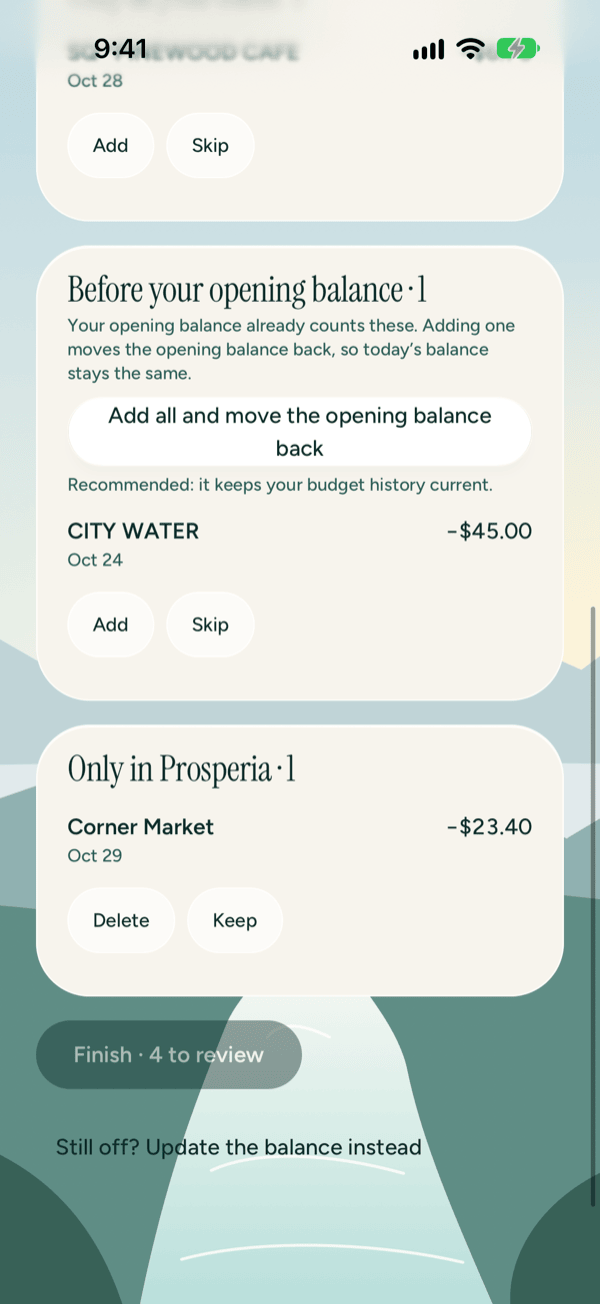
- Tap Finish. Until every row is decided, the button reads Finish · 4 to review.
Prosperia saves your picks, marks the account as checked, and takes you back to it. For an account you added by hand, the line above its name then reads "Manual · last checked against your bank on" and the date.
What each group means
Prosperia pairs a row in your file with one of yours when the amounts are the same and the dates are no more than 3 days apart. Each group shows its count in its title, like Only at your bank · 2. A group with nothing in it doesn't appear.
| Group | What it is | Your choices |
|---|---|---|
| matched (like 4 matched) | In both places, with the same amount, dates within 3 days and a similar name. It reads "Your categories and notes kept". Tap it to see each pair. | Nothing to do |
| Close match · check it | Same amount and dates within 3 days, but the names look different. Under each row, "In Prosperia:" shows the name and date of the row it was paired with. | Same one or Not the same |
| Only at your bank | In the file but not in Prosperia, and dated after your opening balance or last balance update. | Add or Skip |
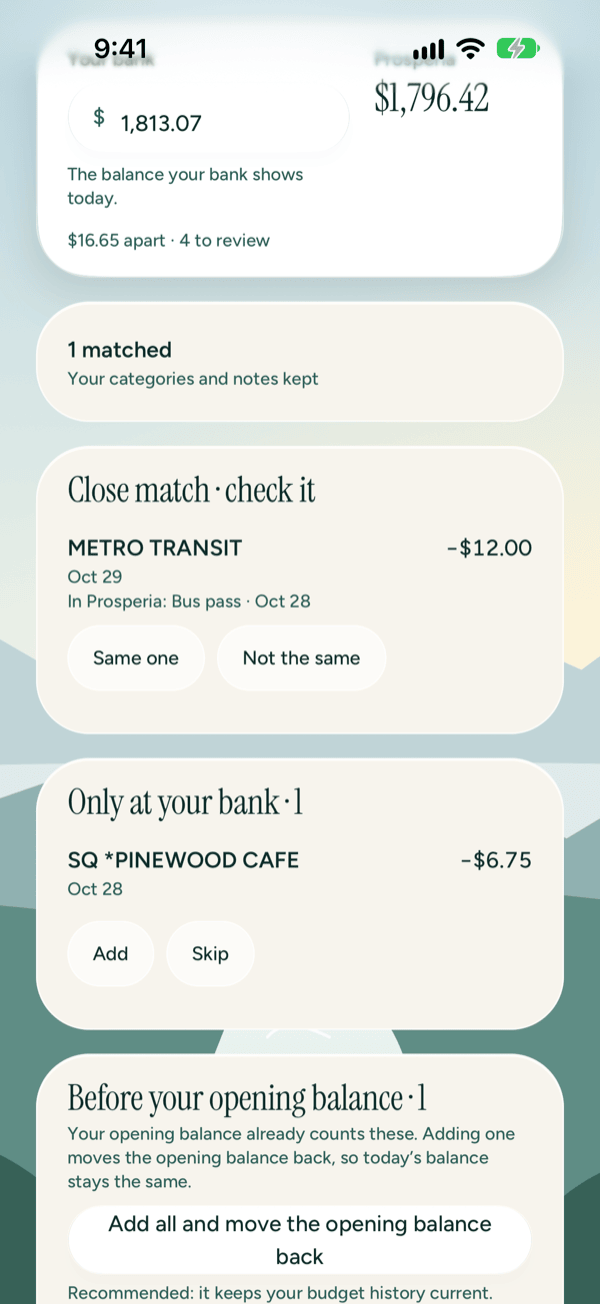
| Before your opening balance or Before your last balance update | In the file but not in Prosperia, and dated on or before your most recent opening balance or balance update. This is one group; its name depends on which of the two is more recent (see below). | Add or Skip, or Add all for the whole group |
| Only in Prosperia | Yours, dated between the file's first and last dates, but not in the file. Your opening balance and balance updates are never listed here. | Delete or Keep |
If you tap Not the same, the two rows split up: the bank's row moves to Only at your bank and yours moves to Only in Prosperia.
When you tap Finish:
- Matched rows, and close matches you marked Same one, take your bank's date and amount, and keep your category and notes.
- Rows you Add become transactions on the account. A row added from Only at your bank changes Prosperia's balance; a row added from the "Before your…" group doesn't.
- Rows you Delete are removed from the account.
- Rows you Skip or Keep stay as they are, and Prosperia doesn't ask about them again.
Rows from before your opening balance
Your opening balance, or your last balance update, already counts anything dated before it. So adding one of these rows doesn't change today's balance: Prosperia takes the row's amount out of the opening balance or balance update that comes after it. An opening balance also moves back to the day before the earliest row you add.
The group's name and button depend on which is more recent:
| Most recent | Group | Button |
|---|---|---|
| Your opening balance | Before your opening balance | Add all and move the opening balance back |
| A balance update | Before your last balance update | Add all |
The button marks every row in the group Add; you can still switch any row to Skip before you tap Finish. Prosperia recommends adding them, because it keeps your budget history current.
If the balances still don't match
Tap Still off? Update the balance instead. It opens Update balance with your bank's figure filled in, if you typed one.
Duplicates
- When you check an account against your bank, rows you already imported are left out, so the same file won't add them twice. Rows you chose to Skip or Keep aren't asked about again either.
- If every row in the file is already in Prosperia, you'll see "Everything in this file is already in Prosperia."
- Import a file from Accounts always makes a new account. To add newer transactions to an account you already have, open that account and use Check against bank instead.
If something goes wrong
- "We couldn't read this file. Choose a CSV, OFX or QFX file from your bank." The file isn't one Prosperia can read. Download it again from your bank and pick CSV, OFX or QFX.
- "We couldn't read any rows in this file. Check the columns above." Prosperia found no rows with a date and amount. Check that Date and Amount point to the right columns. You can't import until there's at least one row.
- "Give the account a name." or "Enter a balance like 1,842.17." Fill in the account's name and today's balance.
- "Enter your bank's balance, like 1,813.07." What you typed isn't a number Prosperia can read. Type it like 1,813.07. (If the field is empty, Finish stays off until you fill it in.)
- "Couldn't import the file. Try again." or "Couldn't finish. Try again." Nothing was saved. Tap the button again.
- "Something changed since you compared. We compared again; check the list." Something in the account changed while you were working. Prosperia made a fresh comparison. Look over the rows and tap Finish again.
Good to know
- The file is read on your iPhone. Prosperia doesn't send it anywhere.
- Check against bank is only for accounts you add by hand or import from a file. Banks you connect through Plaid update on their own.
- With Hide amounts on, amounts in the preview and in Compare are hidden, and the gap line just says how many rows are left to review.
- Importing files doesn't need Apple Intelligence.
- For other ways to add money, see Accounts and Connecting banks.
Still stuck? See Troubleshooting and contact, or write to support@stewmore.dev.