Getting started
What you need, how first-time setup works, and how to find your way around Prosperia.
On this page
Prosperia tracks your spending and budgets in an encrypted database on your iPhone. It never moves money. This guide walks you through the first few minutes, from the Welcome screen to your first account.
What you need
- An iPhone 11 or later running iOS 26 or later.
- For Advisor and the other AI features: an iPhone that supports Apple Intelligence, with Apple Intelligence turned on. Without it, Prosperia hides those features and everything else works the same.
- To connect a bank: a US bank that Plaid supports, an internet connection, and a subscription. See Subscription.
You don't need any of that to start. You can add an account by hand or import a file from your bank, and both work offline.
Opening Prosperia for the first time
When you open Prosperia, you'll see its logo for a moment while it opens your encrypted data. Then the Welcome screen appears. If you see a message such as Prosperia couldn't open your data instead, see When Prosperia opens.
The Welcome screen
The Welcome screen explains, in three lines, how Prosperia treats your money:
- Kept on this iPhone. Accounts, transactions and budgets stay in the app's encrypted database.
- AI on Apple models only. On this iPhone, or Apple Private Cloud Compute (Apple's secure servers) with monthly totals, the text you type and what you've asked Advisor to remember.
- Start with nothing linked. Type a balance, import a file from your bank, or link a bank later.
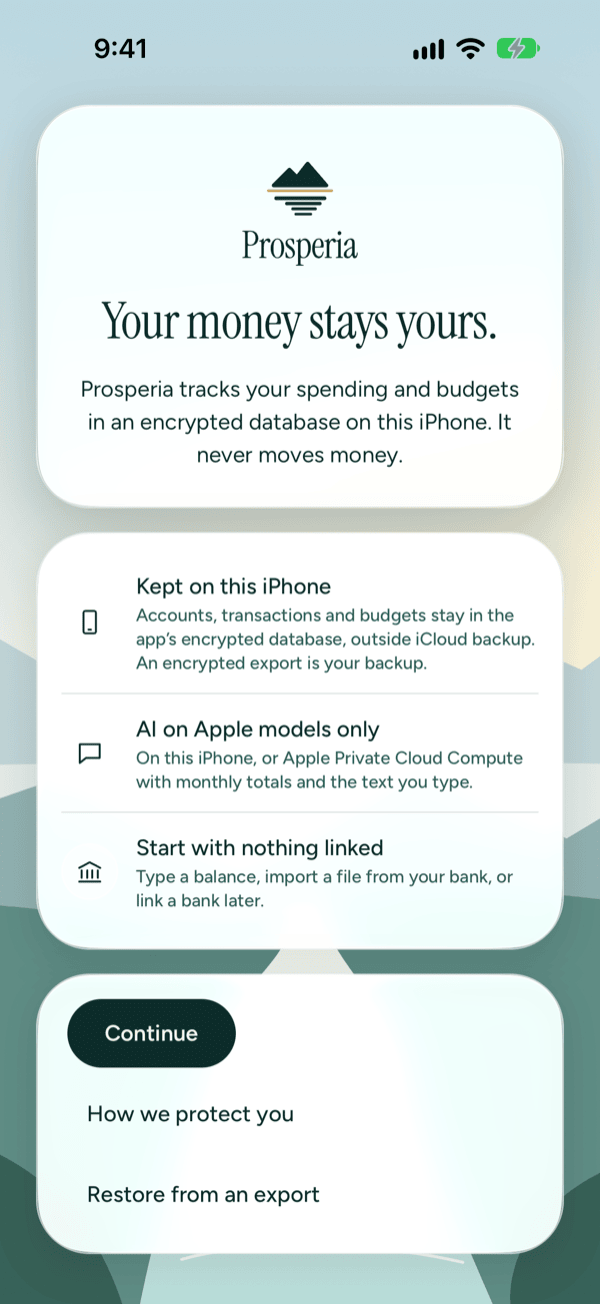
Below those lines are three buttons:
| Button | What it does |
|---|---|
| Continue | Starts setup. Most people start here. |
| How we protect you | Skips setup and opens the Privacy Center, so you can read how your data is handled first. |
| Restore from an export | Brings back your data from an encrypted export you made earlier. See Moving from another iPhone. |
If you tap How we protect you, setup ends there and the Welcome screen won't come back. This also skips the lock and report steps: the lock stays off, Crash and performance reports stay on and Product improvement stays off until you change them in the Privacy Center. Turn on Lock with Face ID there if you want it. You can add accounts any time from You, then Accounts.
Setting up
Tap Continue to begin. A progress bar at the top shows where you are: Lock, Privacy, then Connect. Tap the back arrow at the top left to go back one step.
Step 1: Lock Prosperia with Face ID
Prosperia can ask for Face ID, or your passcode, before it opens. The lock applies every time you open Prosperia, and when you come back to it after it was in the background.
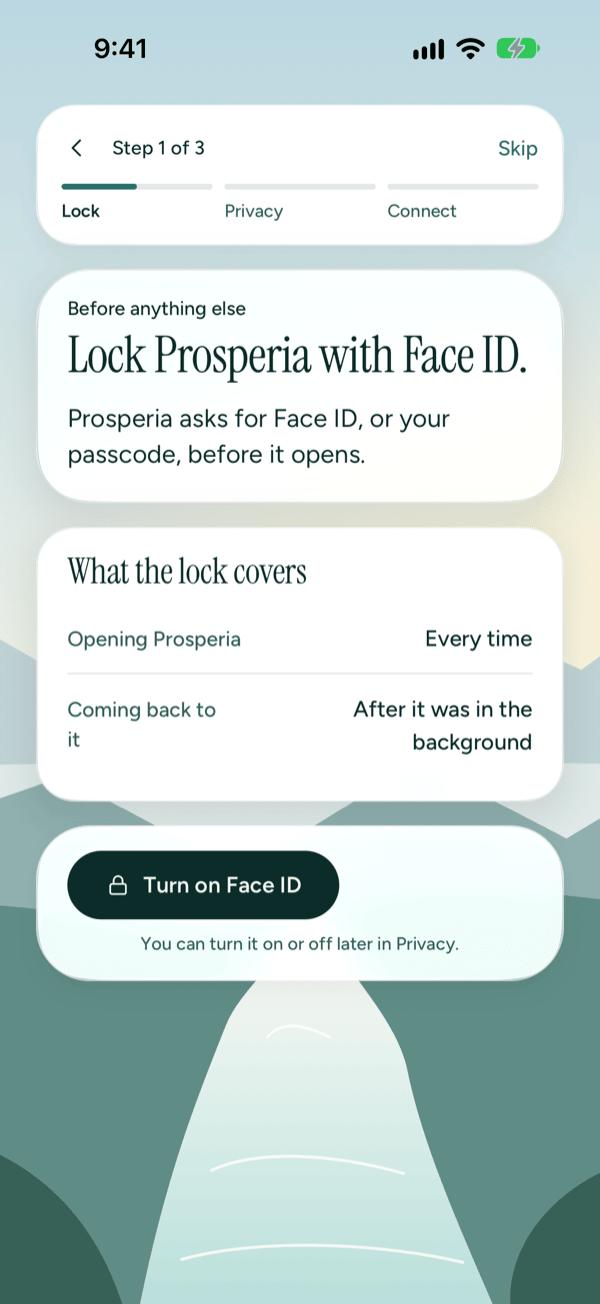
To turn on the lock:
- Tap Turn on Face ID.
- Look at your iPhone, or enter your passcode if iOS asks.
- Setup moves on to the next step.
If you cancel the Face ID prompt, you stay on this step and nothing changes. To move on without the lock, tap Skip at the top right. You can turn the lock on or off later in the Privacy Center, under Lock with Face ID.
This step only appears if your iPhone has Face ID or a passcode set up. If it doesn't, setup has two steps instead of three and starts with Privacy.
Step 2: Choose what Prosperia learns
Next, choose which reports Prosperia may send to help fix problems. Reports go to Prosperia's own server first, which removes your IP address. Amounts, merchants, names and anything you type are never in them.
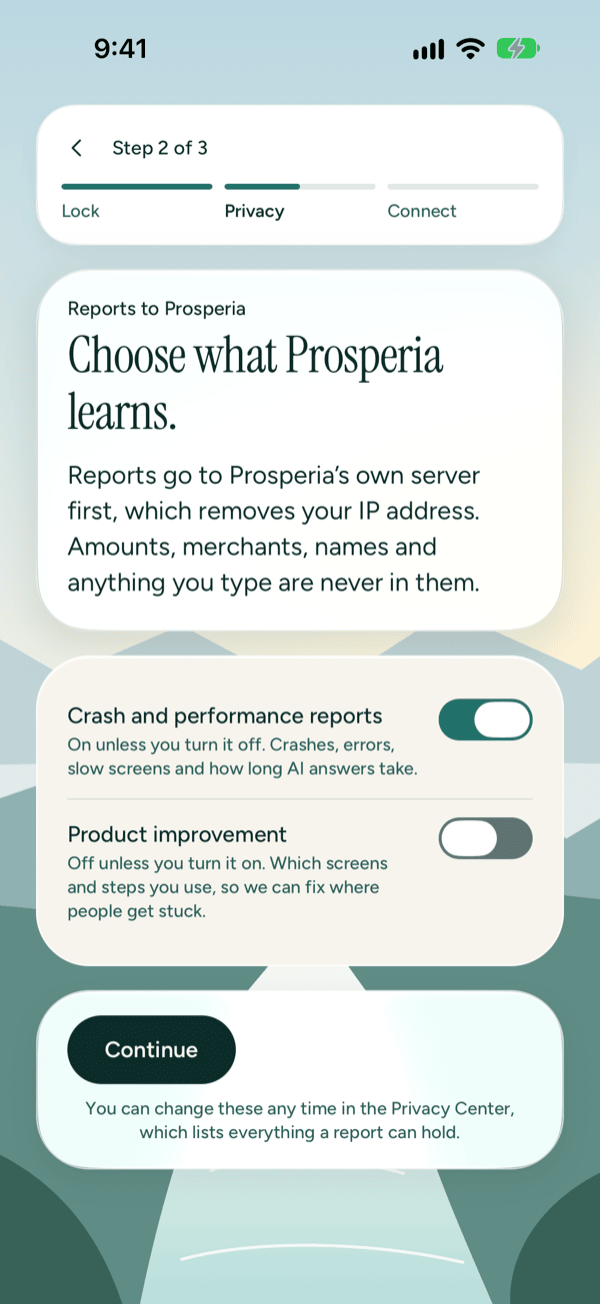
- Leave Crash and performance reports on, or turn it off. It's on unless you turn it off, and covers crashes, errors, slow screens and how long AI answers take.
- Turn on Product improvement if you'd like to help. It's off unless you turn it on, and covers which screens and steps you use, so problems can be fixed where people get stuck.
- Tap Continue.
Each switch saves as soon as you change it. This step can't be skipped, but leaving both switches as they are is fine. You can change them any time in the Privacy Center, which lists everything a report can hold.
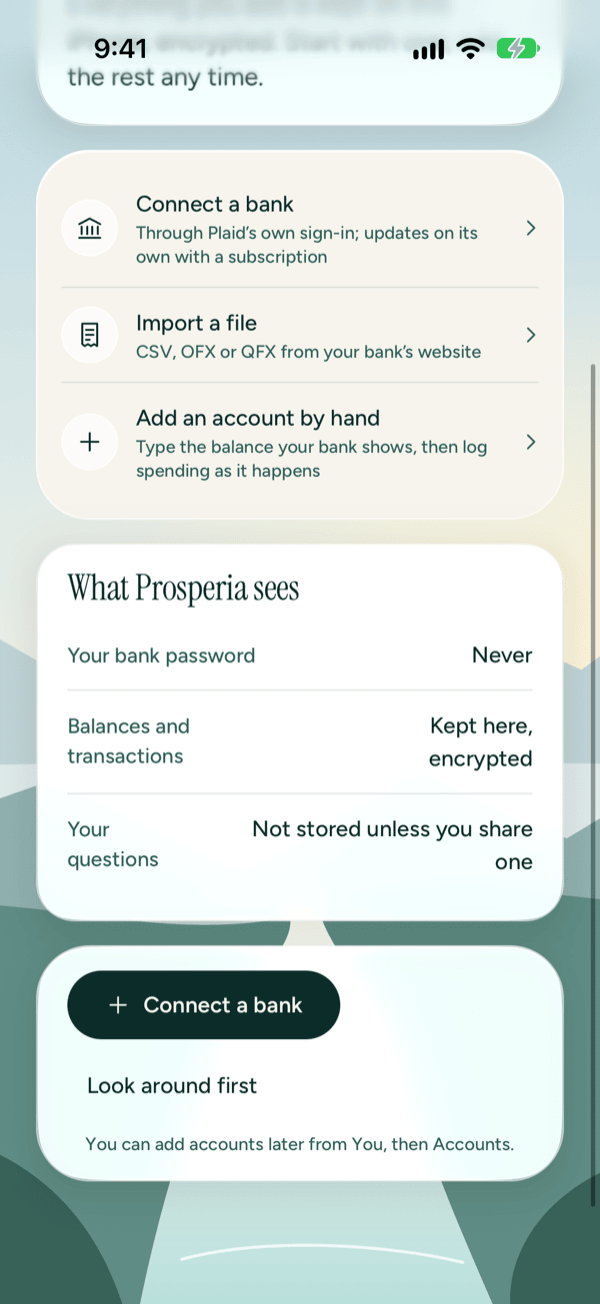
Step 3: Bring in your accounts
The last step asks how you'd like to add your money. Start with one account; you can add the rest any time.
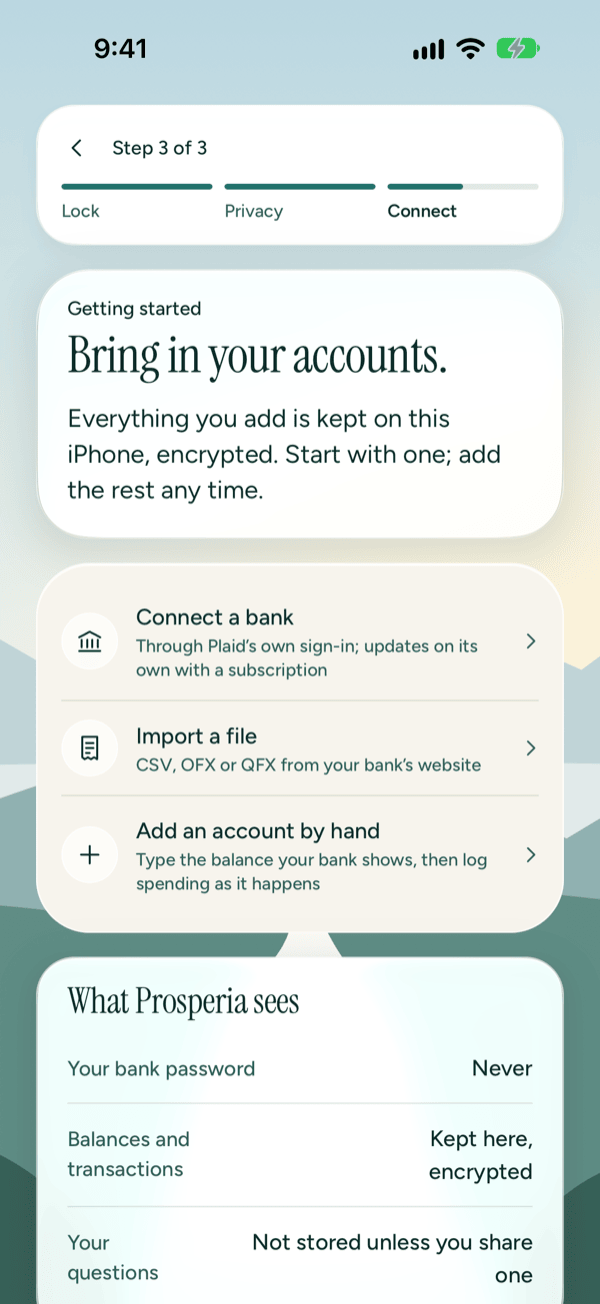
Choose one:
- Connect a bank. Sign in through Plaid's own sign-in, and the account updates on its own. Needs a subscription. See Connecting banks.
- Import a file. Use a CSV, OFX or QFX file downloaded from your bank's website. Setup finishes and the import screen opens. See Importing files.
- Add an account by hand. Type the balance your bank shows, then log spending as it happens. Setup finishes and the new account form opens. See Accounts.
If you connect a bank, Plaid sends your bank data through Prosperia's server to this iPhone. The server passes it along and doesn't save it. Because connected banks need a subscription, Apple's subscription sheet, Keep your banks syncing, may appear before Plaid does. When the connection finishes, setup is done and Prosperia shows your bank's name followed by is connected while it gets your transactions. If you close Plaid's window, you stay on this step and can pick something else.
Further down, What Prosperia sees sums up what happens to your data:
- Your bank password: Never
- Balances and transactions: Kept here, encrypted
- Your questions: Not stored unless you share one
Prosperia doesn't offer a way to share a question yet, so your questions aren't stored.
Skipping this step
To finish setup without adding anything, scroll down and tap Look around first. Prosperia opens on an empty Today, which shows the same three choices under Add your money. You can also add accounts later: tap the person button at the top of Today to open You, tap Accounts, then Add your money.
Finding your way around
The tab bar at the bottom of the screen switches between Prosperia's main screens.
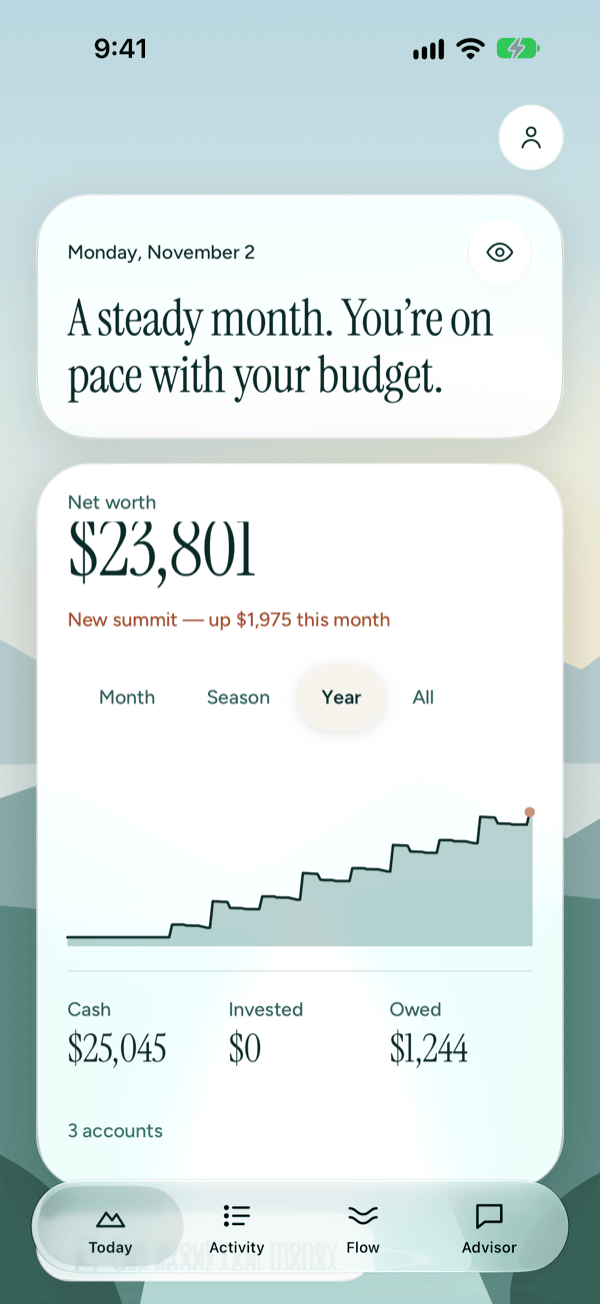
| Tab | What it's for |
|---|---|
| Today | Where you stand this month, at a glance. See Today. |
| Activity | Every transaction. Search, change categories, split, tag and add notes. See Activity and transactions. |
| Flow | Your budget for the month: what you've spent, split into saved, bills and day-to-day living, and each budget line against its target. See Flow and budgets. |
| Advisor | Ask questions about your own money. Answers are written by AI from your own numbers. They can be wrong, and they aren't financial advice. Shown only where Apple Intelligence is available. See Advisor. |
Your settings, accounts and the Privacy Center live under You. Tap the person button at the top of Today to open it. See You and settings.
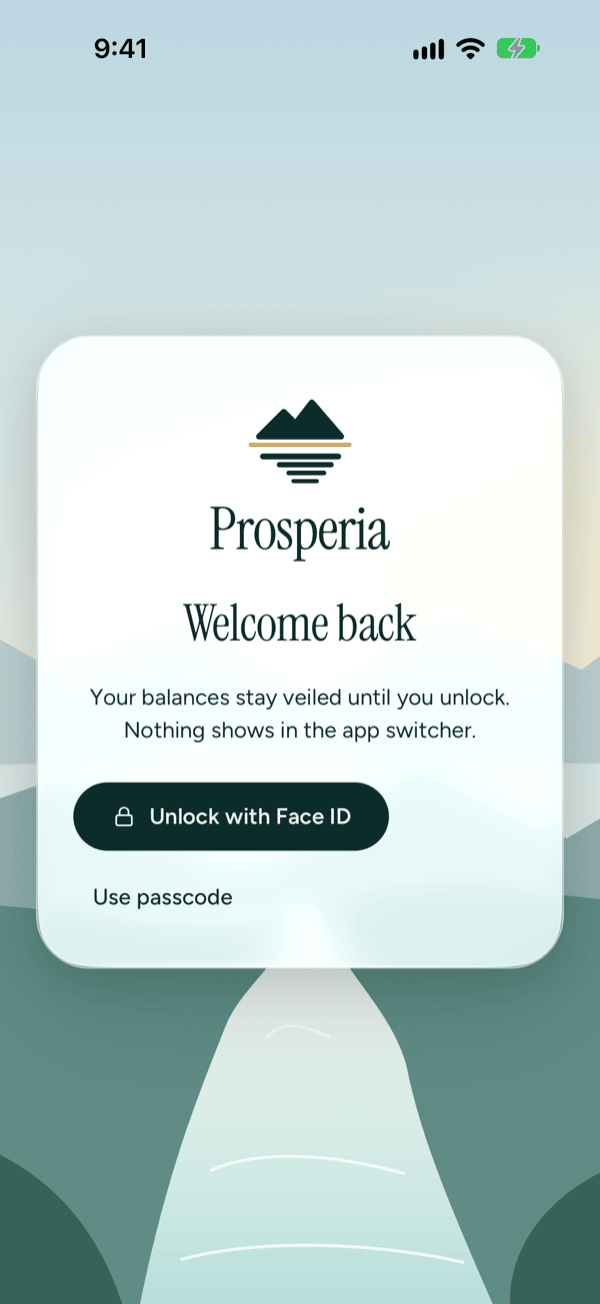
Unlocking Prosperia
If you turned on the lock, Prosperia shows Welcome back when you open it or come back to it: tap Unlock with Face ID or Use passcode. Prosperia then shows the screen you were on, or Today if you've just opened it. To learn more or turn the lock off, see The Welcome back screen.
Moving from another iPhone
If you made an encrypted export of your data (with Export my data in the Privacy Center), you can bring it back on a new iPhone or after reinstalling Prosperia. Prosperia's data isn't in iCloud backup, and the key that unlocks it never leaves this iPhone, so the export is the only way to bring it across.
-
On the Welcome screen, tap Restore from an export. If Prosperia skips the Welcome screen (this can happen after a reinstall), open You, then Privacy Center, and tap Restore from an export. It appears there while Prosperia is empty.
-
Choose your export file in Files. It's the file you made with Encrypted; CSV and JSON exports can't be restored.
-
At Enter the passphrase, type the passphrase you set when you made the export, then tap Restore. Tap Cancel to stop without changing anything.
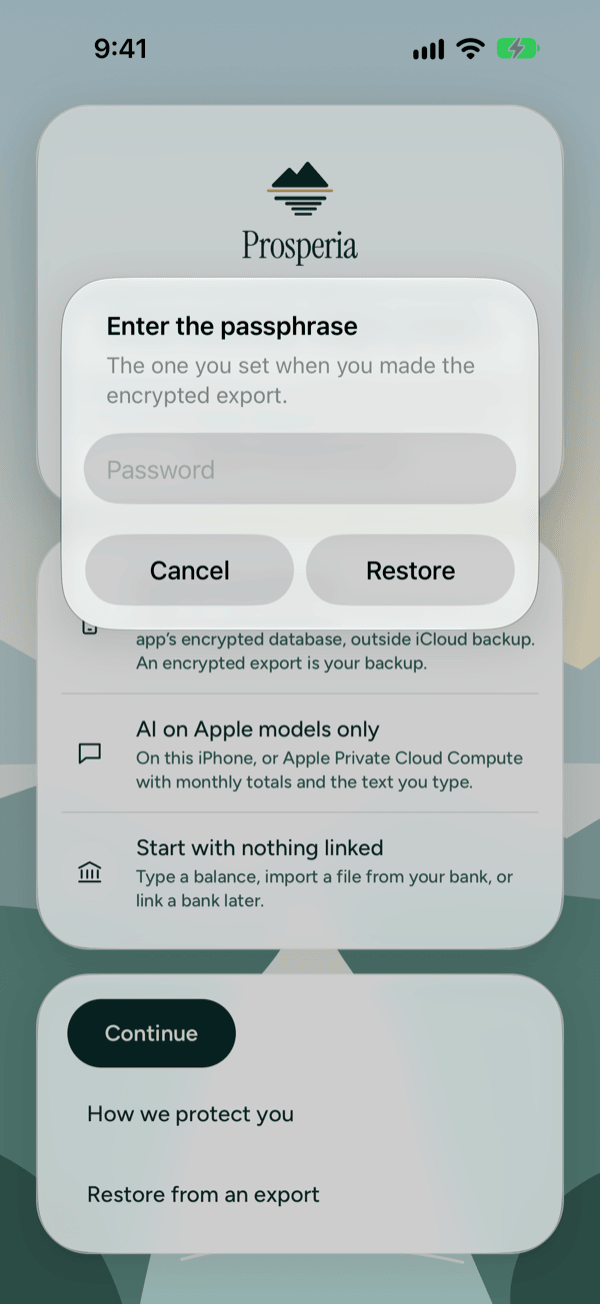
Enter the passphrase you chose when you made the export. -
Wait while the button reads Restoring your export…. The other buttons are unavailable until it's done.
-
When you see Restored and a number of items, tap OK. If you restored from the Welcome screen, Prosperia opens on Today. If you restored from the Privacy Center, you stay there; go back to see Today.
Restoring from the Welcome screen also skips the lock and report steps: the lock stays off, and reports keep their defaults (crash and performance reports on, product improvement off). Turn on Lock with Face ID in the Privacy Center if you want it.
Connected banks come back without their connection. Reconnect them in the Privacy Center under Connected institutions: tap the bank, then Reconnect followed by its name.
If the restore doesn't work, you'll see Couldn't restore with one of these messages. Nothing on your iPhone is changed.
| Message | What to do |
|---|---|
| That passphrase doesn't open this file, or the file was changed after export. | Tap Try again and check the passphrase. It has to match exactly. |
| This file isn't a Prosperia encrypted export. | Choose the encrypted file you made with Export my data. CSV and JSON exports can't be restored. |
| This export's format isn't one this version of Prosperia can read. | Update Prosperia from the App Store, then try again. |
| Restore works on an empty Prosperia. To replace what's here, delete everything in the Privacy Center first, then restore. | Restore only adds data to an empty app. Use Delete everything in the Privacy Center, then restore. |
| Nothing was changed. Try again. | Something else went wrong and nothing was changed. Try again. |
If the export had items that belonged to something it didn't include, the done message says how many couldn't be restored. Everything else still comes back.
Good to know
- Setup only runs once. After you finish or skip it, Prosperia opens on Today. The Welcome screen comes back only if you delete everything in the Privacy Center.
- The lock step needs Face ID or a passcode set up on your iPhone. Without either, setup skips it.
- AI features need Apple Intelligence. Where it isn't available, the Advisor tab and other AI features stay hidden. Budgets, accounts and imports work the same either way.
- Connecting a bank needs a subscription, a US bank that Plaid supports, and an internet connection. Adding accounts by hand and importing files are free and work offline. See Subscription.
- Restore works only on an empty Prosperia, such as a fresh install.
- Questions? Write to support@stewmore.dev.
Still stuck? See Troubleshooting and contact, or write to support@stewmore.dev.