Monthly check-in and budget assistant
Review how your month is going, get a short summary, and build or adjust your budget with AI, with nothing changed until you approve.
On this page
The monthly check-in is a calm look at the month so far: where your money went, how your budget is holding up, and what changed since last month. The budget assistant is a conversation that drafts this month's budget and adjusts it when you ask. Neither one changes your budget until you approve.
Open the check-in
- On Today, tap the card about this month's budget, or its Open November check-in link (it shows the current month's name).
- Or tap the person button at the top of Today to open You, then tap Monthly check-in.
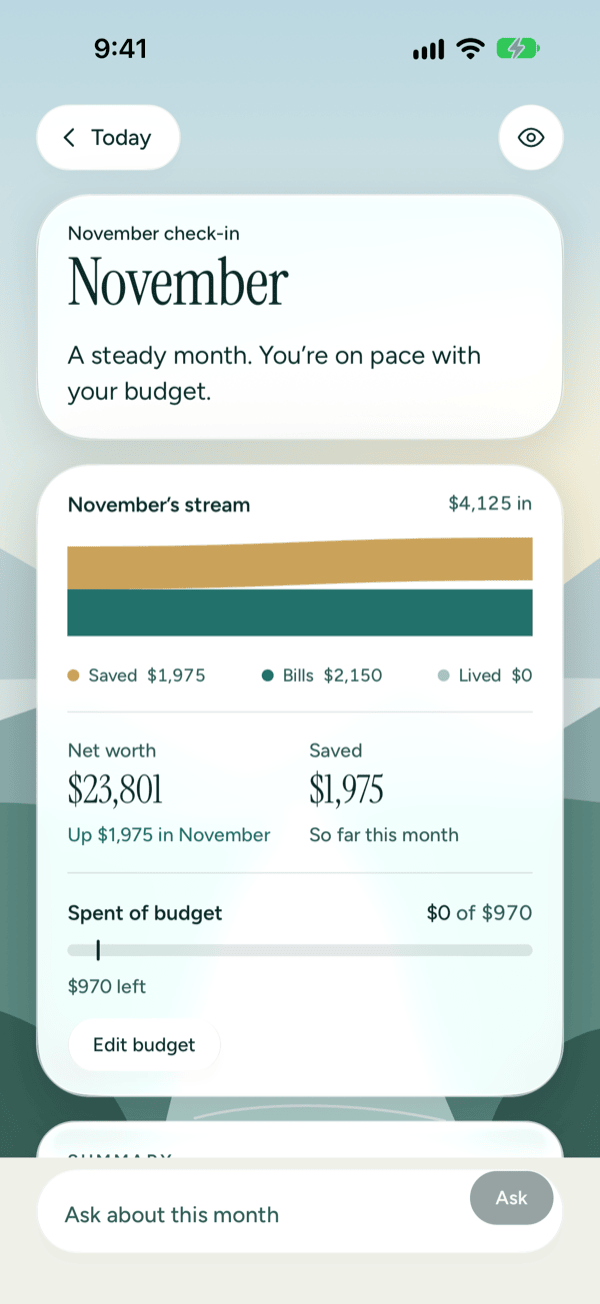
The check-in opens with the month's name and one sentence about how the month is going. Tap the back button at the top (it reads Today, or You if you opened the check-in from You) to go back.
What the check-in shows
All of these figures are worked out on your iPhone. None of them use AI, so they work on every iPhone.
- The month's stream. The money that came in this month, and how it split into Saved, Bills and Lived (everyday spending).
- Net worth. Your net worth today, and how much it went up or down this month.
- Saved. How much you've saved so far this month.
- Spent of budget. What you've spent against your whole budget, with a tick showing where you'd be if you spent evenly through the month. It tells you how much is left or how much you're over budget.
- Biggest change. The category that moved most compared with the same days last month, for example "Dining down 18%". When it's spending going down (not a loan payment, rent or a transfer), it shows Less than last month.
- Next bill. Your next regular charge in the coming 30 days and when it's due. Tap See bills to see all of them. See Bills and forecast.
- How the budget is going. Each category in your budget, with what you've spent, the pace tick, and how much is left or over. The ones furthest over budget come first.
Set up or change your budget
If this month has no budget yet, the check-in says No budget for November yet.
- Tap Set up a budget (or Edit budget if you already have one).
- Type an amount for each category you want to budget. Leave a category empty for no budget. Each field shows what you've spent so far this month, when you've spent anything in that category.
- Tap Save budget. Tap Cancel to close without saving.
Nothing changes until you tap Save budget. For more on budgets, see Flow and budgets.
Get a summary of your month
With Apple Intelligence, Prosperia can write a few sentences about your month, comparing it with the months before. It only runs when you ask.
- Scroll to Summary and tap Write my summary.
- Wait a moment while it writes. The words appear as they're written.
- Read the summary. A badge at the top right shows where it was written: a phone icon for On this iPhone, or a cloud icon for Apple Private Cloud Compute (Apple's secure servers). Tap the badge to see the words.
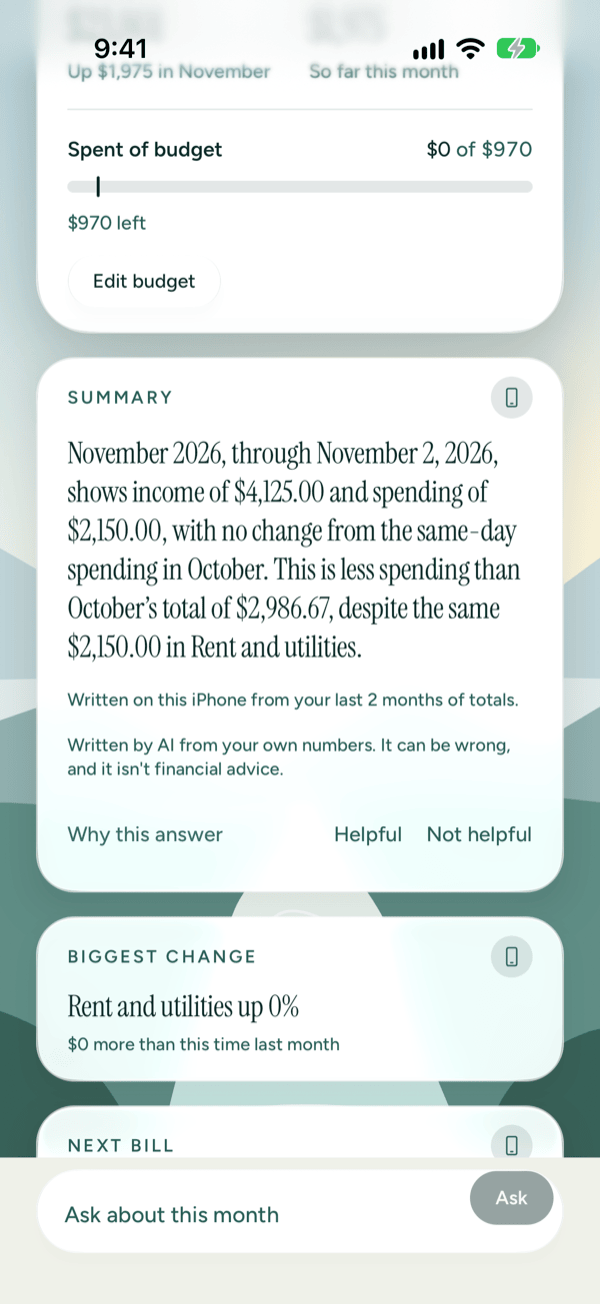
Under the summary, a short line says where it came from:
- Written in Apple Private Cloud Compute from totals worked out on this iPhone. Apple Private Cloud Compute gets your monthly category totals only, never your individual transactions or account details.
- Written on this iPhone from your last 2 months of totals. Summaries written on your iPhone (always on iOS 26, or when Apple Private Cloud Compute isn't available) look at your last 2 months.
The summary is written by AI from your own numbers. It can be wrong, and it isn't financial advice.
Tap Helpful or Not helpful to rate it. Prosperia gets only whether you tapped Helpful or Not helpful, never the summary. You can turn this off in the Privacy Center.
Start the month with a drafted budget
When this month has no budget and your iPhone has Apple Intelligence, the check-in offers to draft one for you under To decide.
- Under Start November with a budget?, tap Draft a budget. Prosperia drafts one from your recent spending: the last 3 months on this iPhone, or up to 6 with Apple Private Cloud Compute.
- Look over the Budget draft: one amount per category.
- Choose what to do:
- Use this budget makes the draft this month's budget.
- Adjust first opens the draft in the budget editor. Change any amount, then tap Save budget.
- Not now sets the draft aside. The offer comes back the next time you open the check-in.
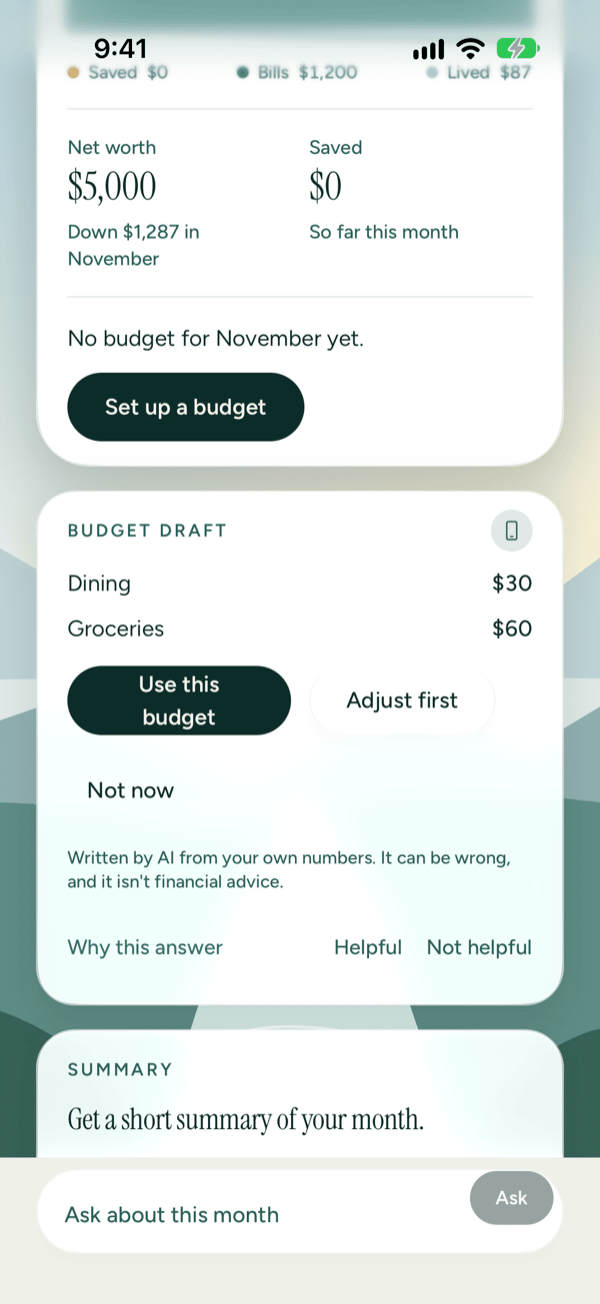
Your budget doesn't change until you tap Use this budget, or Save budget in the editor. Once you approve a draft, the offer disappears and your new budget shows on the check-in.
If you don't have enough spending history yet, the draft says Not enough history to draft a budget yet. Set your budget yourself with Set up a budget, or try again after a month or two of activity.
Ask about this month
At the bottom of the check-in, type a question in Ask about this month, for example "What changed?", and tap Ask. Prosperia opens Advisor and answers it there. See Advisor.
See why: what a summary or draft used
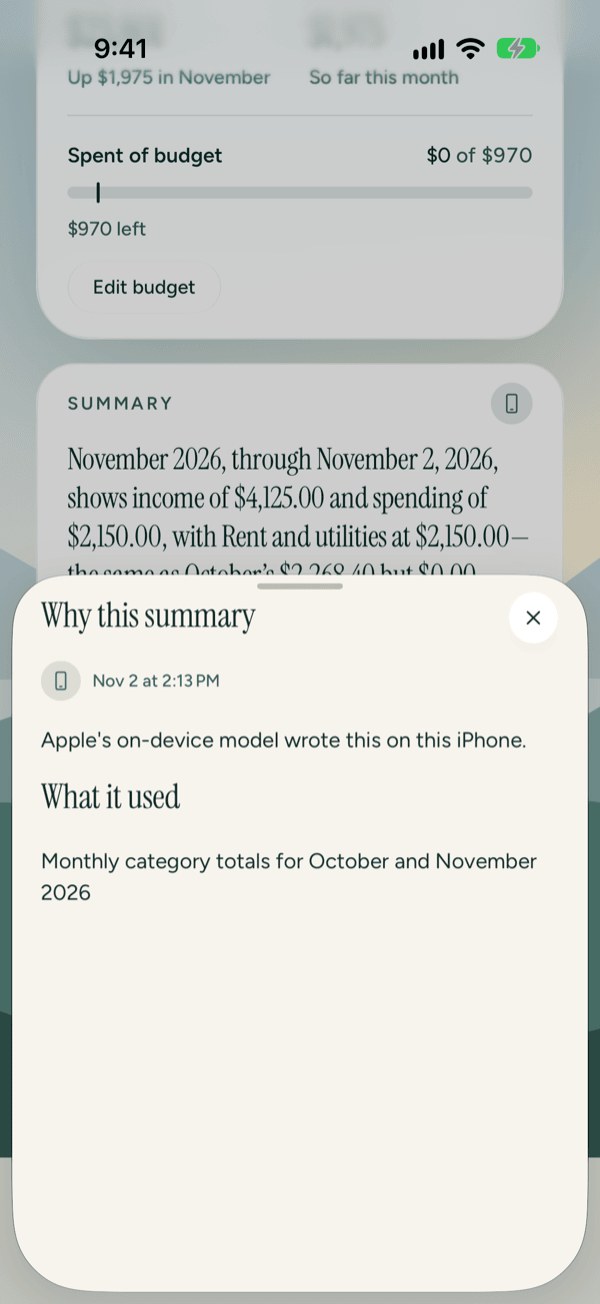
Every summary and draft has a Why this answer link. Tap it to see:
- Where it ran, and when. For example: "Apple's on-device model wrote this on this iPhone." or "Apple Private Cloud Compute wrote this from your monthly category totals. No individual transactions or account details were sent."
- What it used: for example, monthly category totals for the months it looked at.
The sheet is titled Why this summary for a summary and Why this draft for a budget draft. Tap the close button (X) at the top right to close it.
If you see This answer is no longer on this iPhone., the result has been removed from your iPhone, so there's nothing to show.
Use the budget assistant
The budget assistant is a conversation about this month's budget. It proposes amounts and you decide.
Open it
- Tap the Flow tab, scroll to your budget, and tap Build my budget with AI (if you have no budget yet) or Adjust with AI. The assistant works on the month Flow is showing; for this month's budget, make sure Flow is on the current month.
- Or, once a month has ended, Flow shows a card with last month's letter grade and the biggest reasons for it. Tap Talk it through on that card. Tap Dismiss to hide the card until next month.
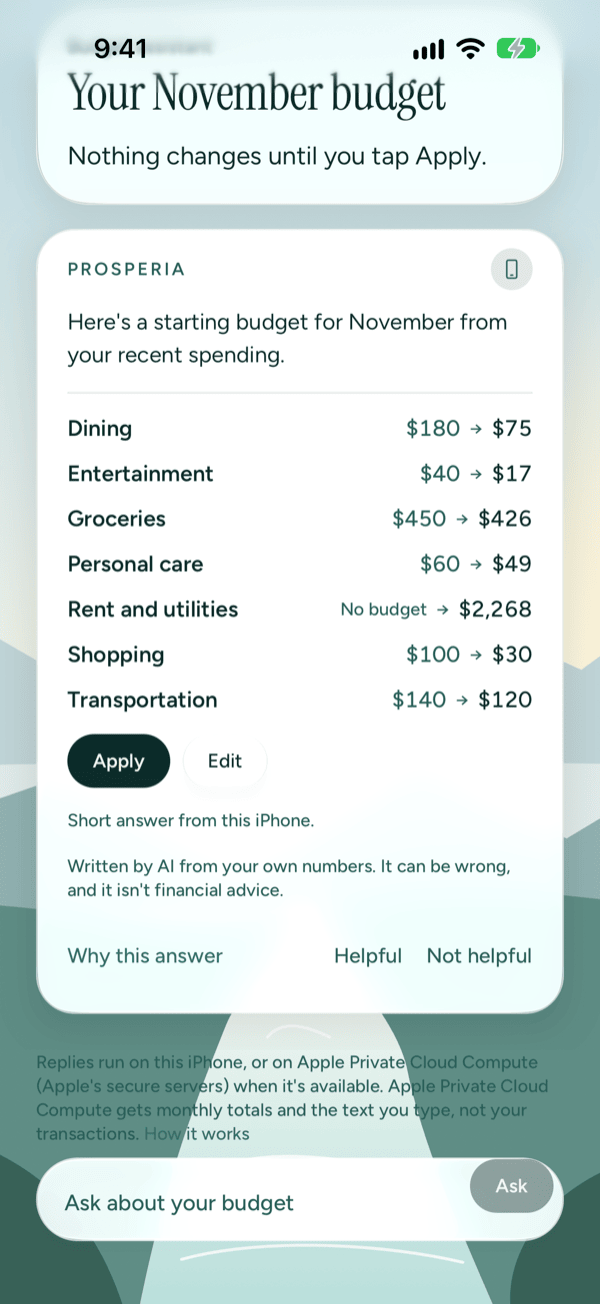
The screen says Nothing changes until you tap Apply.
Review the first proposal
The assistant starts right away with "Here's a starting budget for November from your recent spending." Under it, each category shows its current budget (or No budget) and the proposed new amount, like "$450 → $400".
- Read the proposed lines.
- Tap Apply to put them into this month's budget. The card then reads Applied.
- Or tap Edit to open them in the budget editor, change any amount, and tap Save budget.
Applying changes only the categories in that proposal. The rest of your budget stays as it was.
Ask for changes
Type in Ask about your budget and tap Ask. You can use plain words, for example:
- "Make dining smaller."
- "I want to save $5,000 by June."
- "Can I afford more for groceries?"
Prosperia replies in a few sentences and, when it suggests changes, shows a new list with Apply and Edit. A goal with a date becomes a monthly amount. If you only ask a question, it answers without proposing changes. Tap Stop to stop a reply while it's being written.
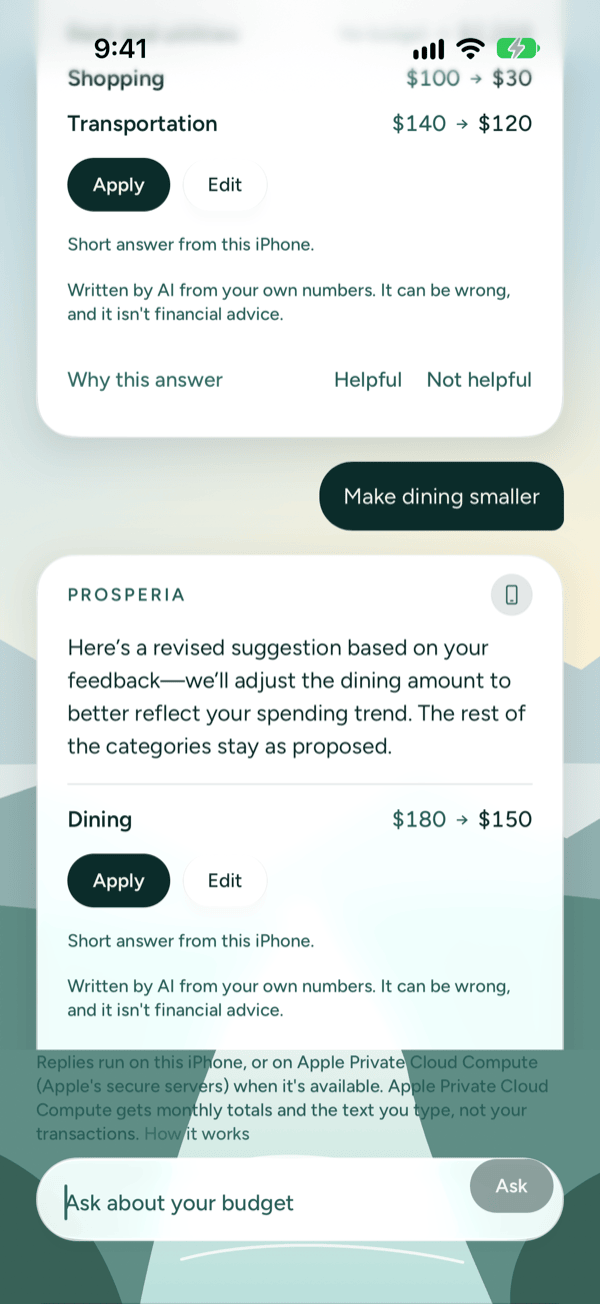
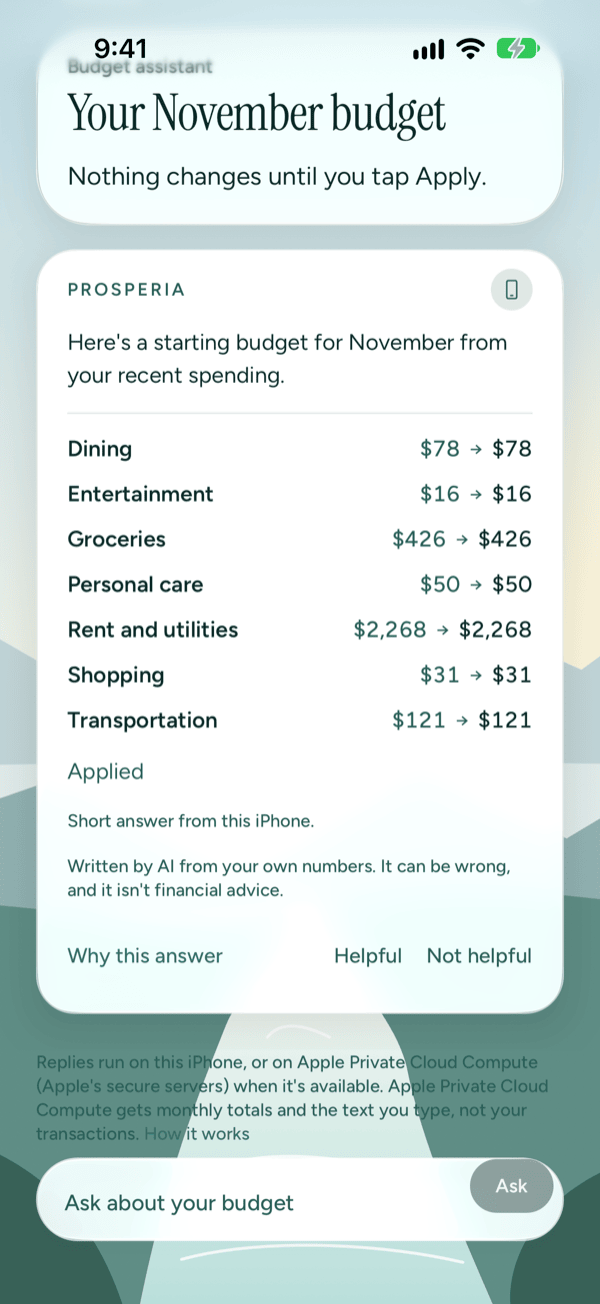
Each reply shows a badge for where it ran, a Why this answer link (for the first proposal the sheet that opens is titled Why this draft), and Helpful and Not helpful.
Replies are written on this iPhone, or in Apple Private Cloud Compute when it's available. Apple Private Cloud Compute gets your monthly totals, the text you type and what you've asked Advisor to remember. Prosperia never sends it your individual transactions. Tap How it works to open the Privacy Center.
Replies are written by AI from your own numbers. They can be wrong, and they aren't financial advice.
Hide amounts
Tap the eye button at the top to hide amounts on the check-in or in the assistant.
- On the check-in, every amount is frosted. Biggest change reads Compared with this time last month, and the summary shows Amounts hidden with a Show answer button.
- In the assistant, replies read Amounts hidden and proposed amounts are frosted. Tap the eye button again to show them.
If something goes wrong
| Message | What to do |
|---|---|
| Couldn't load this month. | Tap Try again. |
| Couldn't load the biggest change. or Couldn't load your next bill. | Tap Try again. The rest of the check-in still works. |
| Couldn't write the summary. Try again. | Tap Write my summary again. |
| Couldn't draft a budget. Try again. | Tap Draft a budget again, or set your budget yourself. |
| Couldn't save your choice. Try again. | Tap Use this budget or Not now again. |
| Summaries need Apple Intelligence. Turn it on in Settings › Apple Intelligence & Siri. (or the same for Budget drafts) | Turn on Apple Intelligence in Settings › Apple Intelligence & Siri on your iPhone. |
| The budget assistant needs Apple Intelligence. You can still set your budget yourself. (rare, since its buttons are hidden without Apple Intelligence) | Turn on Apple Intelligence in Settings, or set your budget with Set up a budget or Edit budget. |
| Couldn't draft a budget. Ask me what you're budgeting for. | In the assistant, tell it what you're budgeting for. |
| Not enough history to draft a budget yet. Tell me what you're budgeting for. | Tell the assistant what you're saving or spending for, or set your budget yourself. |
| Prosperia couldn't answer that. Try again. | Ask again. |
| You tapped Apply, but the card didn't change to Applied. | Tap Apply again. There's no message on screen; VoiceOver says Couldn't update the budget. Try again. |
If a reply ends with Short answer from this iPhone., longer answers weren't available, so Prosperia wrote a shorter one on your iPhone. On iOS 26, or wherever Apple Private Cloud Compute isn't available, every reply is written on this iPhone and ends with this line.
If you see that Apple Private Cloud Compute isn't available, or that you're close to or have used your longer answers, try again in a moment; quick answers on this iPhone still work. See Longer answers have a limit for what each message means and how to use Request more.
Good to know
- The check-in works without AI. The stream, net worth, budget, biggest change, next bill and budget lines work on every iPhone. The summary, the budget draft, the question box and the budget assistant need Apple Intelligence. Where it's off or unavailable, they're hidden, including the budget assistant's buttons on Flow, and you can still set your budget yourself.
- The draft offer only shows when this month has no budget. If you already have one, use Edit budget, or Adjust with AI on Flow.
- Apple Private Cloud Compute needs iOS 27. On iOS 26, summaries, drafts and assistant replies are written on your iPhone.
- Nothing changes on its own. A draft or proposal never becomes your budget until you tap Use this budget, Apply or Save budget. Prosperia only suggests; it never moves money.
- The assistant conversation isn't saved. When you leave the screen, the conversation is gone. Budgets you applied stay.
- The assistant works in US dollars.
- Your own categories can only be used in replies written on your iPhone. Replies from Apple Private Cloud Compute use Prosperia's built-in categories. See Spending and categories.
Still stuck? See Troubleshooting and contact, or write to support@stewmore.dev.