Flow and budgets
See how your month is going, set a budget for each category, and track your grade from month to month.
On this page
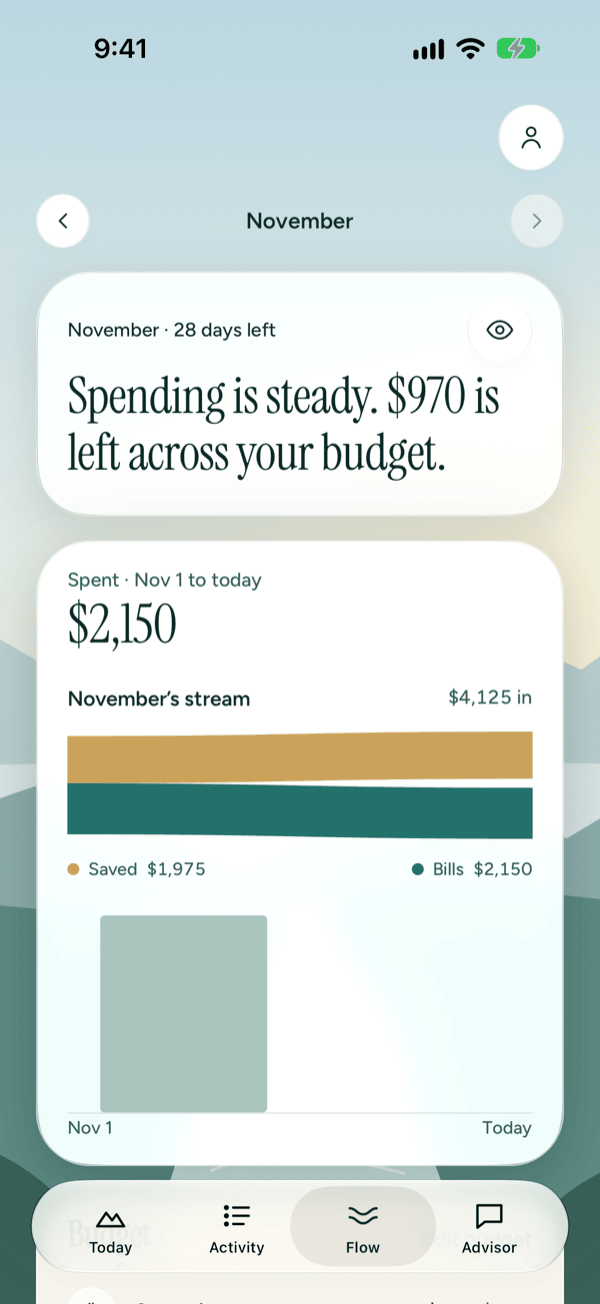
Flow is your month at a glance: what came in, what went out, and how each category is doing against its budget. Tap Flow in the tab bar to open it. Everything on Flow is worked out on your iPhone from your own transactions, with no AI, so it works on every iPhone Prosperia supports.
Moving between months
Flow opens on the current month. Tap the back arrow next to the month name to see the month before. Tap the forward arrow to come back. You can't go past the current month.
Past months show how the month ended. They don't show days left, the pace mark, Coming up or last month's grade card.
What's on Flow
From top to bottom:
- The month and days left. For example, "November · 28 days left".
- One sentence on how it's going. For the current month you'll see Spending is steady., Spending is running ahead of pace. or Spending is light so far., followed by how much is left across your budget. If you've gone over, it says Spending is over your budget by and the amount. For a past month, it says whether the month ended within or over budget. With no budget yet, it reads No budget for the month yet.
- Spent. Everything you've spent from the first of the month to today.
- The month's stream. What came in this month, split into three bands: Saved (money that came in and didn't go out), Bills (recurring spending) and Lived (everything else). A band with nothing in it is left out.
- Daily spending chart. One bar per day. Once the month has at least 8 days, Prosperia highlights your busiest 4 days in a row and shows how much you spent in them. With VoiceOver, swipe up or down to step through the days.
- Running over. If a category is over its budget, a card names the one furthest over, with the amount over. Tap See transactions to see what's in it.
- Budget. Each budget line against its target. More on this below.
- Not in your budget. Categories you spent in that don't have a budget yet, with the amount. Tap one to see its transactions.
- Coming up. Up to 4 recurring bills due in the next 30 days. Tap a bill to see the last payment, or tap Bill calendar to see them all. See Bills and forecast.
- Your grade. This month's grade so far, then Grade history and Keeps going over. More on these below.
Reading your budget lines
Each line in Budget shows what you've spent against what you set, with a short note underneath. Tap a line to see that category's transactions for the month.
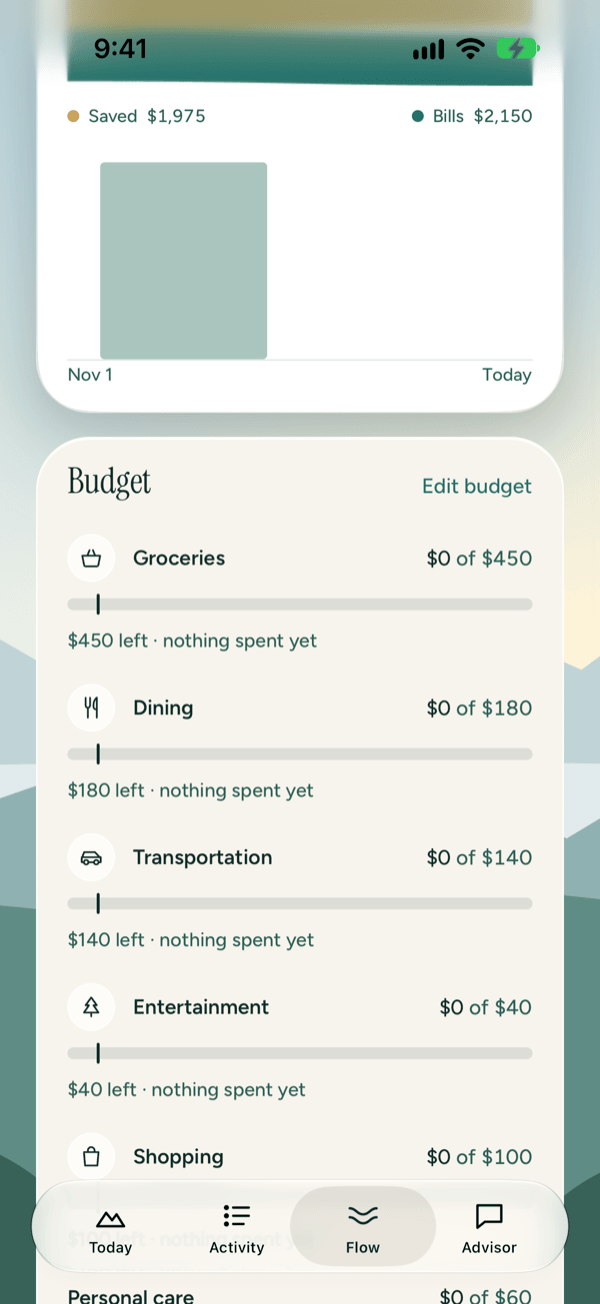
On spending lines, the note tells you:
| Note | What it means |
|---|---|
| $X left · under pace | You've spent less than an even pace would have you at by today. |
| $X left | You're about on pace. |
| $X left · ahead of pace | You're spending faster than an even pace. You still have money left, but you may run short before the month ends. |
| $X left · nothing spent yet | Nothing in this category yet this month. |
| $X over budget with N days left | You've spent more than the budget. |
Pace
Pace is where your spending would be today if you spent evenly through the month. On the current month, each spending line has a small tick on its bar that marks that point. If your bar is past the tick, you're ahead of pace. If it's short of the tick, you're under pace.
Saving and debt lines
Savings, Investments and Loan payments work the other way round: they're goals you fill up, not limits to stay under. Their note reads $X to go until you reach the target, then Target reached. Going past the target is fine and never shows as over.
What counts toward them:
- Transactions in that category.
- For Savings and Investments: money you move into an account you've marked for it. Open the account from Accounts, and under Counts toward, choose Savings or Investments. See Accounts.
- For Loan payments: credit card payments that brought your card balance down.
- For Investments: a 401(k) contribution you enter (see below).
Setting a budget
Your first budget
- Tap Flow and scroll to Budget.
- Tap Set a budget.
- Tap Category and choose one, such as Dining.
- Tap Monthly budget, type an amount and tap Done.
- Tap Save budget.
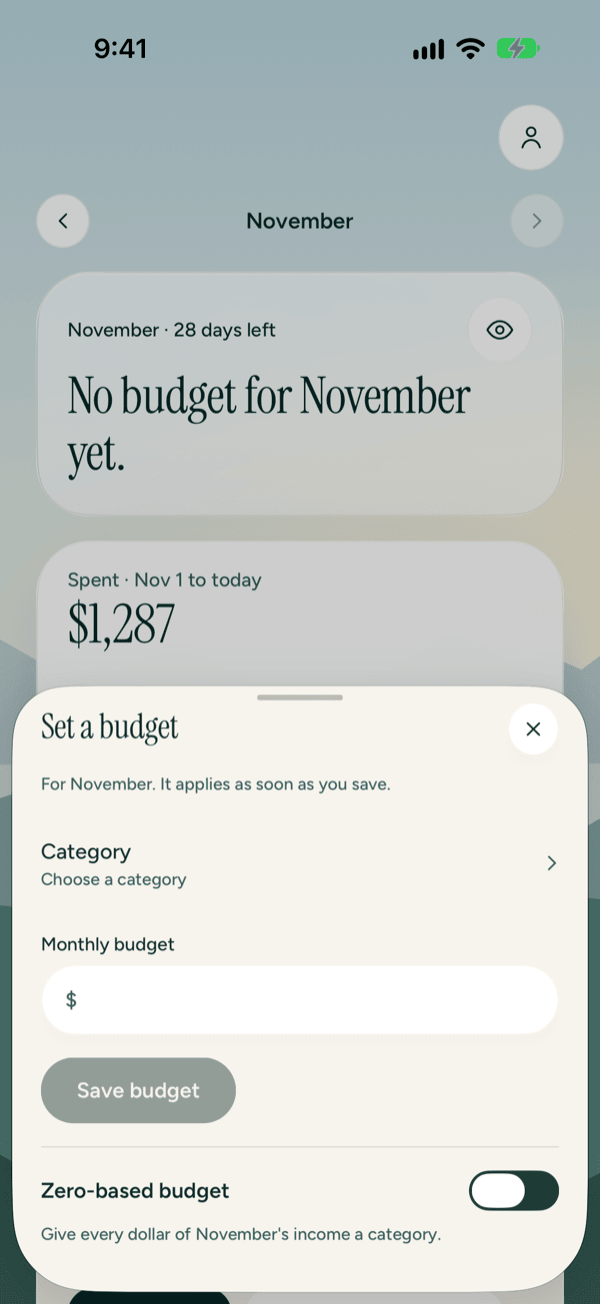
Save budget stays dimmed until you've chosen a category and typed an amount. The budget applies to the month shown at the top of the sheet as soon as you save.
To add more categories later, use Edit budget (below). You can also open any category from Not in your budget and tap Edit budget on its page.
Change or remove one category's budget
- On Flow, tap the category's budget line.
- On the category page, tap Edit budget.
- Change the amount and tap Save budget. Or tap Remove budget to take the category out of your budget. It moves back to Not in your budget.
With VoiceOver, you can also use the Edit budget action on any budget line or Not in your budget row.
Edit every category at once
- On Flow, tap Edit budget next to the Budget heading.
- Drag the sheet up to see every category. A category you've spent in this month shows how much, such as Spent $2,150.00 so far.
- Type an amount in any field. Leave a field empty for no budget.
- Tap Save budget. Or tap Cancel to close without changing anything.
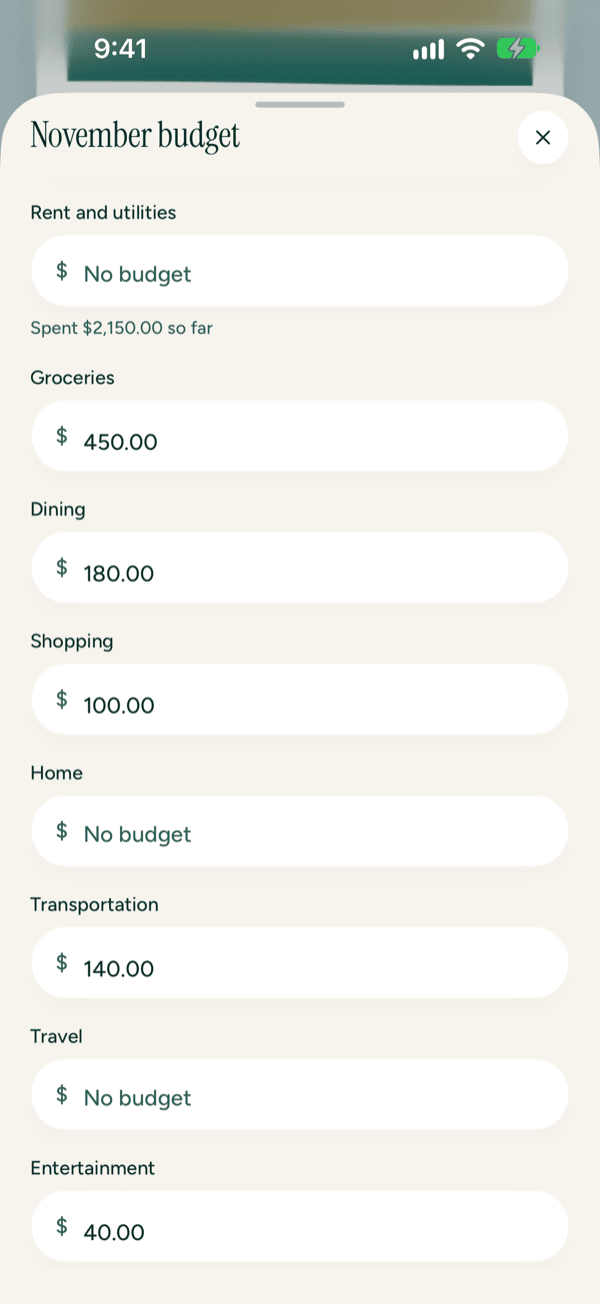
For a category you created yourself, the field also says which group it counts as, such as Counts as Shopping.
Add a 401(k) contribution
Money taken from your paycheck for a 401(k) never shows up as a transaction, so Prosperia can't see it. Enter it once and it counts toward your Investments line every month from now on.
- Give Investments a budget, if it doesn't have one yet.
- On Flow, under the Investments line, tap Add a 401(k) contribution.
- Type the amount taken from each paycheck.
- Tap How often and choose Every two weeks, Twice a month or Monthly.
- Tap Save contribution.
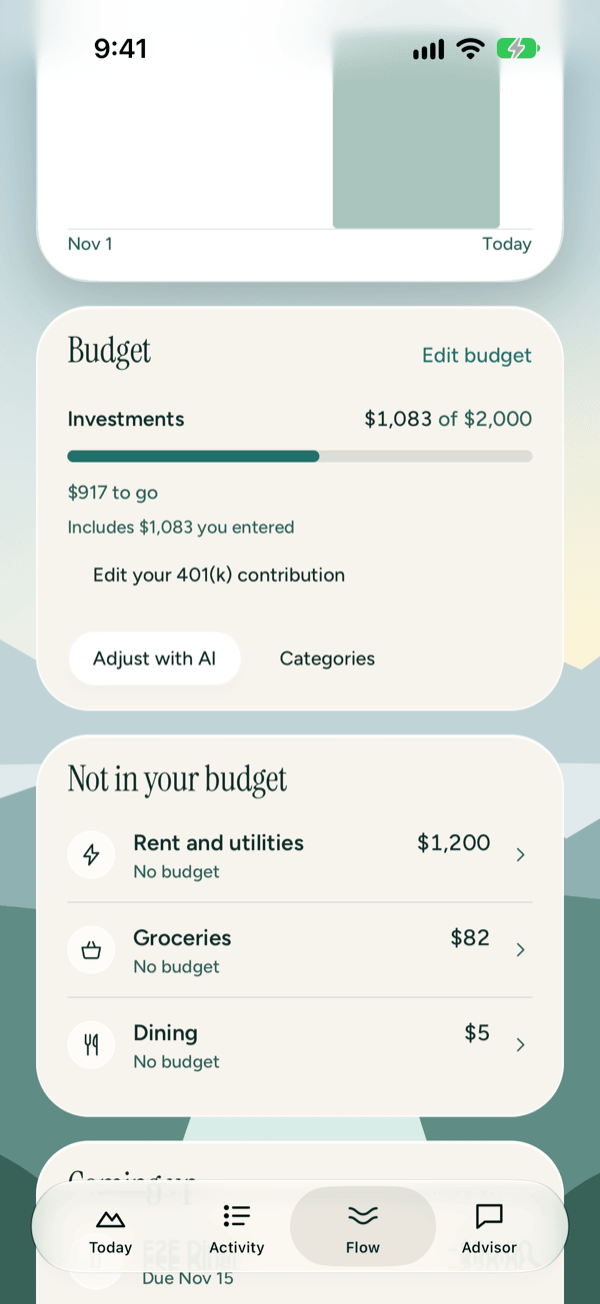
The line then shows Includes $X you entered, the monthly amount. For example, $500 every two weeks counts as $1,083 a month. To change it, tap Edit your 401(k) contribution. To stop counting it, open it and tap Remove contribution.
Your budget carries forward
You don't need to set a budget every month. A month without its own budget uses the most recent earlier one, and Flow says Using that month's budget above your lines.
When you change a budget in a month that's using an earlier one, Prosperia gives that month its own copy first. Earlier months stay as they were.
Zero-based budgeting
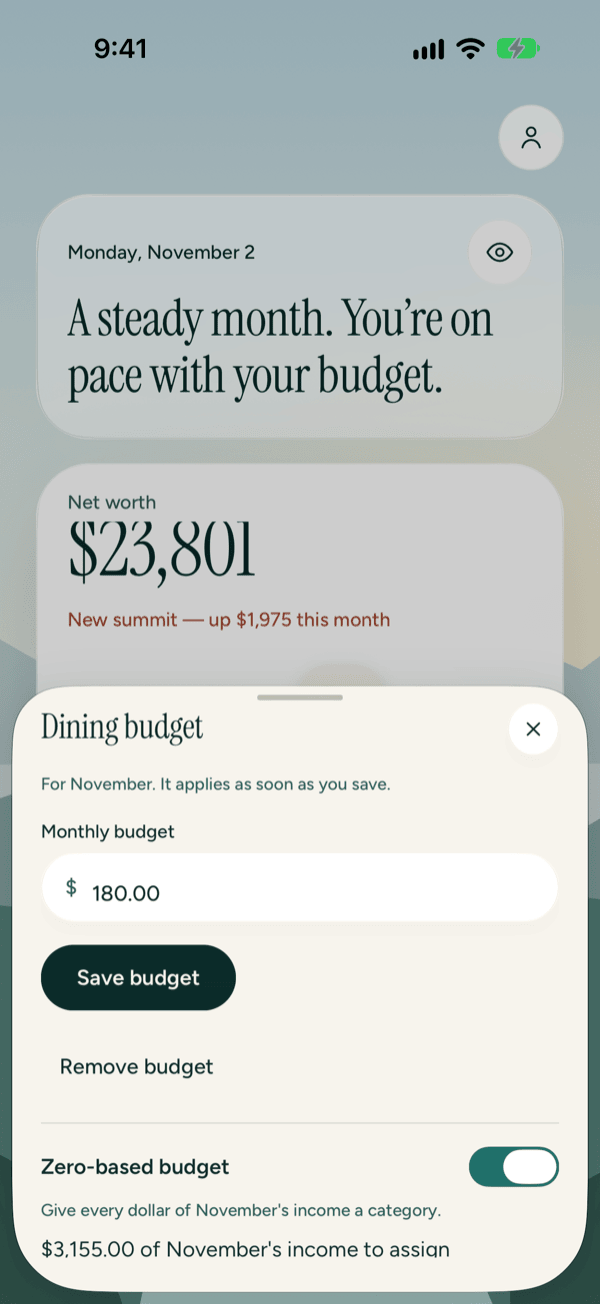
Zero-based budgeting means giving every dollar that comes in a job. It's a setting for the month.
- Open any category's budget sheet (tap Set a budget, or a line and then Edit budget).
- Turn on Zero-based budget.
Under the switch, and under your budget lines on Flow, you'll now see what's left to assign:
- $X of the month's income to assign: you have money in that isn't in a budget line yet.
- Every dollar of the month's income is assigned: you've hit zero.
- $X more assigned than came in: your budget is bigger than what came in this month.
Turn the switch off to go back to a regular budget. Your budget lines stay as they are.
Your grade
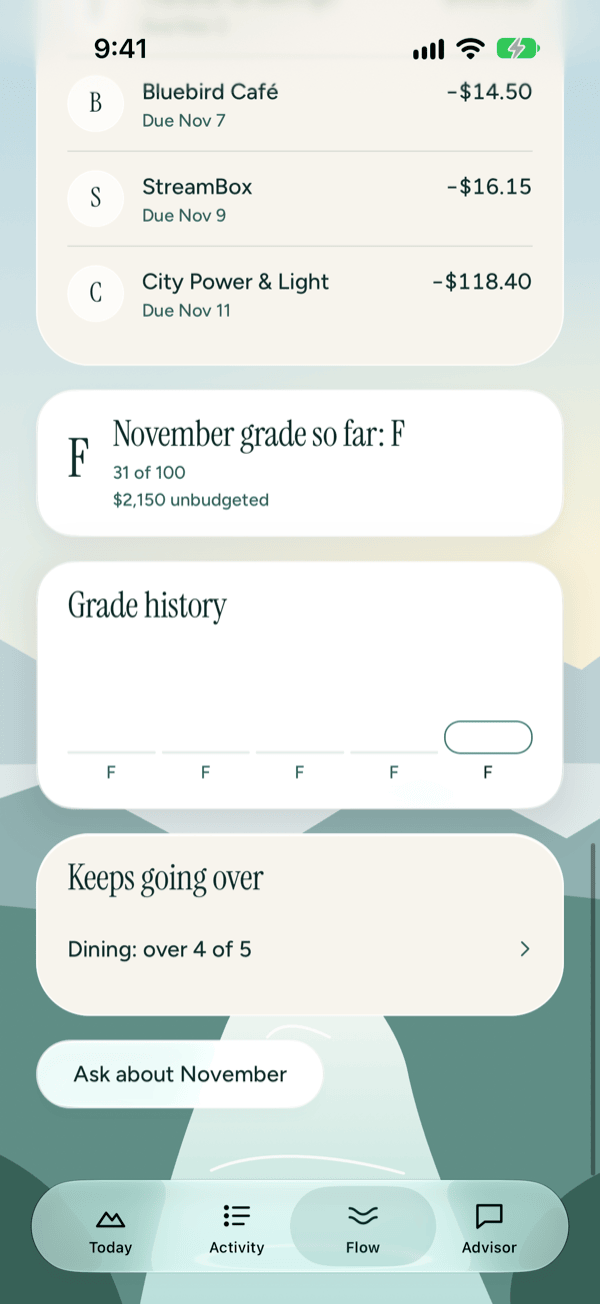
Each month with a budget gets a grade from A to F, with a score out of 100. The card reads, for example, November grade so far: B, with up to two things that cost you the most points, such as "Dining over by $60" or "$140 unbudgeted".
- Staying within a spending budget earns full marks for that line. Going over costs points, more the further over you go.
- Spending in categories with no budget costs points too.
- Savings, investing and debt lines earn points as you work toward their targets. During the month, they're measured against how far through the month you are, so you aren't marked down on the 5th for a goal you'll fill on payday.
A = 90 or more, B = 80 to 89, C = 70 to 79, D = 60 to 69, F = under 60.
The current month's grade is "so far" and will change until the month ends. With no budget, the card says No budget for the month. If there's nothing to grade yet, it says Nothing to grade in the month yet.
Last month's grade
Early in a new month, a card at the top of Flow shows last month's final grade and what cost the most points. Tap Dismiss to hide it.
Grade history and Keeps going over
Grade history shows up to 12 months of grades as bars, with the letter under each. Taller bars mean higher scores. The current month is outlined because its grade isn't final. With VoiceOver, swipe up or down to step through the months. It appears once at least 2 months have a budget.
Keeps going over lists spending categories that went over budget in at least 2 of the last 6 months, such as "Dining: over 3 of 6". Tap one to see it month by month.
Help from Advisor
On iPhones with Apple Intelligence, Flow has a few extra buttons:
- Build my budget with AI (when you don't have a budget) or Adjust with AI (when you do) opens the budget assistant. It suggests a budget from your recent spending, and you can ask for changes in your own words.
- Talk it through on last month's grade card opens the same assistant.
- Ask about the month, at the bottom of Flow, opens Advisor with the question "Where did my money go?" for that month.
The budget assistant never changes your budget on its own. Nothing is saved until you tap Apply, or Edit and then Save budget. Its answers are written from your own numbers, can be wrong, and aren't financial advice. Each one has a badge that says where it was written: On this iPhone or Apple Private Cloud Compute (Apple's secure servers). See Monthly check-in and budget assistant.
Hide amounts
Tap the eye button next to the month name to hide amounts across the whole app. Tap it again to show them.
With amounts hidden, the Spent total reads Amount hidden, the sentence at the top drops its amounts (for example, Spending is over your budget.) and the running-over card just says Over budget. Your bars, pace marks and grades still show, so you can check how you're doing in public without showing what you spend.
If something goes wrong
- Couldn't load your spending. Tap Try again. If it keeps happening, close and reopen Prosperia.
- No spending in the month yet. and Nothing to show yet. You don't have any transactions for this month yet. Add an account or import a file, see Accounts and Importing files.
- Enter an amount like 450 or 450.00. The amount isn't a number Prosperia can read. Type digits, with an optional decimal point and cents.
- Enter 0 or more. Budgets can't be negative.
- Couldn't save the budget. Try again. or Couldn't change the budget. Try again. Nothing was changed. Tap the button again.
- Fix the amounts marked below. In the every-category editor, one or more fields have a problem. Each one says what's wrong.
- Enter more than 0. or Enter an amount like 500 or 500.00. The 401(k) amount needs to be a number above zero.
Good to know
- Works without Apple Intelligence. Budgets, pace, zero-based budgeting, grades and everything else on Flow work on every supported iPhone. Without Apple Intelligence, Build my budget with AI, Adjust with AI, Talk it through and Ask about the month are hidden.
- Some things show on the current month only: days left, the pace mark, Coming up and last month's grade card.
- The 401(k) button appears only under an Investments budget line.
- Income and transfers can't have a budget. Every other category can, including ones you create in Categories. See Spending and categories.
- The same view elsewhere. Tapping Money out on Today opens this same month view as its own screen, with a back button.
Still stuck? See Troubleshooting and contact, or write to support@stewmore.dev.