Troubleshooting and contact
What each warning in Prosperia means, how to fix it, and how to reach us.
On this page
This page explains the messages Prosperia may show when something goes wrong, and what to do about each one. Most fixes take a tap or two. If none of this helps, write to us.
When Prosperia opens
Prosperia shows its logo for a moment while it opens your encrypted data. If it can't finish, you'll see one of these in place of the app.
"Prosperia can't open securely"
The full message reads: "This build can't encrypt your data, so Prosperia won't open it. Install the App Store version." Prosperia refuses to run without encryption, so it stops here on purpose. Delete this copy and install Prosperia from the App Store.
"Prosperia couldn't open your data"
- Close Prosperia: swipe up from the bottom of the screen, then swipe Prosperia away.
- Open it again.
If you keep seeing this message, contact us.
"Update Prosperia"
The full message reads: "This version can no longer connect to your banks. Install the latest version from the App Store." Tap Open the App Store, update Prosperia, then open it again. Nothing else in the app works until you update.
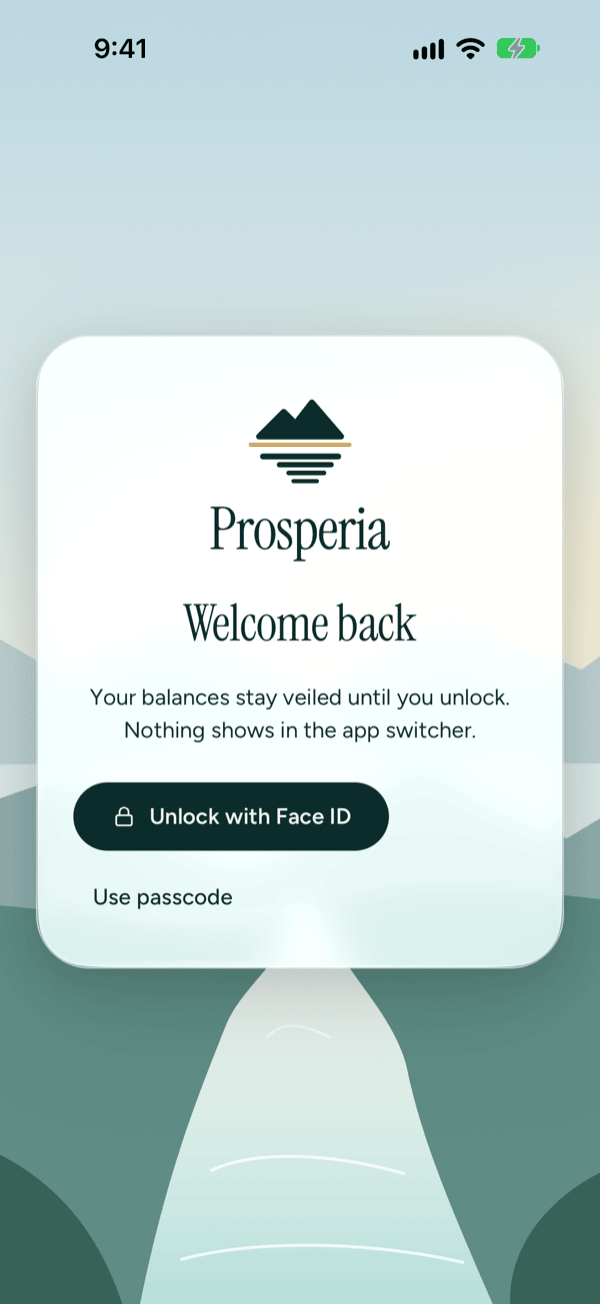
"Welcome back"
This is the app lock, not an error. Tap Unlock with Face ID or Use passcode; either one brings up Face ID, and iOS offers your iPhone passcode if Face ID doesn't work. See Privacy Center.
"Couldn't load" and Try again
Sometimes a screen can't read part of your data. You'll see a short message that says what failed, such as "Couldn't load your numbers." or "Prosperia couldn't load your accounts.", with a Try again button under it.
- Tap Try again.
- If the message comes back, close Prosperia and open it again.
Your data isn't lost. The screen just couldn't read it that time.
When a save fails, the message usually ends with "Try again", for example "Couldn't save the budget. Try again." Make the change again. Nothing was saved the first time.
Bank messages
When a connected bank needs you, or hasn't updated for a day, a card appears on Today, Activity and Accounts. Everything already on this iPhone stays put whichever card you see.
- "[Bank] needs you": tap Reconnect [Bank] on the card (it names your bank, for example Reconnect Chase).
- "[Bank] is out of date": Prosperia is waiting on your bank or the network and will try again on its own.
- "[Bank] stopped syncing": your subscription no longer covers it. Tap Subscribe.
Every reason a card can show, and what to do about each, is in Connecting banks.
If Refresh now on Accounts shows a message or reads Refresh again in N min, wait a few minutes and try again. See Syncing and refresh.
"Couldn't connect your bank" or "Couldn't reconnect your bank"
A pop-up says "Check your connection and try again." if connecting (or reconnecting) fails partway, often because the connection dropped. Make sure you're online, then tap Try again, or tap Not now to try later.
Right after you connect a bank
Once you finish in Plaid, a sheet opens while Prosperia gets your first transactions.
- "This is taking longer than usual." You can close the sheet. Your transactions will show up when they're in.
- "Prosperia couldn't get your transactions yet. You can reconnect from Today." Tap Go to Today and look for the bank's card there. If the bank just isn't answering, the sheet shows that reason instead; there's nothing to reconnect, and Prosperia will try again.
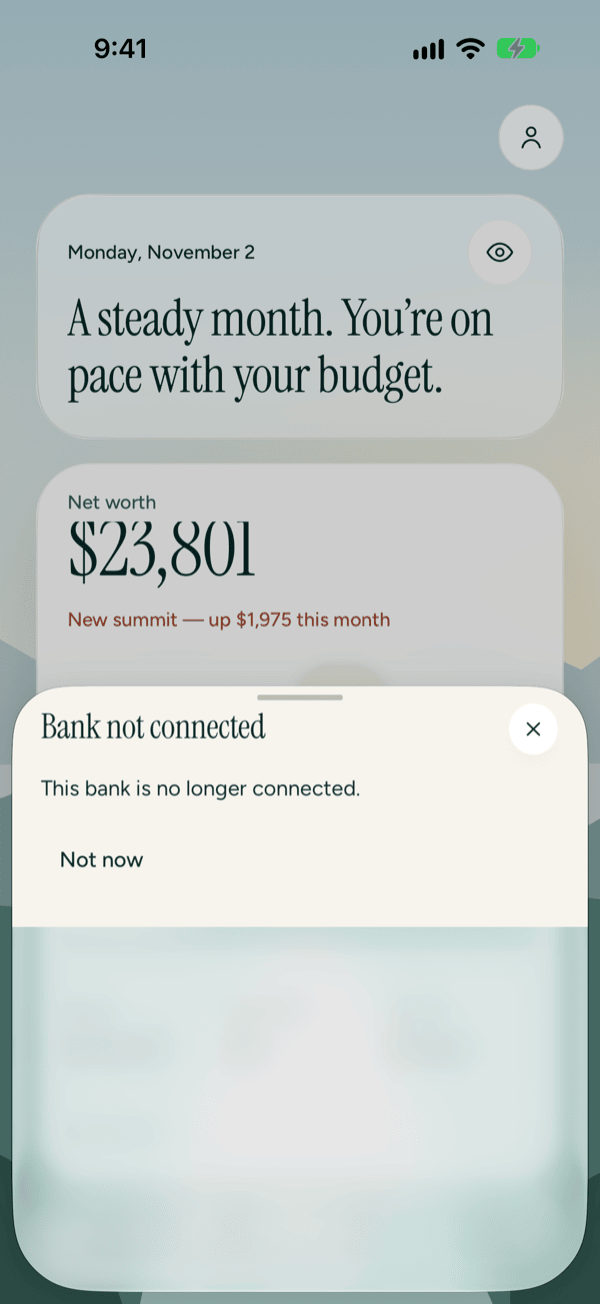
- "Bank not connected": this bank was disconnected. Tap Not now, then connect it again from Accounts. See Connecting banks.
Subscription messages
A subscription covers connected banks, which update through Plaid. It costs $5.99 a month or $49.99 a year, with a 14-day free trial. Budgets, file imports, accounts you add by hand, bills, debt payoff, export and AI on this iPhone stay free. See Subscription.
"[Bank] stopped syncing"
Your subscription no longer covers this bank (its Privacy Center row says "Subscription ended"). Tap Subscribe on the card, or Restore Purchases if you already pay. See If your subscription ends.
"Your subscription couldn't be confirmed"
The App Store hasn't confirmed it yet, often just after you subscribe. Wait a few minutes, or tap Subscribe, then Restore Purchases. See Your subscription couldn't be confirmed.
Importing a file
See Importing files for the full steps.
- "We couldn't read this file. Choose a CSV, OFX or QFX file from your bank." The file isn't one Prosperia can read. Download it from your bank again and choose CSV, OFX or QFX. On the Import a file screen, How do I get a CSV from my bank? explains where to find the download.
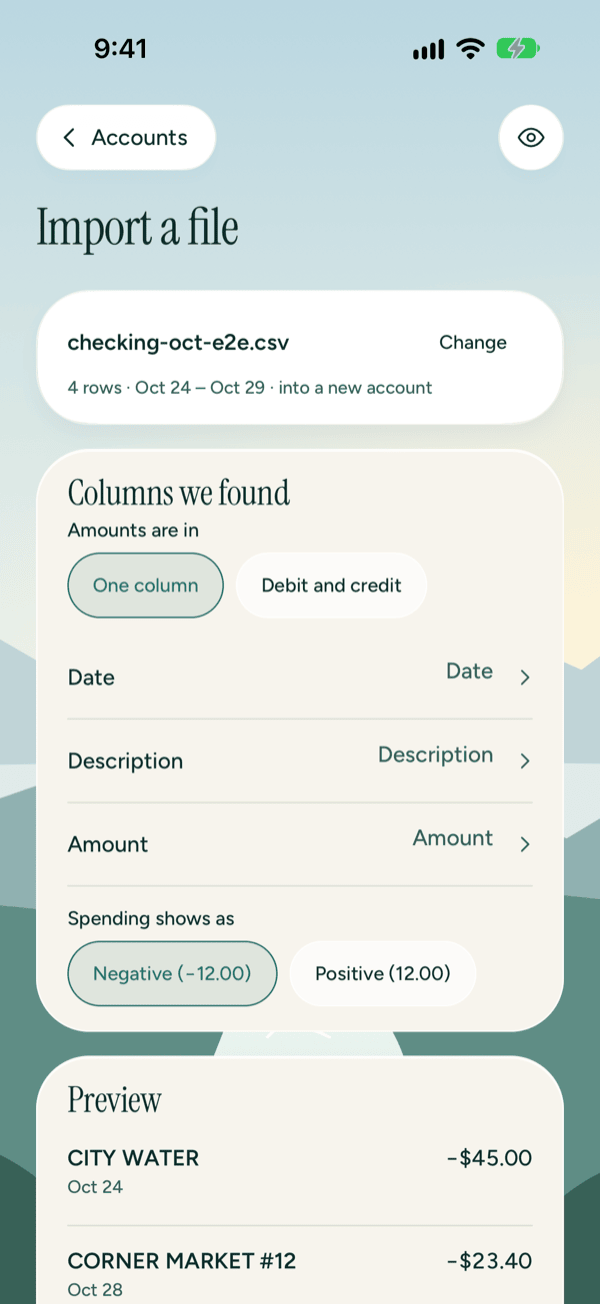
- "We couldn't read any rows in this file. Check the columns above." Prosperia is reading the wrong columns. Under Columns we found, tap Date, Description and Amount and pick the right column for each.
- Amounts look backwards. Banks write spending as negative or positive numbers. Under Spending shows as, pick the other choice and check the Preview.
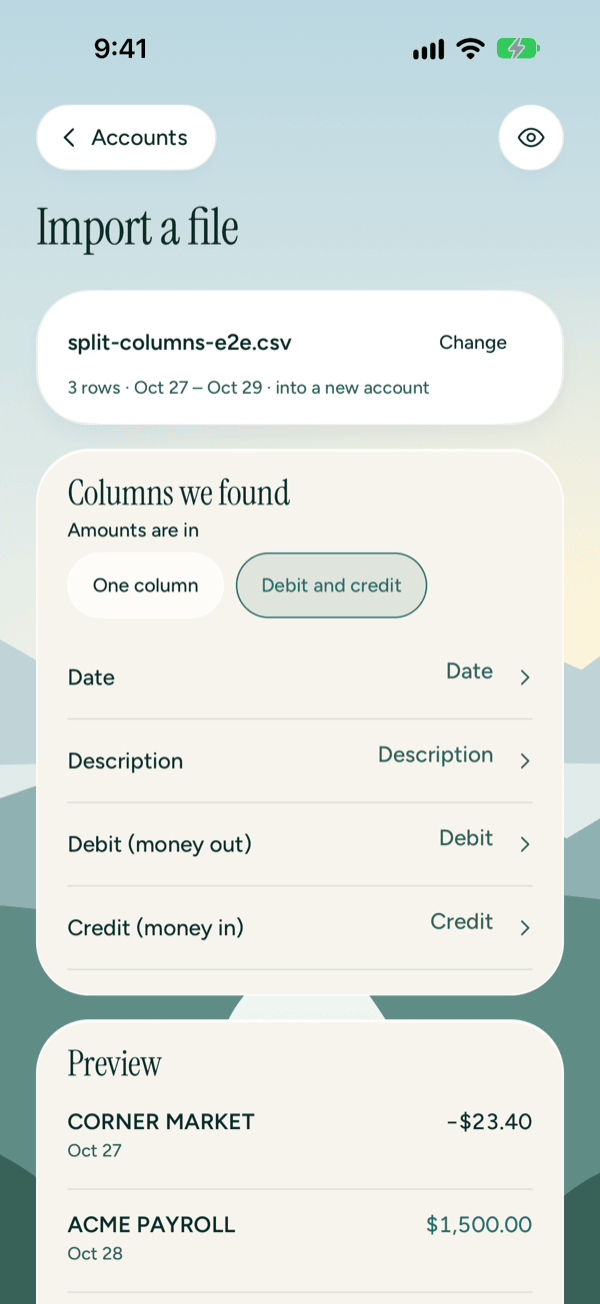
- Your file has Debit and Credit columns. Under Amounts are in, tap Debit and credit, then pick the column for Debit (money out) and Credit (money in).
- "Couldn't import the file. Try again." Nothing was saved. Tap the button again.
Importing the same file into the same account twice never adds duplicates. To add new rows to an account you already imported, open that account and use Check against bank rather than importing into a new account again.
When you check against your bank
If the Compare screen shows a message, check the list and tap Finish again; nothing is saved until it succeeds. See Check an account against your bank.
Advisor is missing or can't answer
There's no Advisor tab
Advisor needs Apple Intelligence. Without it, the tab bar shows only Today, Activity and Flow. To get Advisor:
- Check that your iPhone supports Apple Intelligence.
- Open the iPhone Settings app and go to Apple Intelligence & Siri.
- Turn Apple Intelligence on and wait for it to finish downloading.
- Open Prosperia again.
Budgets, bills, imports and everything else work without Apple Intelligence. The monthly check-in summary and budget drafts need it too. Without it, they don't appear on the check-in. If Apple Intelligence turns off while you're using them, you'll see "Summaries need Apple Intelligence. Turn it on in Settings › Apple Intelligence & Siri." (or the same for budget drafts).
Advisor messages
- "Prosperia couldn't answer that. Try again." Ask again, or ask in simpler words.
- "Stopped." You tapped Stop. Ask again for a full answer.
- "You've used today's longer answers. Quick answers on this iPhone still work." Apple limits how many Apple Private Cloud Compute (Apple's secure servers) answers you get each day. Keep asking; answers worked out on this iPhone still come through. See Longer answers have a limit.
- "Apple Private Cloud Compute isn't available right now. Try again in a moment." Wait a moment and ask again.
- "Amounts hidden" with Show answer: Hide amounts is on. Tap Show answer to read this one, or turn Hide amounts off.
Advisor's answers are written by AI from your own numbers. They can be wrong, and they aren't financial advice. Tap Why this answer to see what an answer used. See Advisor.
A transaction has the wrong category
- In Activity, tap the transaction.
- Tap its category and pick the right one.
- Leave Always use this for (followed by the merchant name) on to make it a rule for that merchant, so matching transactions change too.
See Change a category.
Contact us
Write to support@stewmore.dev and tell us what you were doing and the exact message you saw.
Please don't send account numbers, balances, statements or screenshots that show your money. We never need them to help, and your financial data lives on your iPhone, not with us.
For privacy questions or requests, write to privacy@stewmore.dev.
Good to know
- Bank messages only appear for banks you connected through Plaid. Accounts you add by hand or from a file never need reconnecting.
- Connecting and syncing banks needs a subscription and an internet connection. Budgets, imports and accounts you add by hand work offline.
- Advisor, the monthly check-in summary and Ask box, budget drafts and the budget assistant need Apple Intelligence.
- Longer Advisor answers through Apple Private Cloud Compute need iOS 27.
- The app lock appears only if you turned on Lock with Face ID.
Still stuck? Write to support@stewmore.dev.